Token inquiry
'Token Inquiry' is a feature that looks up the device token information stored on the push server by Player ID. Check the full string of a token you look up, and send a test push to that single token.
➡️ Console path: Push Notification > Token Inquiry
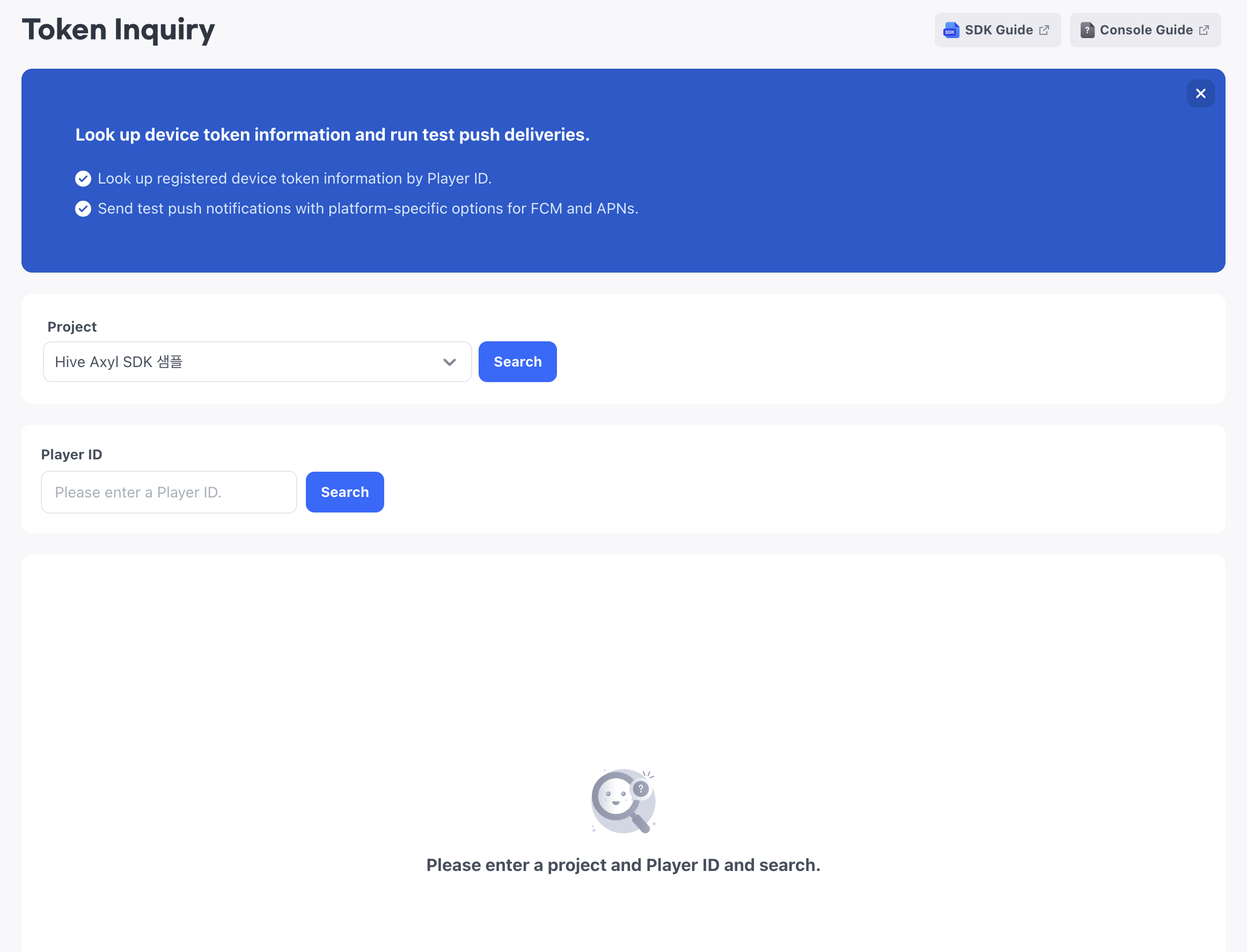
If you have menu permission, you can access the menu, search, and view tokens. To send tests and cancel, you need edit permission.
Look up tokens
Select a project, and then enter a Player ID to look up token information. One Player ID can have multiple tokens.
Token information
| Item | Description |
|---|---|
| Provider Type | Shows one of FCM, APNS, and APNS_SANDBOX. If there is no value, - is shown. |
| App ID | The App ID the token belongs to. |
| SDK Version | The Hive Axyl SDK version. |
| Informational notifications | Shows whether the user receives service notifications as Y or N. |
| Ad notifications | Shows whether the user receives advertising notifications as Y or N. |
| Nighttime ad notifications | Shows whether the user receives nighttime advertising notifications as Y or N. |
| Updated at | The time the token was last updated. Token information is sorted by update time in descending order. |
How to set up
- Go to Token Inquiry.
- Select a project.
- Enter the Player ID and click Search.
- Check the token information that is retrieved.
Check token details
Click View in the token list to open the Token details slide sheet. Check the full token string in the slide sheet.
How to set up
- In the token list, click View for the token to check.
- Check the full token string in the Token details slide sheet.
Send a test push
Test sending is a feature for operational checks and works only on a single token. It runs separately from actual campaign sending, and test sending results are not saved.
The informational, advertising, and nighttime advertising notification settings do not apply to test sends.
(Image to be added: Test send slide sheet)
Message and options
| Item | Description |
|---|---|
| Title | Enter up to 240 characters. |
| Body | Enter up to 420 characters. |
| Image URL | Optionally enter up to 512 characters. |
| Sound | Select default or custom. If you select custom, enter a sound file name of up to 128 characters. |
| FCM options | Set the icon, priority, overwrite, click action, channel ID, and custom data. |
| APNs options | Set the badge and category. |
Platform-specific options apply only to the corresponding OS. Options you do not set are sent with their default values.
Custom data
Enter the Key and Value of custom data as strings. Keys cannot be duplicated, and you cannot save an empty Key or Value.
How to set up
- In the token list, click Send for the token to test.
- In the Test send slide sheet, enter the title, body, image URL, and platform-specific options.
- Click Send. If the send request is accepted, the message "The test push request has been received." appears.
If the send request fails, one of the following messages appears depending on the cause: "The test send failed. Try again later.", "There is no registered push token.", "This provider does not support test sends.", "The credentials required to send pushes are not set.", or "You cannot send a test push because you do not have push sending permission."