Login Settings
Complete the App ID issuance and login settings first to create a community and web shop.
Issue Web Login App ID
The start of community and web shop operation is issuing an App ID. Open the service by configuring login methods, payment methods, and product information based on the generated App ID. Issue an App ID in [App Center > App ID Management].
➡️ Console Path: App Center > App ID Management > [New App ID] Button
How to configure:
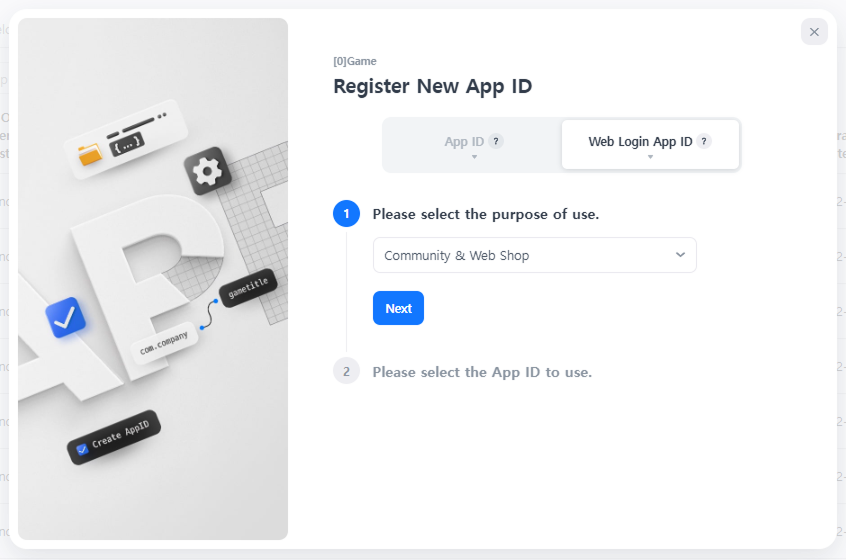
- Select the project to open a community or web shop and click the [Register New App ID] button.
- Select 'Community & Web Shop' as the purpose of use in the 'Web Login App ID' tab and click the [Next] button.
- Select the App ID to use and click the [Next] button to generate the App ID.
- Check com.companyname.appname.pcweb.community in the App ID list. This App ID is used as a unique identifier for login, payment, product information, and web shop settings.
Login Settings
Set the login authentication methods to use in the community or web shop in [Console > Authentication > Authentication Environment Settings > Login Settings]. Auto-login is supported when entering the game, but separate web login settings are required on PC or mobile web browsers.
For more details, refer to the Authentication Guide.
Next Steps
- Web Shop: Proceed with payment settings for product purchases. Learn more
- Community: Since payment settings are not required, proceed with site settings for community creation. Learn more