Web Shop Settings
Configure the basic information, screen layout, and common product options required to open and operate a web shop.
➡️ Console Path: Community & Web Shop > Web Shop > Web Shop Settings
Service Settings
Configure the service status and payment environment settings of the web shop. 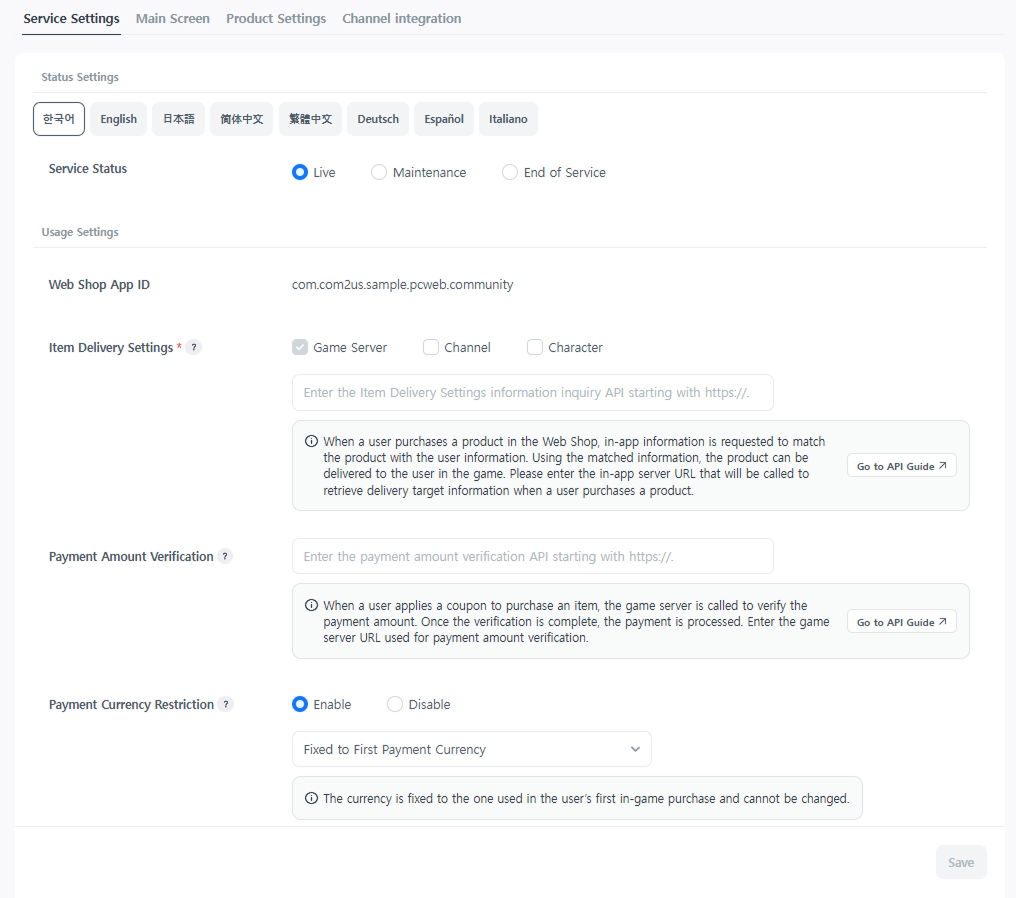
Status Settings
- Service Status: Change the service status of the web shop by language. Freely enter the text for the description and remarks displayed in the 'Maintenance' or 'End of Service' states.
- Live Status: A normally functioning web shop site is displayed.
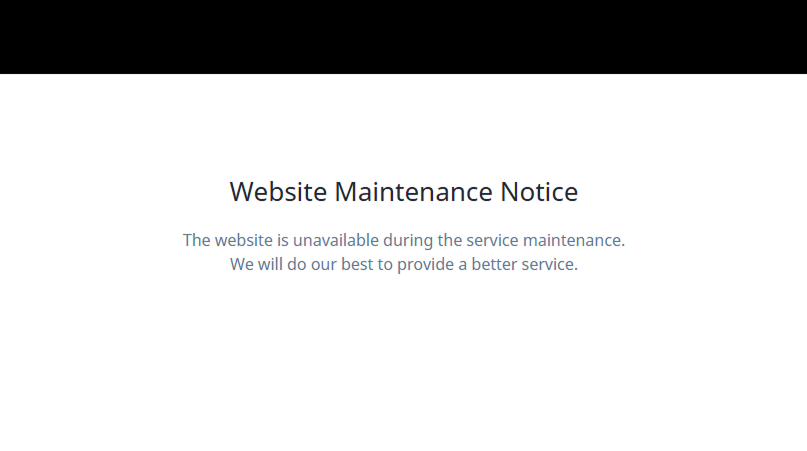
- Maintenance Status: A site maintenance notice page is displayed.
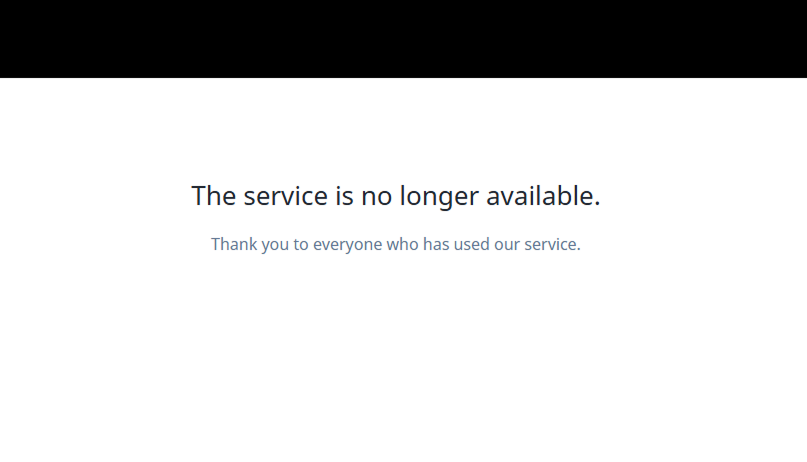
- End of Service Status: A service closure notice page is displayed.
Usage Settings
- Web Shop App ID: The web login App ID created in the login settings is automatically selected.
- Recipient Information: Select whether to include in-app information (channel, character) to be exposed to users when purchasing products, and enter the URL of the prepared Recipient Information Inquiry API.
- For descriptions of other features, refer to the Web Shop Operation Management guide.
Main Screen
Register image assets or configure features exposed on the main screen of the web shop. 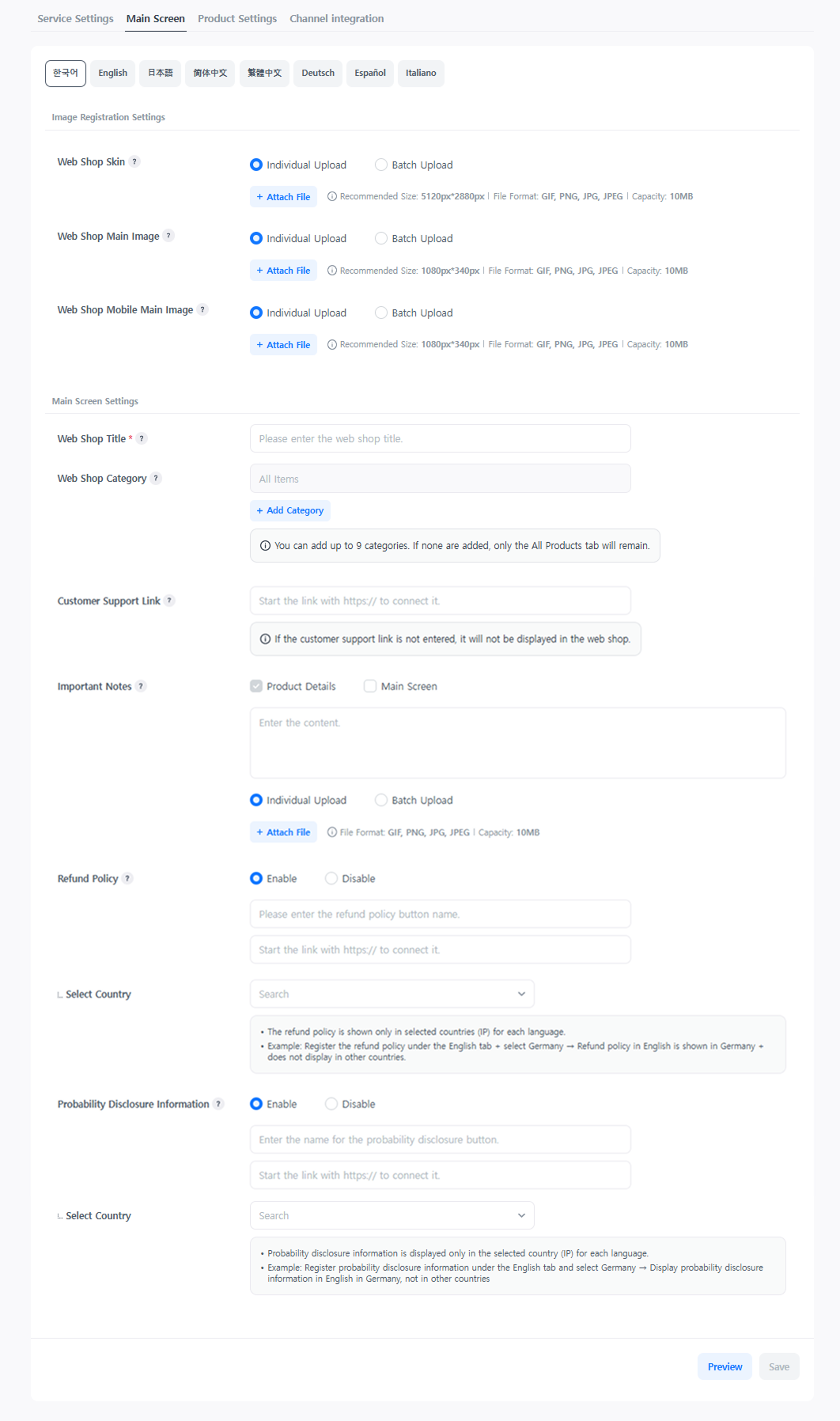
Image Registration Settings
- Web Shop Skin: Set the image that forms the background of the web shop site.
- Web Shop Main Image: Set the representative image for the web shop PC site.
- Web Shop Mobile Main Image: Set the representative image for the web shop mobile site.
Main Screen Settings
- Web Shop Title: Edit the title on the web shop main page.
- Web Shop Category: Set web shop categories to classify products.
- Customer Support Link: Set the customer support link to be exposed on the purchase history page.
- Precautions: Set precautions to be exposed at the bottom of the product page and the bottom of the main screen in the web shop. Images can be batch-registered by language.
- Refund Policy: Set the refund policy to be exposed at the bottom of the web shop. Specify the button name, guide page URI, and countries to expose it to.
- Probability Disclosure Information: Set the probability disclosure information to be exposed at the bottom of the web shop. Specify the button name, guide page URI, and countries to expose it to.
Product Settings
Configure common product-related properties that will be applied across the entire web shop. 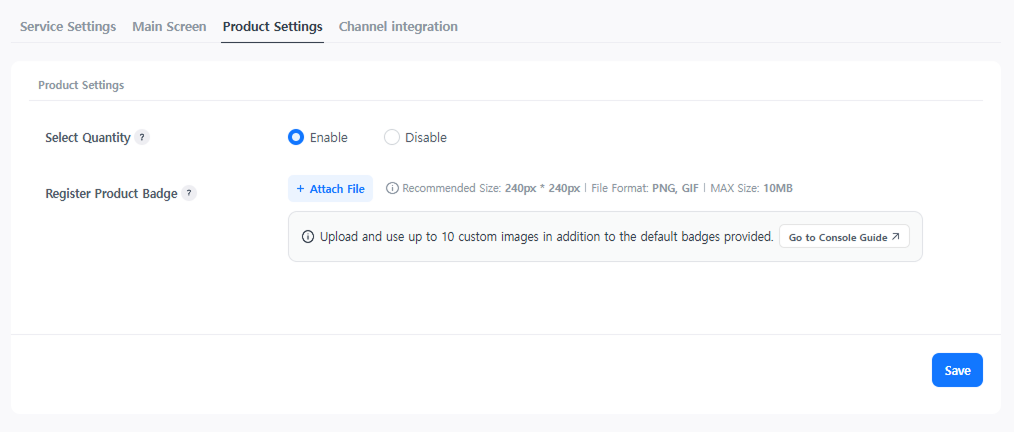
-
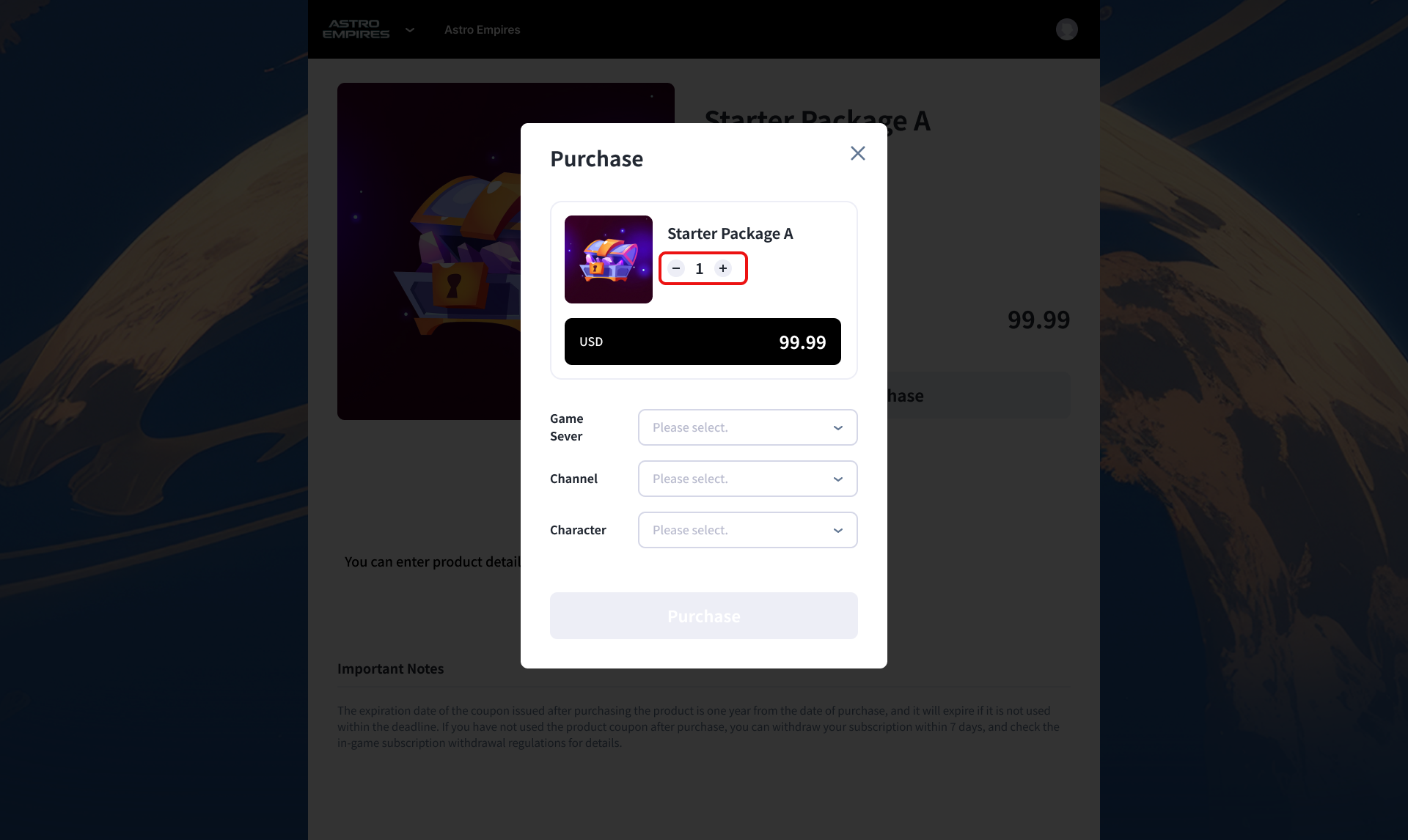
Quantity Selection: A feature that allows users to directly select the quantity using the - / + buttons. If not used, only 1 product can be purchased per transaction.
-
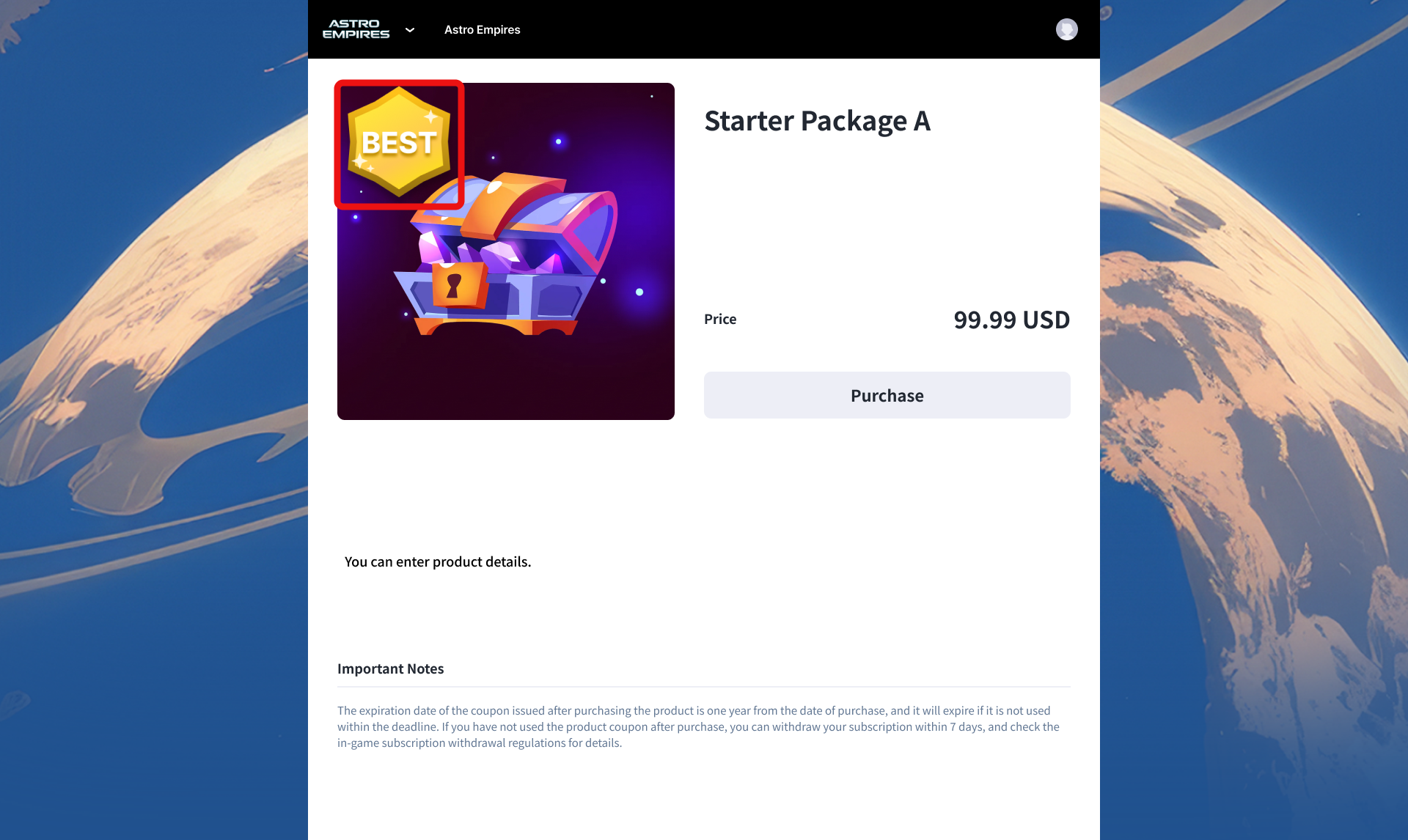
Register Product Badge: Register custom-made images as badges to highlight products.
Next Steps
Select the products to be displayed in the web shop and register product information. Learn more