User lookup
'User lookup' is the screen where you search user accounts in the selected project and check their account creation information and linked login methods.
➡️ Console path: Account & Authentication > User Lookup
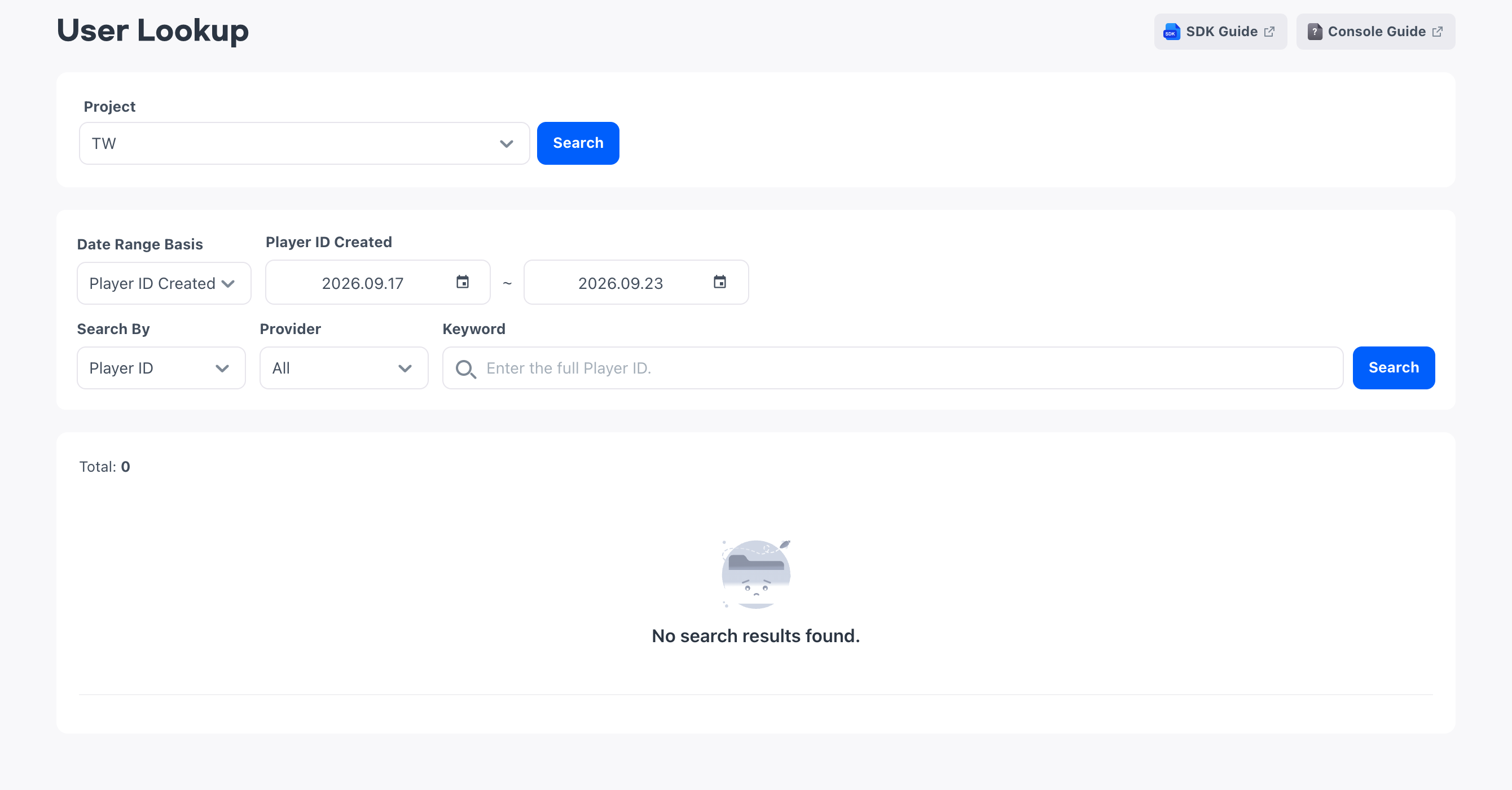
You look up accounts per project.
Default search
When you search for the first time, the last 7 days including today are applied based on Player ID Created. To change the conditions, edit the search conditions shown on the screen and select Search again.
Search conditions
Choose Player ID or Username as the search condition to find an account exactly. The Player ID is a numeric identifier that distinguishes user accounts. The username is the ID the user created in the app for username login, and accounts that have never logged in this way have no value.
Both conditions require the full value, and partial string search is not supported.
Even if you do not enter a keyword, the list of accounts that match the period condition is retrieved.
Login method condition
Provider is a login method linked to a Player ID. If you select All, no Provider condition is applied. If you select a specific Provider, only accounts linked to that Provider are displayed. One Player ID can have multiple Providers linked. For which account each login method uses, see Login method types.
The Providers you can choose include Custom in addition to the seven login methods managed in Login settings. Custom is a custom account that the app server issues with its own authentication system, and it is not an item you turn on or off in Login settings.
If you specify both a keyword and a Provider, only accounts that meet both conditions are retrieved.
If you choose Guest, accounts that can currently use guest login are retrieved.
Search period
The search period is applied based on either Player ID Created or Provider Linked. Even the same account may or may not appear in the results depending on the basis you choose, so choose it according to whether the time you are looking for is when the account was created or when the login method was linked. The accounts included in the results for each date range basis are as follows.
- Player ID Created: Accounts whose Player ID was first created in the specified period
- Provider Linked: Accounts that linked a Provider in the specified period
The search period is up to 31 days, and you cannot omit the period or search without a period limit.
The period condition also applies even when you specify a keyword or Provider. If the account you are looking for is not in the results, change the date range basis or move the period and search again.
Search procedure
When you specify the search conditions and period in the following order, only accounts that match the conditions are displayed.
How to set up:
- To find a specific account, choose Player ID or Username as the search condition and enter a keyword.
- To find only accounts linked to a specific login method, choose a Provider.
- Choose Player ID Created or Provider Linked as the date range basis.
- Specify the start date and end date according to the date range basis you chose.
- Select Search.
Check the query results
In the search results, you check the Player ID that identifies an account together with the login methods linked to that account. The results show the following items.
- Player ID: A numeric identifier that distinguishes user accounts
- Username: The ID the user created in the app. Displayed as
-for accounts without one - Player ID Created: The date and time the Player ID was first created
- Provider: The login methods linked to the Player ID. Multiple Providers are displayed together
- Provider Linked: The date and time the Provider was linked. If there are multiple Providers, they are listed in the same order as in the Provider column
If there are more than 10,000 results, only part of the data is displayed. In this case, shorten the search period or add search conditions and search again.