Mycard
To provide PG payment services through Mycard, configuration is required. You connect and manage the country settings and payment methods based on the App ID.
Preparation Requirements
If you are using the Mycard service for the first time, you need to issue an authentication number (Hash) Key and use it when signing the Mycard contract. If you already have an authentication number (Hash) Key because you have already contracted with MyCard, proceed directly to set up PG.
➡️ Console Path: Billing > Payment Settings > PG Settings > Select App ID > Mycard Settings
-
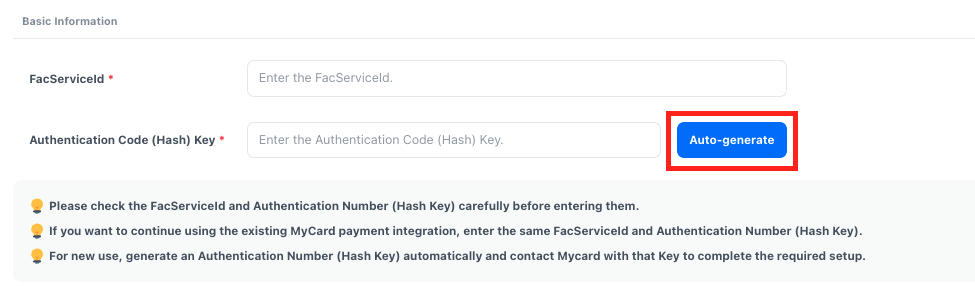
Click the [Auto-generate] button for the authentication number (Hash) key item to generate the key.
-
Copy the generated 'authentication number (Hash) Key' and fill it in the registration form provided by MyCard, then submit it to MyCard.
-
Enter the authentication number (Hash) Key issued from the console, along with the IP, URL, and customer-specific registration information for payment, and submit it to MyCard. The IP and URL information can be utilized by downloading the attached file provided. Download IP&URL Information
-
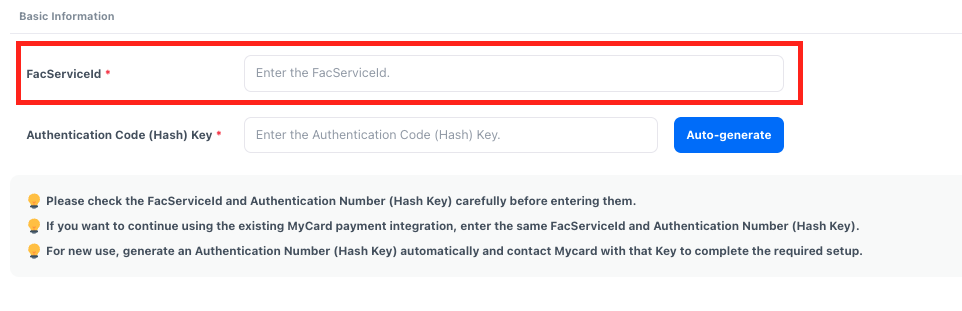
Enter the FaServiceId received from MyCard into the Hive console.
Setting up PG
Connect Mycard information to set up payment methods by service country.
➡️ Console Path: Billing > Payment Settings > PG Settings
-
Click the 'Edit' icon of the App ID that requires PG settings, or select the App ID and click the [Edit] button to go to the PG settings page. To apply the same PG settings to multiple App IDs, select all the desired App IDs and then click the [Edit] button. The same settings will be registered in bulk for the selected App IDs.

-
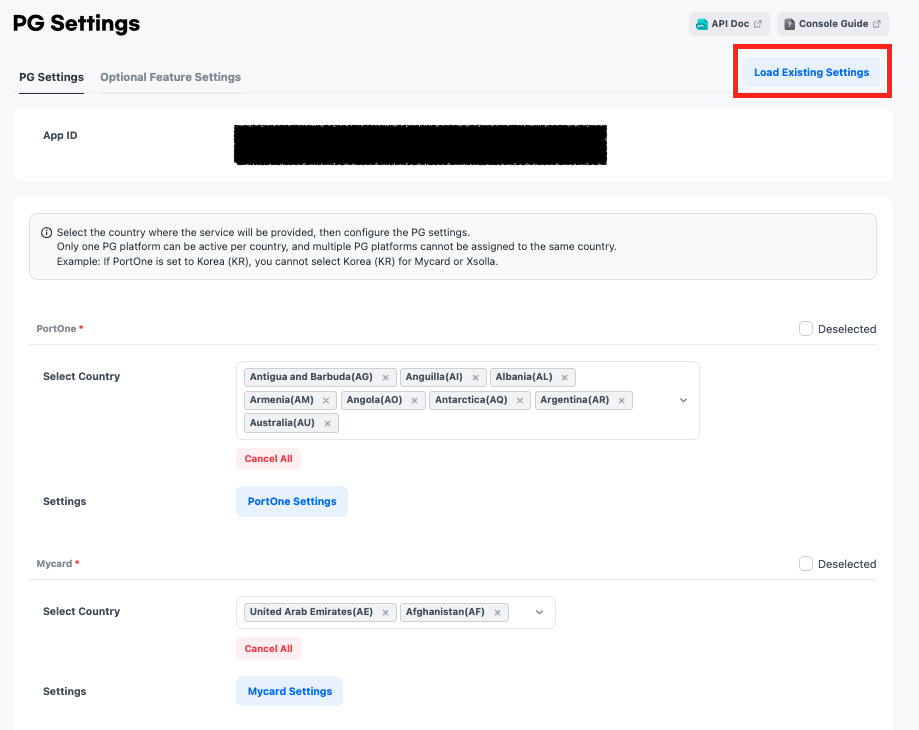
Go to the PG settings page and proceed with the service country and detailed settings. If you want to load and overwrite the PG settings information of another App ID, use the [Load Existing Settings] feature.
-
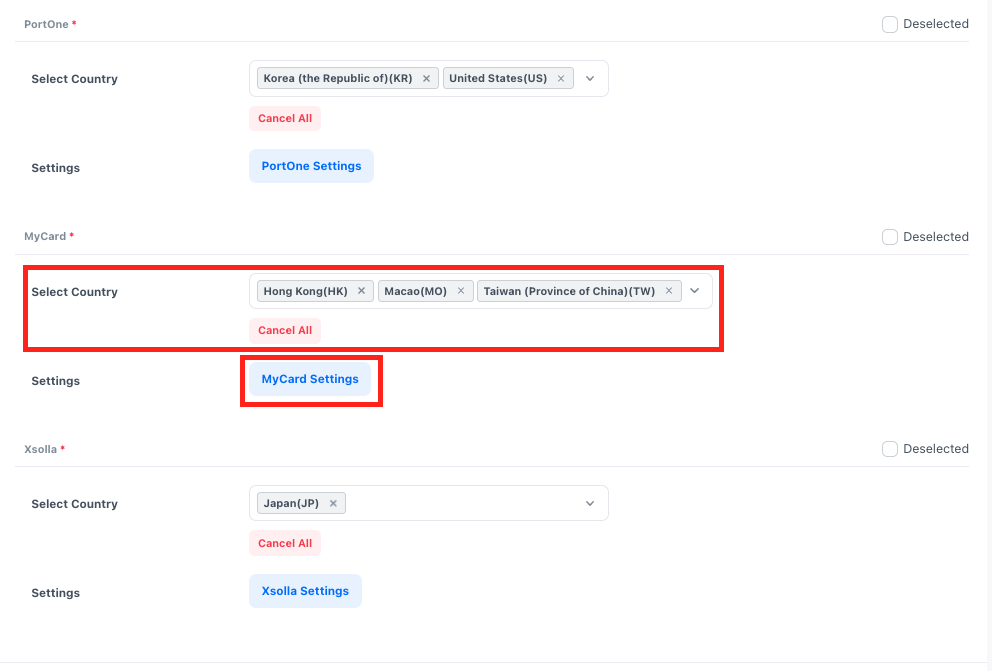
Select the country where Mycard will be serviced.
- One country can only connect to one PG platform. For example, in 'South Korea', you can choose only one PG platform among PortOne, Xsolla, or MyCard to provide services.
- Once the service country settings are complete, click the [Mycard Settings] button to proceed with detailed settings.
-
Proceed with the settings required for Mycard payment integration.
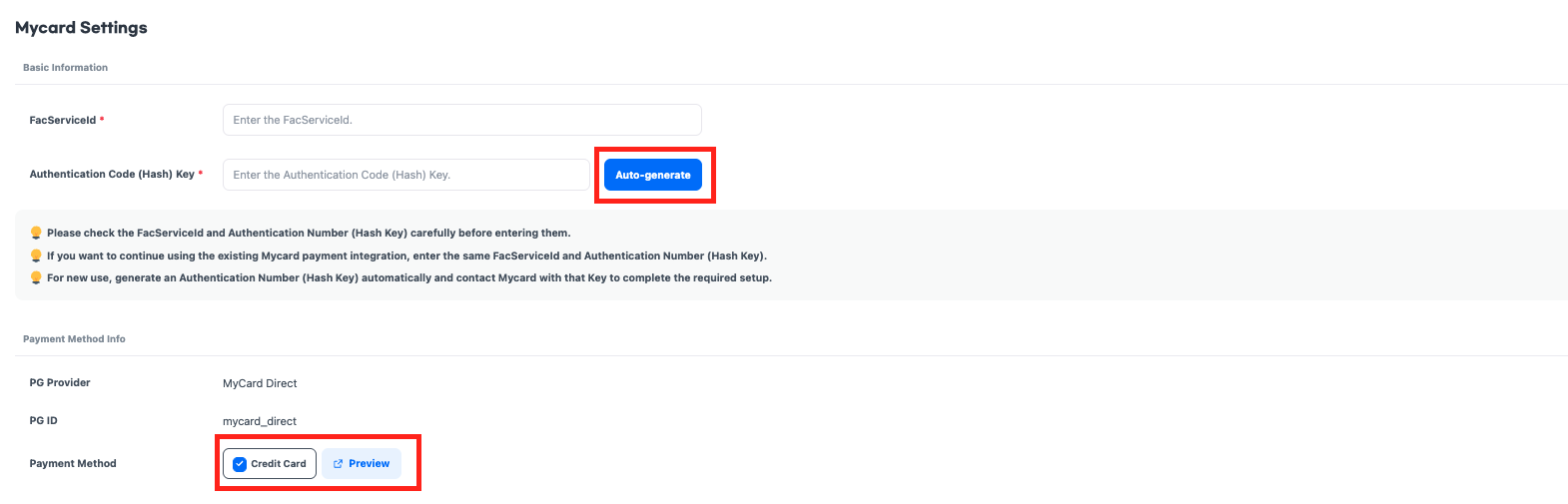
- Select 'Mycard' from the payment method.
- Clicking the [Preview] button will launch the test payment page with the selected payment method. Please check if the payment is processed correctly.
Next Steps
All setup steps for PG payment have been completed.
If you are using Hive SDK version 4.25.1.0 or earlier, or if you are servicing the Hive web store, you must complete the 'Payment Notification Settings' to ensure that all preparations for PG payment services are complete. See more