Xsolla
To provide PG payment services through Xsolla, configuration is required. You manage the countries where the service will be available and connect payment methods based on the App ID.
Preparation Requirements
After signing a contract with Xsolla, you will receive a Project ID and Secret Key.
Setting up PG
You can set up payment methods to be used by service countries by integrating Xsolla information.
➡️ Console Path: Billing > Payment Settings > PG Settings
-
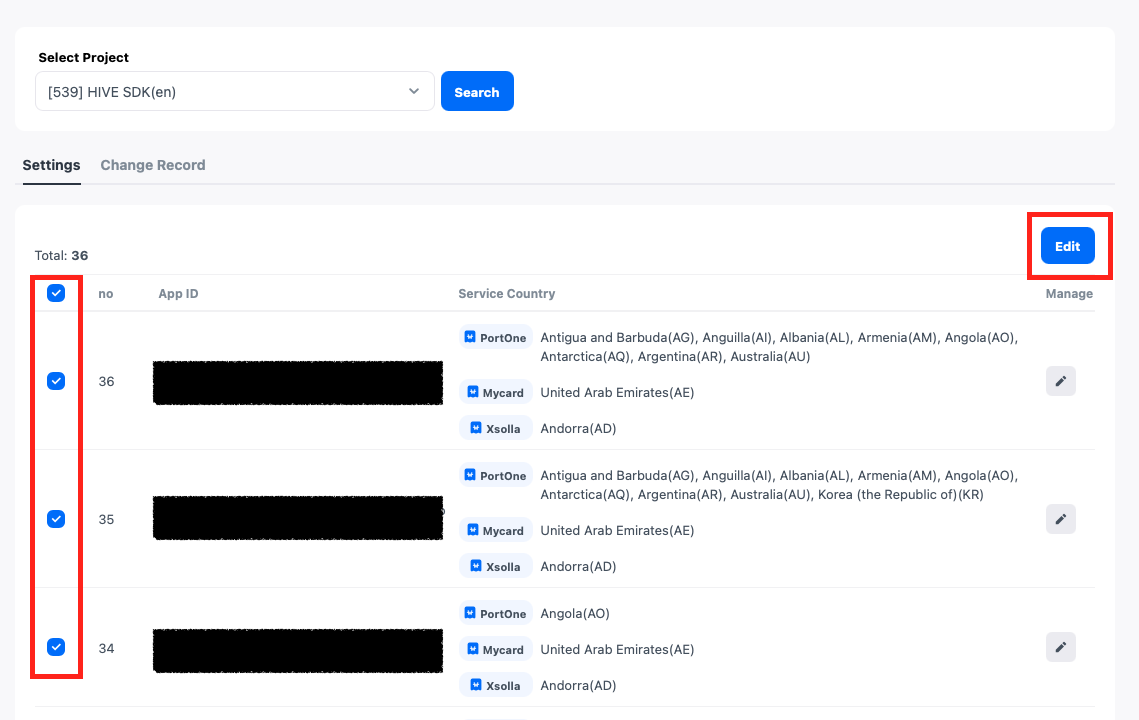
Click the 'Edit' icon of the App ID that requires PG settings, or select the App ID and click the [Edit] button to go to the PG settings page. To apply the same PG settings to multiple App IDs, select all the desired App IDs and then click the [Edit] button. The same settings will be registered in bulk for the selected App IDs.
-
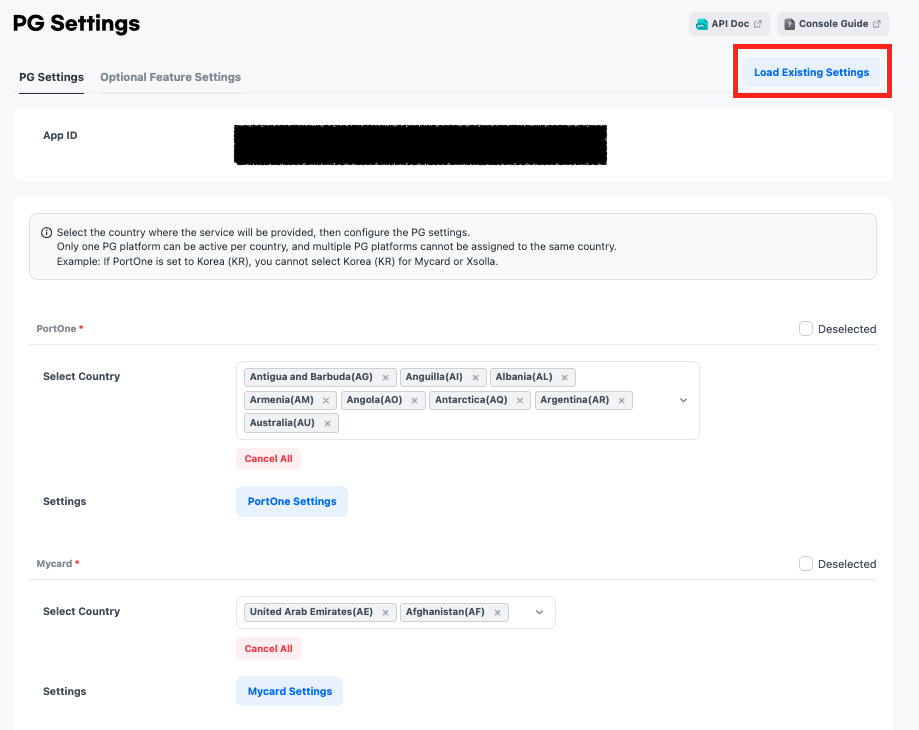
Move to the PG settings page and proceed with the service country and detailed settings. If you want to load and overwrite the PG settings information of another App ID, use the [Load Existing Settings] feature.
-
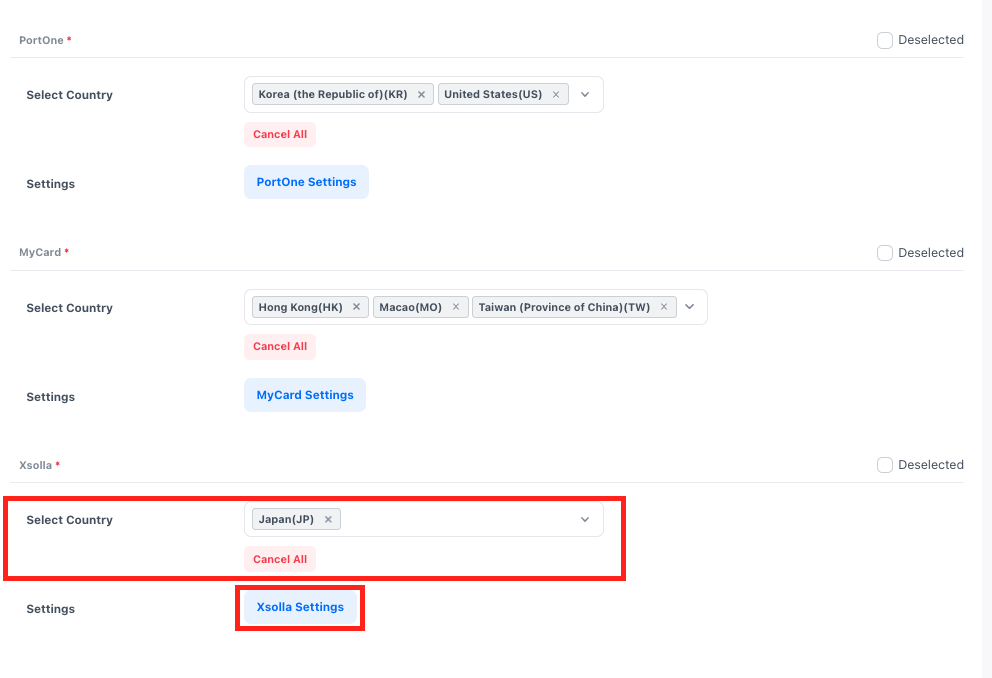
Select the country where you want to provide Xsolla services.
- Only one PG platform can be connected for one country. For example, in 'South Korea', you can choose only one PG platform among PortOne, Xsolla, or MyCard to provide services.
- Once you have finished setting the service country, click the [Xsolla Settings] button to proceed with detailed settings.
-
Enter the basic information required for Xsolla payment integration.
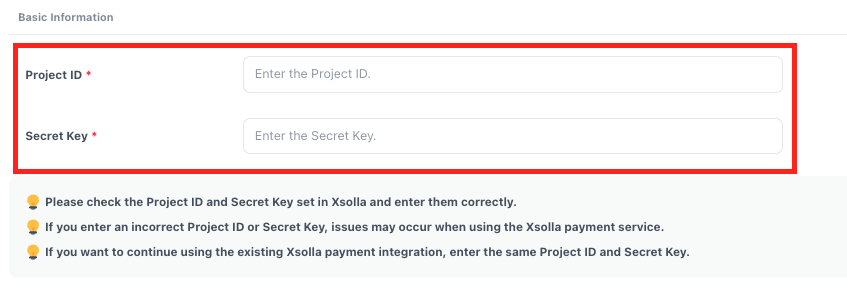
- Access the Xsolla Admin Console > Project Settings > Webhooks > General Settings to check the Project ID and Secret Key information, and enter the same in the Hive console.
[Xsolla Admin Console]
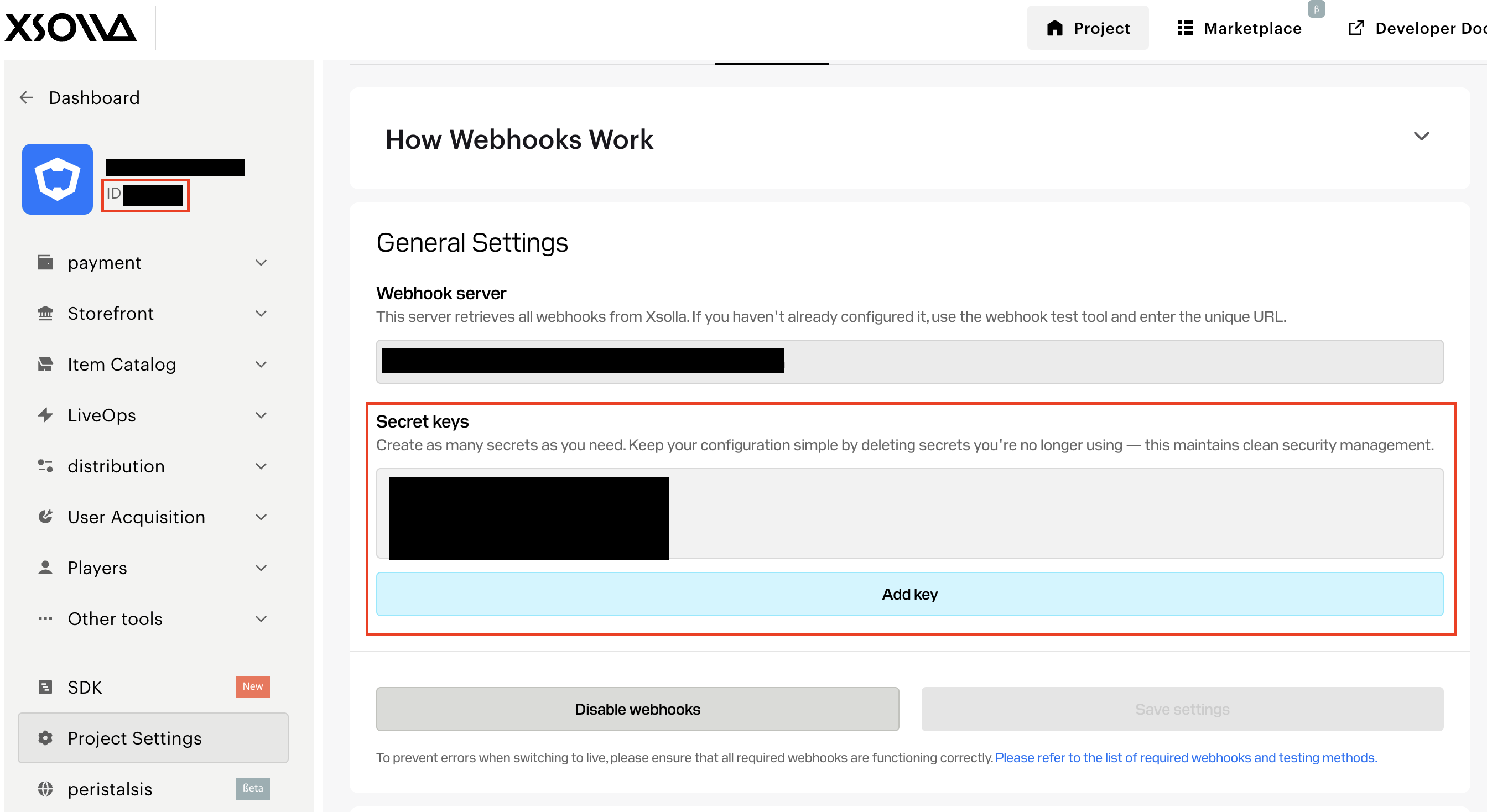
-
Select a country and check the payment methods supported by that country.
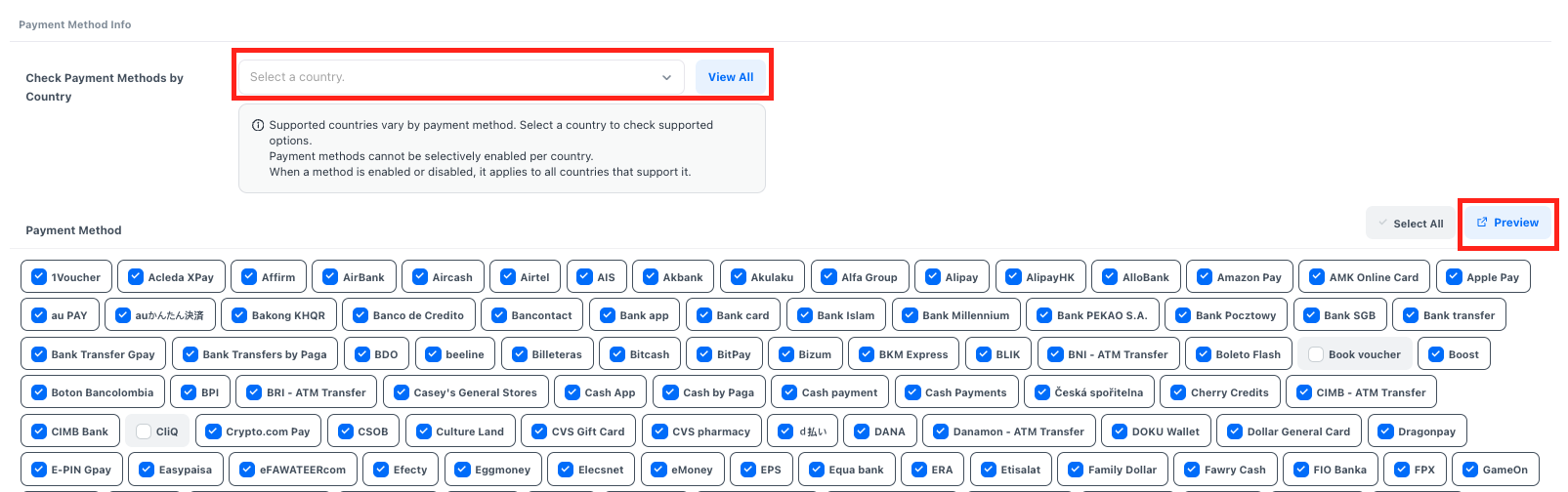
- [Preview] Clicking the button will launch the test payment page with the selected payment method. Please check if the payment is processed correctly.
Next Steps
All setup steps for PG payment have been completed.
If you are using Hive SDK version 4.25.1.0 or lower, or if you are servicing the Hive web store, you must complete the 'Payment Notification Settings' to finalize all preparations for PG payment services. See more