Basic Info Settings
Register image assets, terms and conditions, and footer information, or configure operation features. The configured information is applied commonly to the community and web shop.
➡️ Console Path: Community & Web Shop > Common Settings > Basic Info Settings
Image
Register the image assets to use in the community and web shop according to the items. 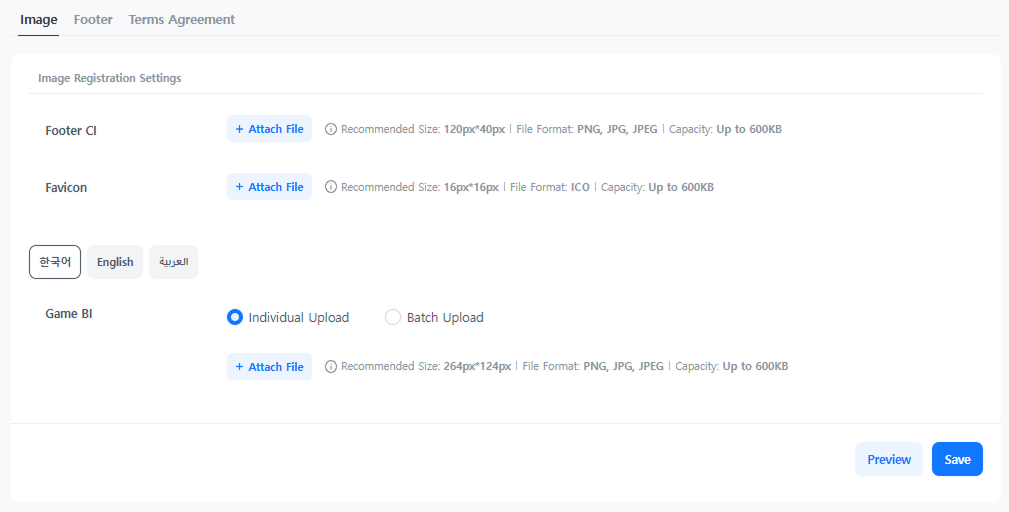
- Footer CI: You can add a company logo or CI image at the bottom of the website (footer).
- Favicon: You can set a small icon displayed on the browser tab. The favicon helps users easily find the game site when multiple tabs are open.
- Game BI: You can set the representative game image displayed at the top or on the main page of the community and web shop.
Footer
Configure the elements to be exposed at the bottom of the website to provide users with information necessary to use the service, such as copyright information, terms and conditions, SNS, and app download links. 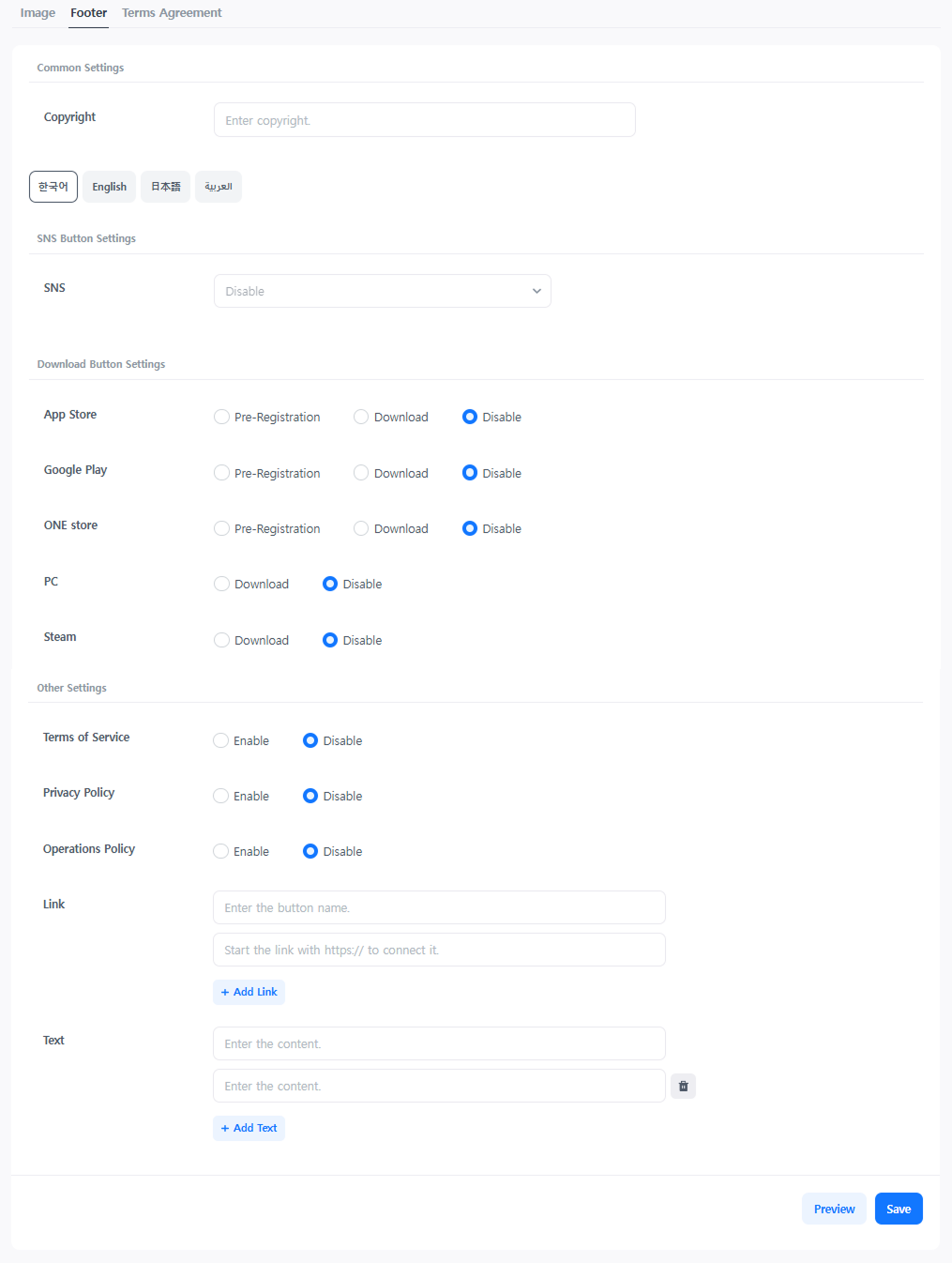
Common Settings
- Copyright: Enter the information to display the copyright at the bottom of the site.
SNS Button Settings
Exposes up to 10 SNS links at the bottom of the site.
- If the SNS link does not work in the in-app webview, please register the allowed domain in Provisioning.
- ➡️Console Path: Provisioning > Webview Access Settings > Allowed Domain

Download Button Settings
Set the 'Pre-register' or 'Download' buttons for the Apple App Store, Google Play, etc. The 'PC Download' and 'PC (Steam) Download' buttons are not exposed on mobile device screens. 
Other Settings
Set the links for Terms of Service, Privacy Policy, Operation Policy, etc. If you are using the terms link provided by Hive, refer to Create Terms Link. 
Terms Agreement
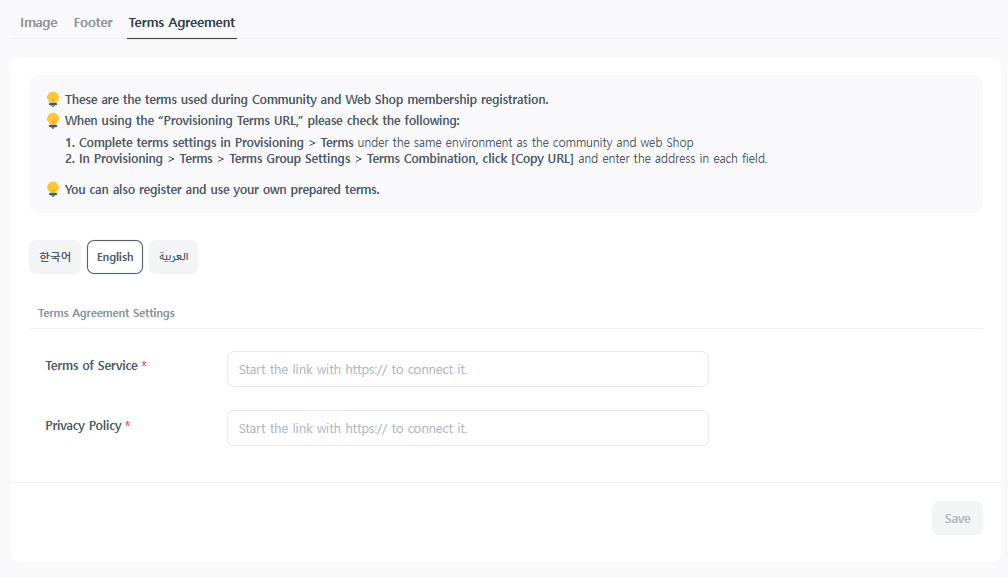
Set the Terms of Service and Privacy Policy that require agreement when signing up for the community or web shop. If you are using the terms link provided by Hive, refer to the Create Terms Link guide to insert the link. If you have a separate consent pop-up link you created yourself, you may use that link.
Next Steps
- Community Settings: Configure community features where game users can communicate and interact. Learn more
- Web Shop Settings: Configure web shop features so that users can purchase products on the web. Learn more