Register new email account
This page explains how to register a new email account for Customer Support.
It uses Gmail as an example and describes how to create a Google app password and register the Gmail account in the Console.
Use an app password
When registering a Gmail account, use an app password instead of the regular password for your Google Account.
To create an app password, 2-Step Verification must be enabled for the Google Account. However, app passwords may not be available depending on the account settings or organization policies.
Create an App Password in Your Google Account
Open Google Account Settings
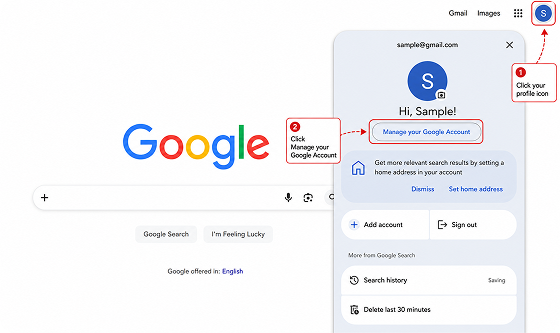
Click the profile icon in the upper-right corner of Google, then click Manage your Google Account.
Set Up 2-Step Verification
On the Google Account settings page, go to Security & sign-in.
In the How you sign in to Google section, click 2-Step Verification.
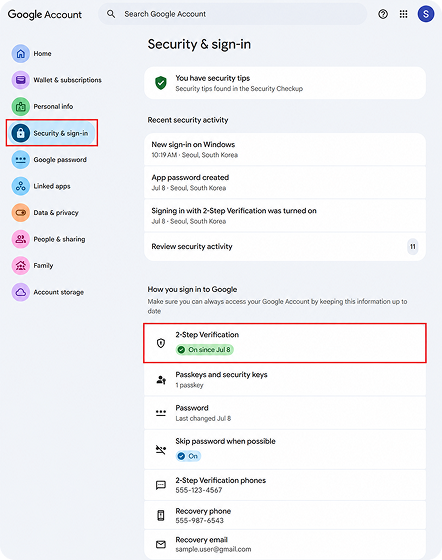
If 2-Step Verification is not enabled, click Enable 2-step verification and follow the on-screen instructions.
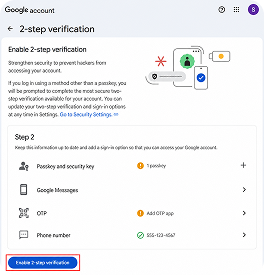
Create an App Password
After setting up 2-Step Verification, go to the app password page.
Enter an app name on the app password page, then create an app password.
App password page: https://myaccount.google.com/apppasswords
Copy the generated 16-digit app password.
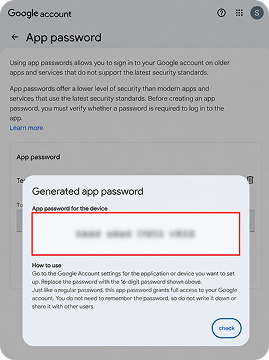
Check the following when creating an app password.
- App passwords cannot be viewed again after they are created. If you lose the password, create a new app password.
- If the message “The setting you are looking for is not available for your account” appears on the app password page, check whether 2-Step Verification is enabled.
- App passwords may not be available if 2-Step Verification is set up only with security keys, or if the account is managed by an organization or enrolled in Advanced Protection.
Register a Gmail Account
Use the app password generated from your Google Account to register the Gmail account.
- Go to
Mail > Mail Account Management, then click Register New Account. - Enter the email address to link and the app password.
- Enter the mail server information.
Enter the following mail server information.
For Receive E-Mail, select IMAP as the Account Type and Not Required as the Security Connection Status.
For Deliver e-mail, select SSL as the Security Connection Status.
| Item | Value |
|---|---|
| Receive E-Mail > Account Type | IMAP |
| Receive E-Mail > Mail Server Name | imap.gmail.com |
| Receive E-Mail > Port | 993 |
| Receive E-Mail > Security Connection Status | Not Required |
| Deliver e-mail > Account Type | SMTP |
| Deliver e-mail > Mail Server Name | smtp.gmail.com |
| Deliver e-mail > Port | 465 |
| Deliver e-mail > Security Connection Status | SSL |
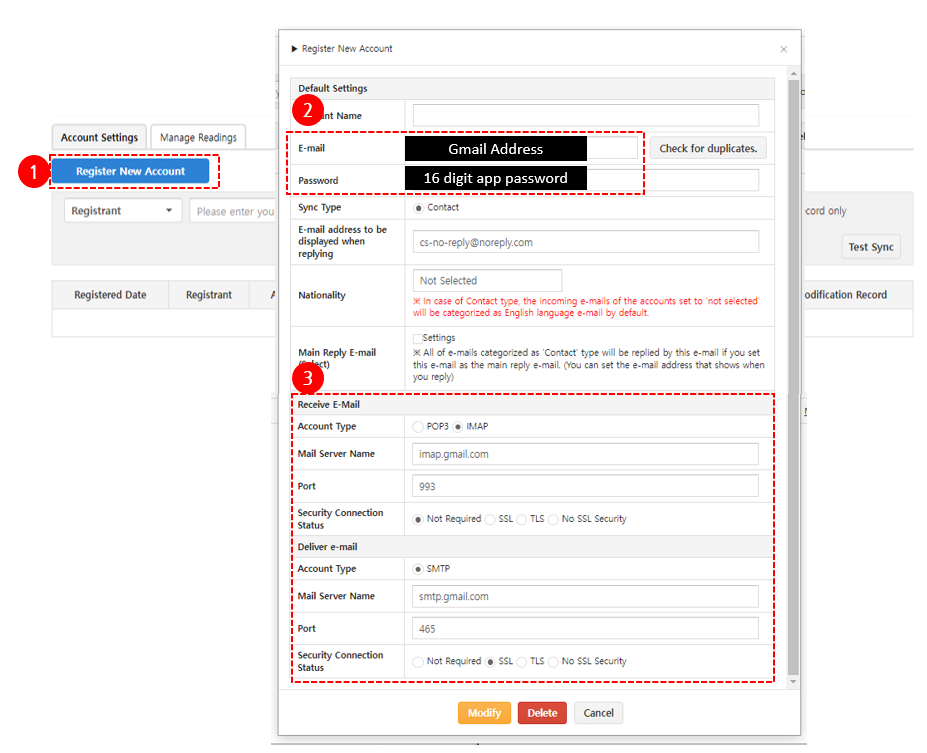
Set a main reply email
After registering the first email account, set at least one email account as the main reply email.
Inquiry replies are sent by email, so replies cannot be registered if no main reply email account is set.
Test Gmail Sync
After registering the Gmail account, run a sync test to check whether the account is connected correctly.
- Select the registered Gmail account.
- Click Test Sync.
- Check the test result.
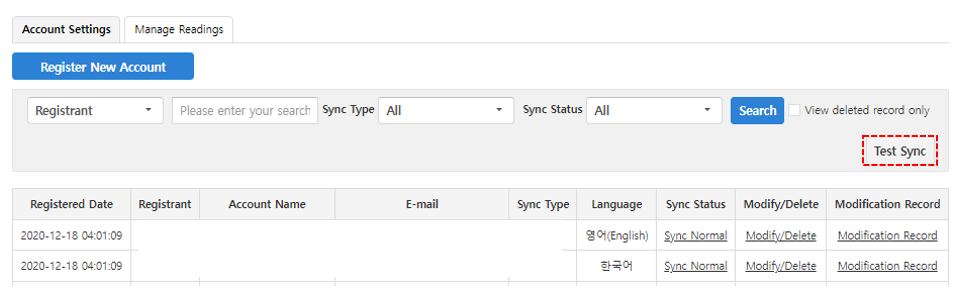
IMAP access is enabled by default for personal Google Accounts.
If the IMAP setting is not visible or cannot be changed in Gmail settings, proceed with Gmail account registration without additional setup.When registering an email account other than Gmail, the registration process may vary depending on the email service’s security settings or app password issuance method.
If the Gmail sync test fails, check the app password and mail server information again.
Check Incoming Gmail Messages
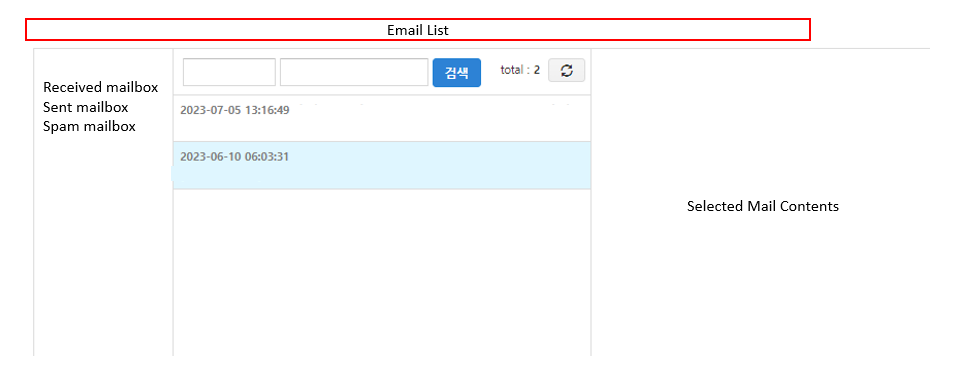
Emails received through the registered Gmail account can be checked in Mail > Mail List.
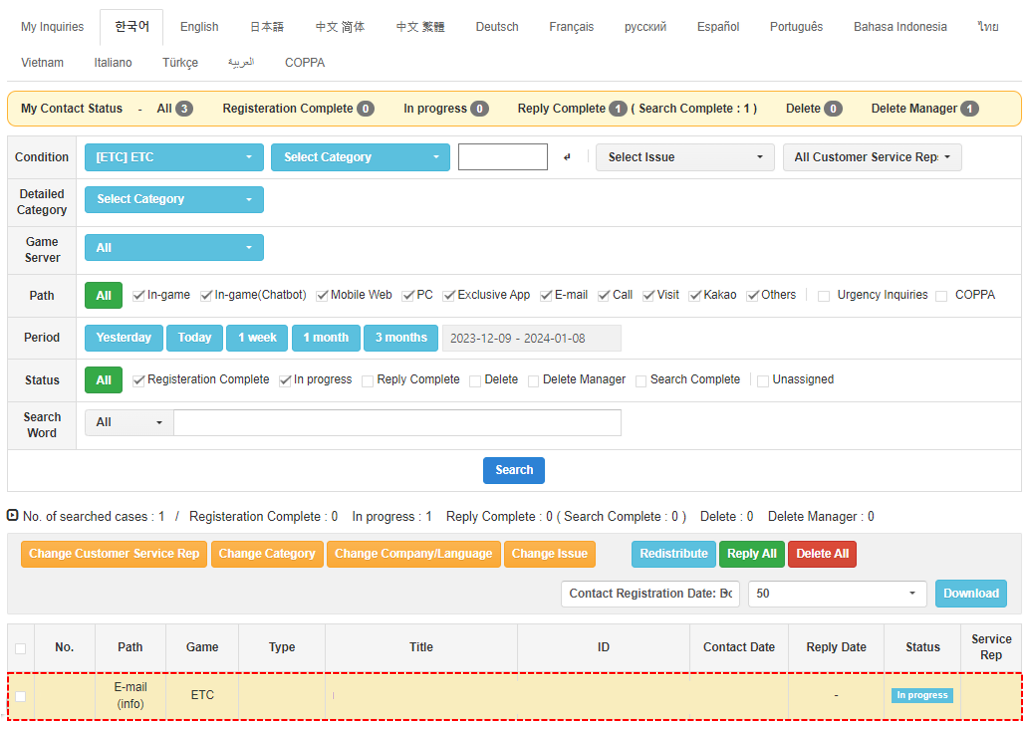
Received emails are also registered as email inquiries in Inquiry > Inquiry List.