Community Settings
Configure the basic information and screen layout for smooth service operation before making the community public. Please check the actual screen using the PC and mobile preview before saving.
➡️ Console Path: Community & Web Shop > Community > Community Settings
Service Settings
Manage the service status of the community and configure features to be exposed and common settings for bulletin boards. 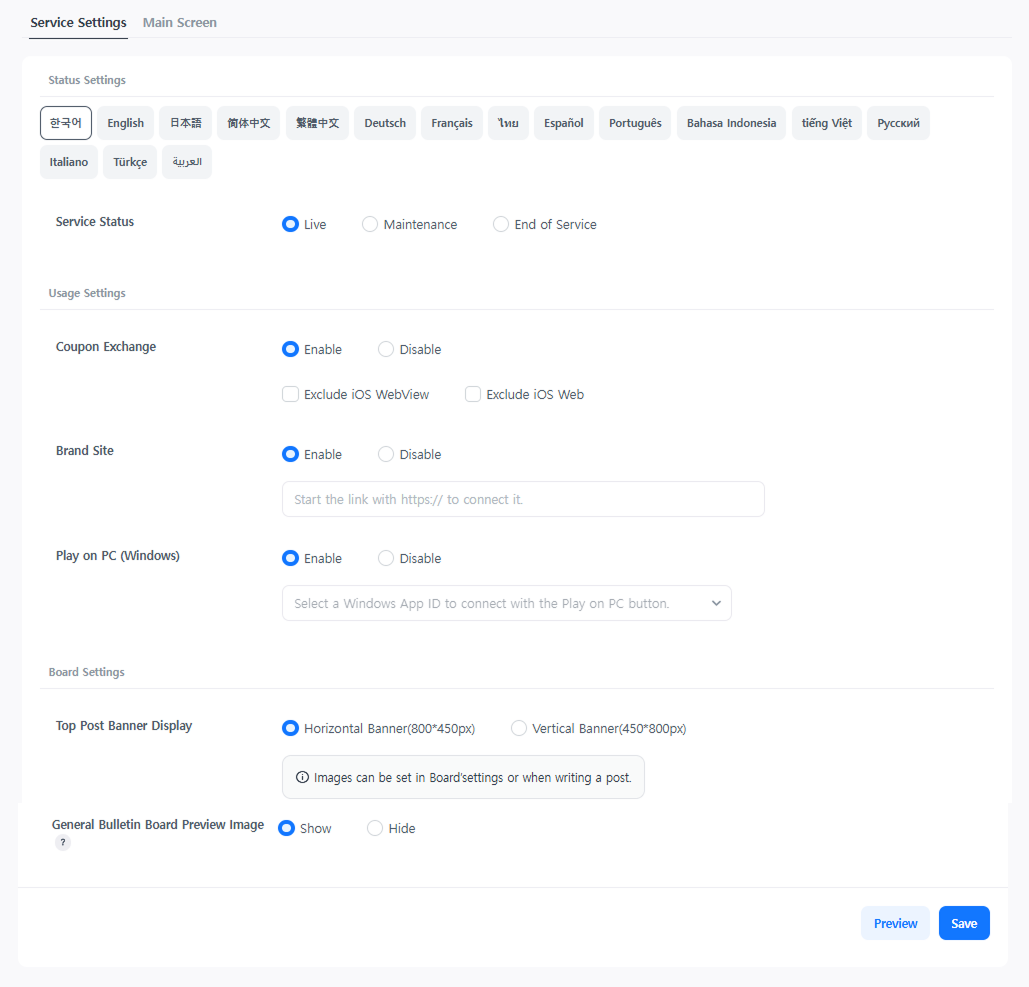
Status Settings
- Service Status: Change the service status of the community by language. Freely enter the text for the description and remarks displayed in the 'Maintenance' or 'End of Service' states.
- Live Status: A normally functioning community site is displayed.
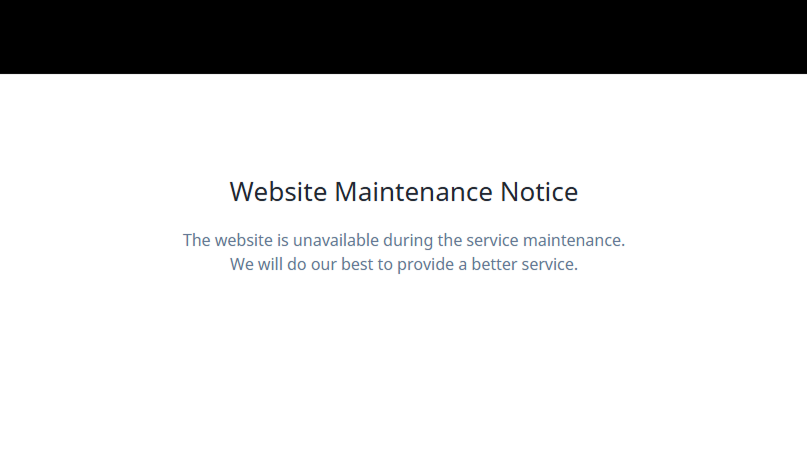
- Maintenance Status: A site maintenance notice page is displayed.
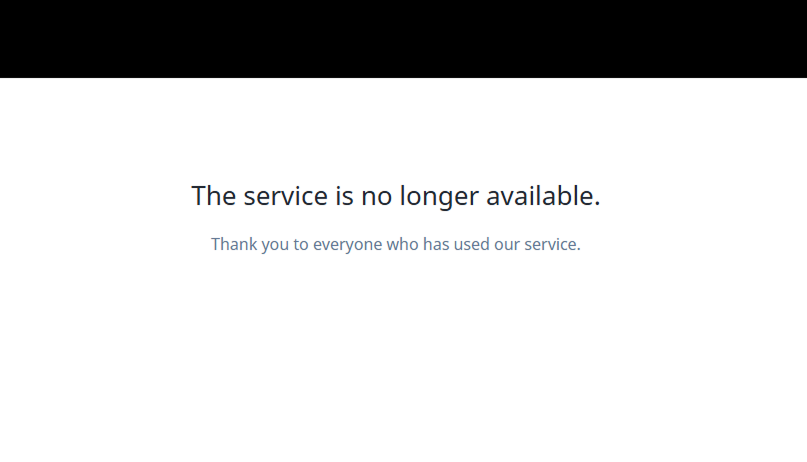
- End of Service Status: A service closure notice page is displayed.
Usage Settings
- Coupon Exchange: Set whether to expose a button that redirects to the coupon exchange page in the community. App server information and CS Code are automatically reflected, and the button is exposed only to users with a Player ID after logging in.
- Brand Site: Set whether to expose a button that redirects to the brand site. It is not exposed in the in-app web view.
- Play on PC: Set whether to expose a button to launch the PC game launcher. An App ID connection for PC games is required, and clicking the button while logged into the community automatically logs you in.
Bulletin Board Settings
- TOP Post Banner Exposure: Choose the orientation of the TOP post image exposed at the top of the bulletin board as horizontal (800 × 450px) or vertical (450 × 800px).
- General Bulletin Board Preview Image: Set whether to expose images included in the post in the post list.
Main Screen
Register image assets exposed on the community main page and configure features.
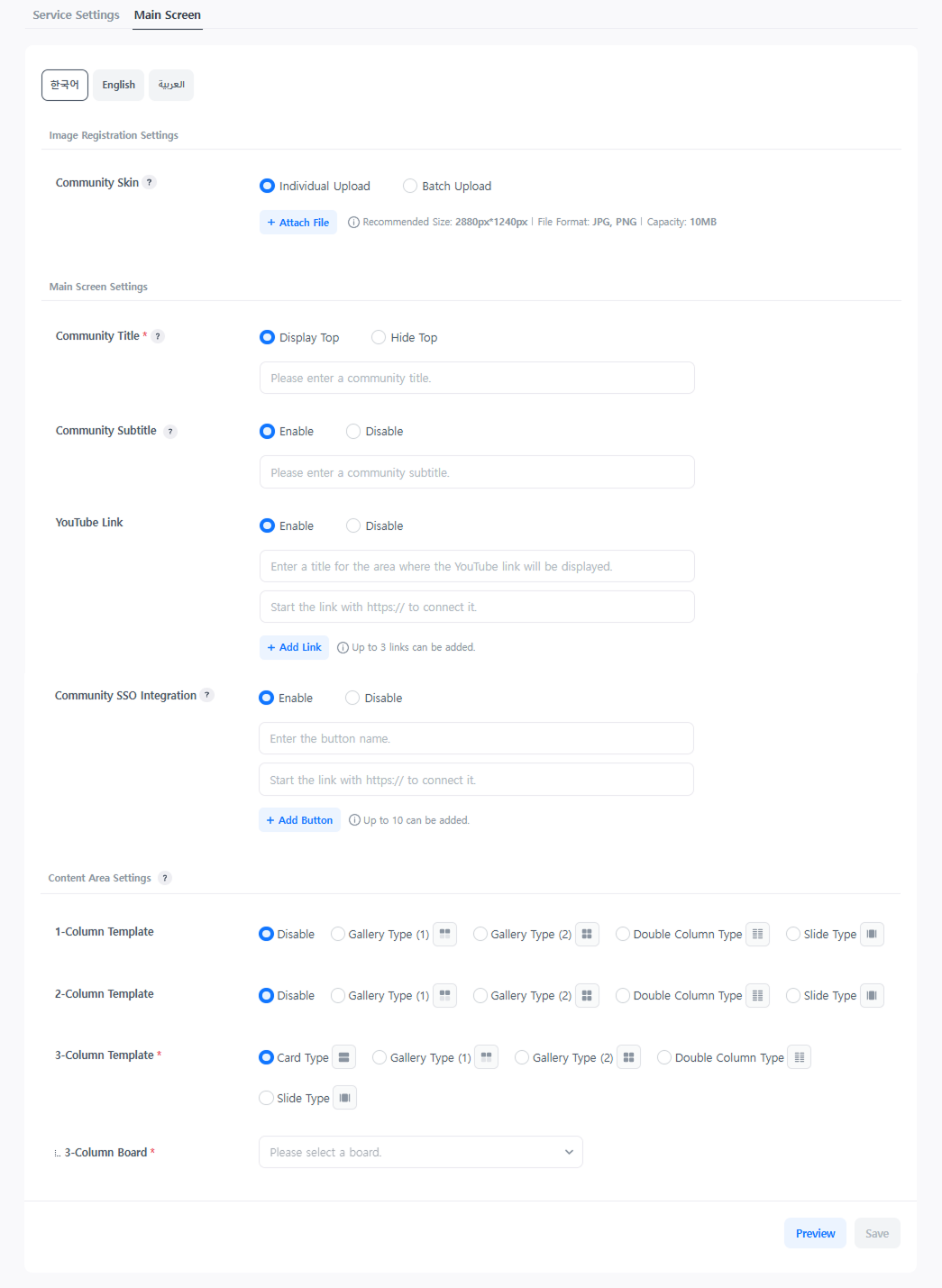
Image Registration Settings
- Community Skin: Set the image that forms the background of the community PC and mobile site.
Main Screen Settings
- Community Title: Set the title text exposed at the top and whether to expose it. Even if hidden, the title in the left layout is always exposed.
- Community Subtitle: Set the subtitle to be exposed together below the title.
- YouTube Link: Register the title and URL of the YouTube video to be exposed in the right layout. Up to 3 can be registered, and must be entered as an embed URL.
- Community SSO Integration: A feature that supports auto-login when moving between external sites and the community. Logout is processed separately for each service, and automatic logout is not supported.
- Community → External Site: Enter the URL of the external site to connect, and the following information will be transmitted via POST (form-data).
- Hive Web Login: player_token, refresh_token
- In-app Auto Login: ingame_player_token, appid, player_id, did
- External Site → Community: Transmit necessary information to the URL below via POST (form-data).
- Target URL: https://{Community_Domain}/{keyword}/api/auth/sso
- Enter the keyword registered in the site settings for {keyword}
- Hive Web Login: player_token, refresh_token
- In-app Auto Login: ingame_player_token, appid, player_id, did
- Precautions:
- When integrating SSO via Hive Web Login, player_token is transmitted as the access_token value. [Learn more]
- When integrating SSO via In-app Auto Login, ingame_player_token is transmitted as the player_token value. [Learn more]
- Community → External Site: Enter the URL of the external site to connect, and the following information will be transmitted via POST (form-data).
Content Area Settings
Choose how posts are exposed on the main screen. Up to 3 templates can be registered, and step 3 must be registered as mandatory. The template and bulletin board type must match, so check if a bulletin board suitable for the template type has been created.
| Template | Allowed Bulletin Boards | Features |
|---|---|---|
| Card Type | General, Image, Video | Exposes up to 20 posts |
| Gallery Type (1) | General, Image, Video | Exposes 4 posts containing images and videos, 1:1 ratio thumbnail |
| Gallery Type (2) | General, Image, Video | Exposes 8 posts containing images and videos, 1:1 ratio thumbnail |
| Double Column Type | General, Image, Video, One-line | Exposes up to 2 lines of title or content |
| Slide Type | General, Image, Video | Only admin-exclusive bulletin boards can be selected, 800 × 450px image recommended |
Next Steps
After completing all community settings, change the Service Status to 'Live' in Hive Console > Community & Web Shop > Community > Community Settings > Service Settings. The community service will be launched immediately.