Game Data Integration
Integrate the game account and the community to use the game profile as it is in the community, and transmit community activity data to the game server to utilize for operations. If not integrated, the default community profile will be used.
➡️ Console Path: Community & Web Shop > Community > Game Data Integration
Community Server IP
Check if firewall allow settings are configured for the community server IP to ensure normal service operation. 
Profile Settings
Select either the community profile or the game profile. The community profile is a profile used exclusively in the community. The game profile uses the profile information used in the game identically in the community. Integrate it with game data to manage the game and community with a single account. 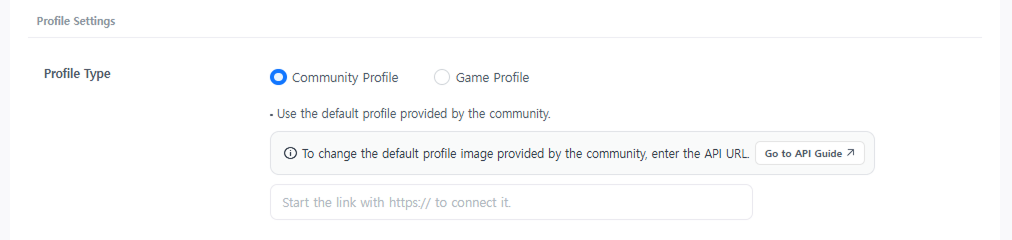
- Community Profile: Operate a dedicated community profile separately from the game profile.
- To change the default profile image provided, enter the API URL. Check the Profile Image API Guide.
- Game Profile: Use the game's profile (nickname, image) identically in the community. To use this, implement the Game Profile Integration API, select Profile Type > Game Profile, and register the URL.
- Before integration: Not logged into the community via in-app, and the nickname is set randomly.
- After integration: Logged into the community via in-app, and the game profile information is applied identically to the community.
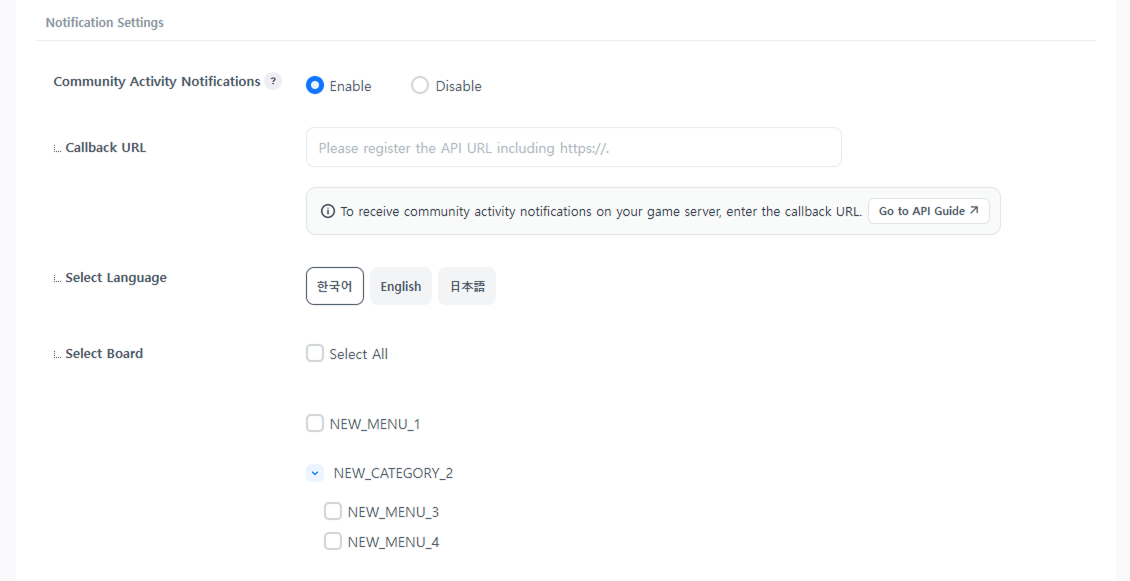
Notification Settings
When a post or comment is written on the configured bulletin board, community activity data is transmitted to the app server. To receive the data, you must register the Community Activity Notification API in the callback URL.
Next Steps
Configure the basic information and screen layout for opening the community. Learn more