App meta info
'App meta info' is the menu where you set the languages your app supports and its default language, and register the app name, app icon, and favicon for each language. The supported languages you set here become the language list of other console menus where you enter text for each language. So complete the settings in this menu before other settings where you register content for each language.
➡️ Console path: App Info > App Meta Info
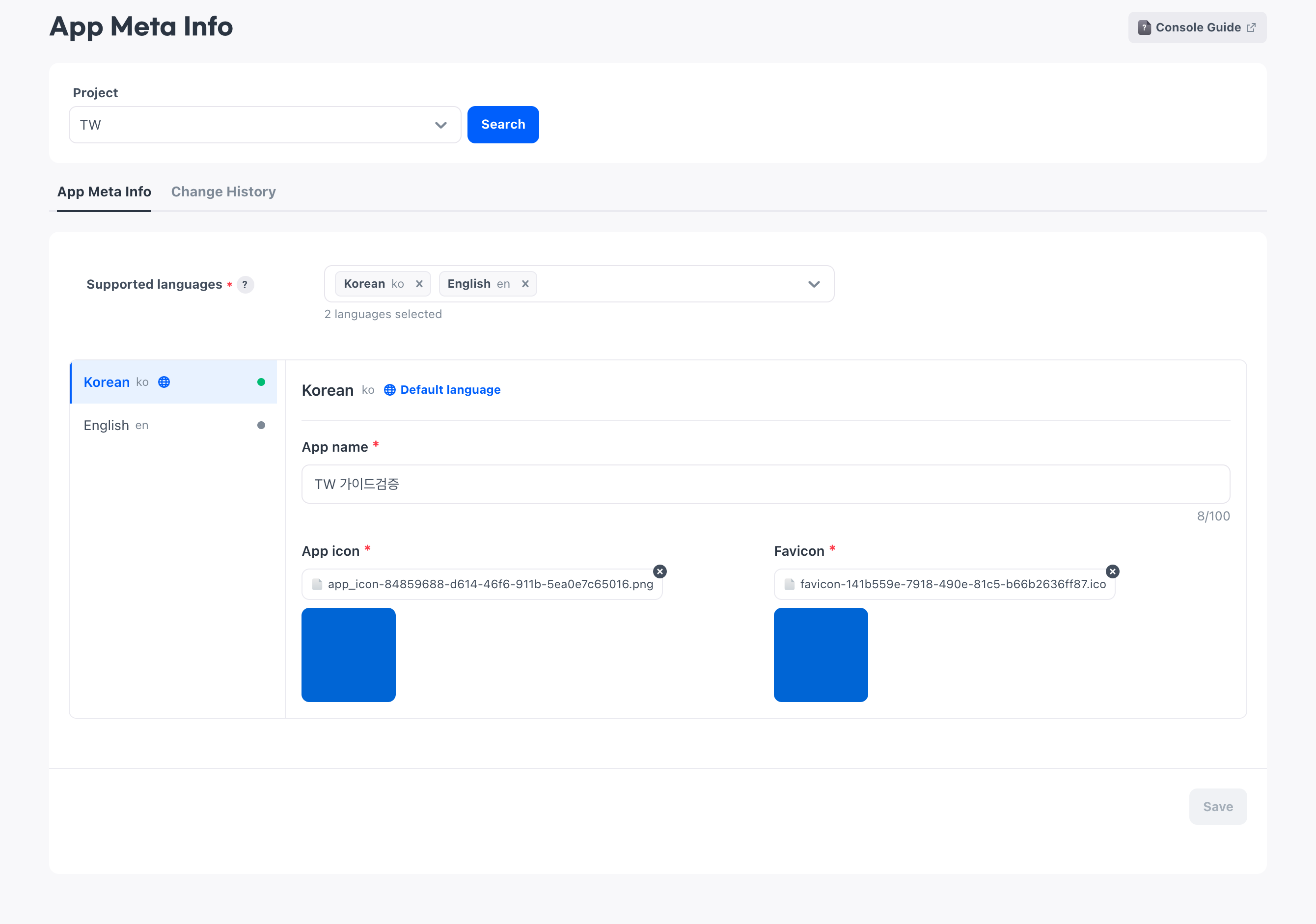
You register one set of meta info per project.
Supported languages and default language
Meta info is registered for each language. So first decide which languages to support and what to show in place of languages for which you have not registered content.
Supported languages
Supported languages are the languages in which the app shows content to users. The languages you choose here become the per-language input tabs in this menu, and the language lists of other console menus where you enter text for each language also use this value as is.
To enter information for each language, choose the supported languages, and then select the language to enter on the generated language tabs. When you switch tabs to check the content of another language, do not deselect the supported language.
Default language
The default language is the basis for the content displayed instead when you have not entered content for another language. The first language you choose in the supported languages becomes the default language, so prepare the app name and images to use for the default language first.
To change the default language to another language, enter the app name and images on that language's tab, and then turn on Default language. For the remaining languages, enter content only if they need separate content.
App name and image files
The app name and images are used to display your app in the web services Hive Axyl provides. The app icon is the image that represents the app, and the favicon is the icon displayed on the web browser tab.
Prepare the app name and the two image files to use for the default language. To display a different name or image for each language, also prepare the materials for that language.
Register meta info
When you register for the first time, start from New meta info. If you have already registered, edit the registered content directly.
How to set up:
- Click New meta info.
- In Supported languages, choose the languages to use.
- Select the tab of the language to use as the default language.
- Enter the app name.
- Attach the app icon and favicon files.
- If the selected language is not the default language, turn on Default language.
- To provide separate content in another language, enter the name and images on that language's tab.
- Click Save.
To check what you saved, check the name and attached files on each language tab.
Edit registered content
To change registered content, select the tab of the language to edit. Your changes take effect only after you change the name or images and click Save.
If you change the supported languages, the language list for writing content in other features also changes. Check whether the language is used in other features, such as mail or product names, before you change it.
There is no feature to delete all meta info.
Next steps
If you have settings that need text for each language, continue with them.
- Restriction types: Register the notice message of each restriction type for each language
- Admin mail: Write the title and content of mail for each language
- Product registration: Register product names for each language for Steam and PG payment products
- Service access control items: Register notice messages for each language to display to users whose access is restricted