Price tier
'Price tier' is the screen where you create and manage tables that group prices by currency into tier levels. For products sold through Steam and PG payments, you do not enter prices directly; you set prices by choosing a tier from this table.
➡️ Console path: Payment > Price Tier
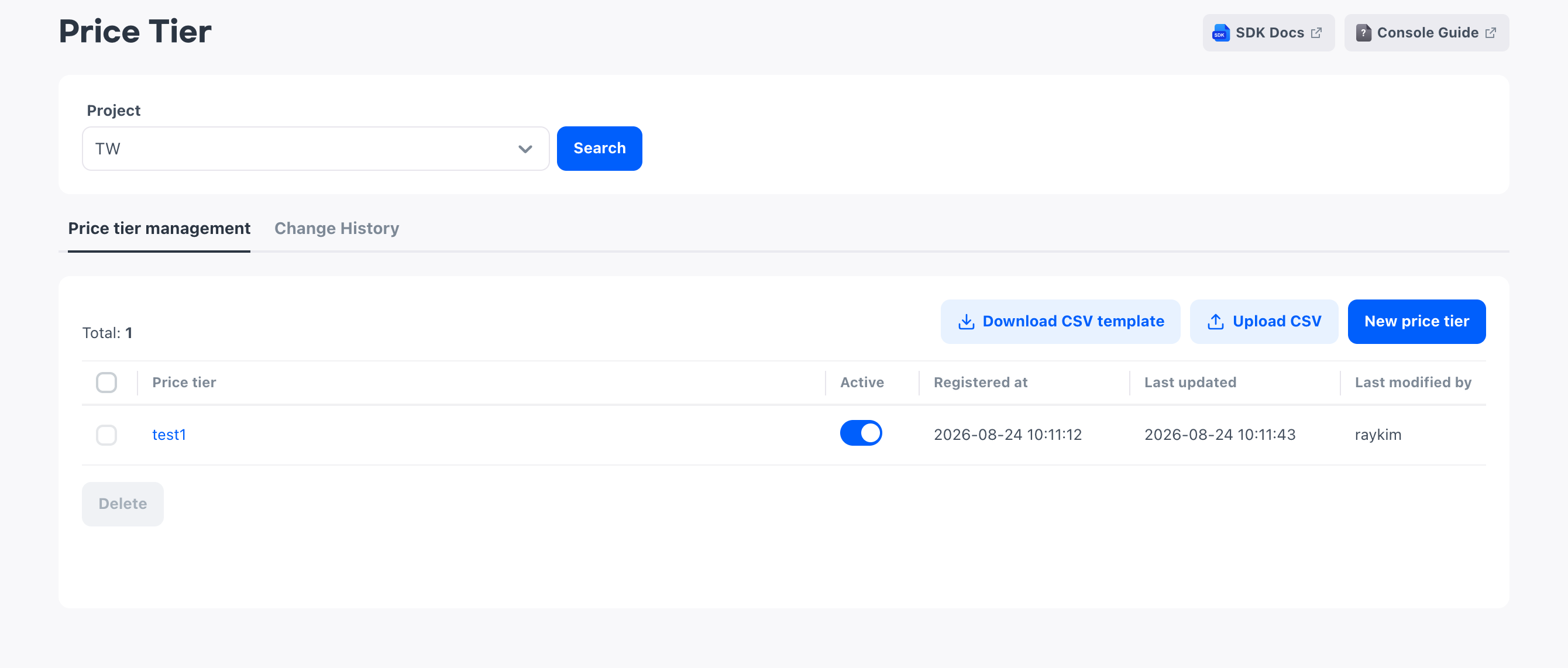
You can create multiple price tiers and set only one of them to Active. When you register products, you can choose only tiers in the Active price tier, so decide which price tier to use before you register products.
Register a price tier
Give a price tier a name that distinguishes it from other tiers, and decide whether it is active. A price tier name cannot duplicate another price tier's name, and you can change it after registration. The active status starts as Inactive, so to use the price tier for product registration right away, change it to Active.
Only one price tier can be set to Active. If a price tier is already Active and you save another tier as Active, a dialog opens to confirm the tier to use. When you confirm, the price tier in use changes.
Tier table
In the tier table, rows are tier levels and columns are currencies. Choose the currency of each column in the first row, enter the tier names in the first column, and then fill in the prices by currency in the remaining cells. The input method and constraints for each item are as follows.
- Currency: Selected in the first row of each column. A currency already chosen cannot be chosen in another column, and at least one currency is required
- Tier: Entered in the first column. Prefilled in ascending numeric order; use it as is or change it to an easily recognizable name
- Price by currency: Enter only numbers and periods. Negative numbers cannot be entered, and the table is saved even if cells are left empty
The table is provided with 5 rows and 5 columns at first, and you can add rows and columns up to 10 each. The first row and first column are for writing currencies and tiers, so in the initial state, you enter prices for four currencies and four tiers.
How to set up:
- Select New price tier.
- Enter the price tier name and decide whether it is active.
- Choose the currency of each column and enter the price for each tier. If you need more tiers or currencies, add rows or columns.
- Select Register.
Register prices in bulk with CSV
If you have many currencies and tiers, you can upload them all at once with a CSV file instead of entering values in the table one by one. When you upload the file, the console fills in and shows the tier table, so check the currencies and the prices for each tier before you register.
CSV upload overwrites the entire tier table. It does not apply only part of the data, so to fix some values while keeping the existing ones, download the current data, edit it, and upload it again. Files that do not match the template format fail to upload.
When you create a tier for the first time, download a blank template with Download CSV template. When you edit a tier that already has values, download the current data with Download CSV and use it.
Edit and delete price tiers
Select a price tier name in the list to open the edit screen. If there are many tiers, choose the tier to check with the price tier filter at the top of the screen to go directly to its position.
When you edit the table, use one of the following delete functions according to the range to delete.
- Delete row: Deletes an entire tier level. Tier numbers are automatically re-sorted, but they are not sorted if any tier name has been edited
- Delete column: Deletes an entire currency
- Delete cell: Deletes only the entered value and keeps the row and column
You delete the price tier itself from the list. You can delete only price tiers in the Inactive status, so first change a price tier in use to Inactive.
How to set up: Delete a price tier
- In the list, select the checkbox of the price tier to delete.
- Select Delete below the list.
Next steps
After you create the price tier to use for Steam and PG payments, register products in Product registration and choose tiers of this price tier as product prices.