Store settings
'Store settings' is the screen where you register the credentials used to verify Google Play, App Store, and Steam payments. The Hive Axyl server verifies each store's receipts with the values registered here, so to use store payments, complete this setup first.
➡️ Console path: Payment > Store Settings
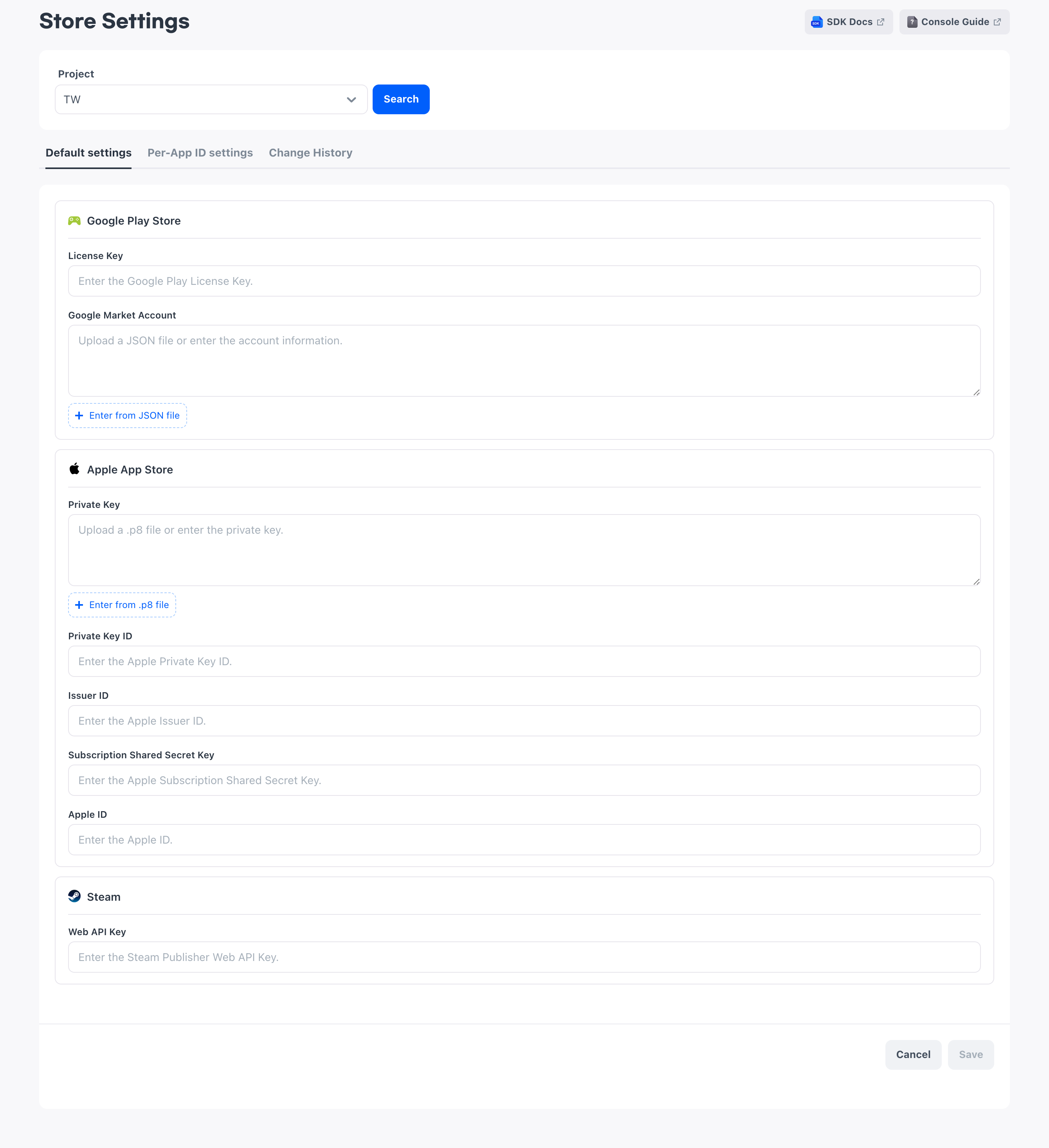
Default settings that apply to the entire project and individual settings for each App ID are supported.
Credentials to get from the stores
Get the credentials from each store's developer console. The values required for each store are as follows.
- Google Play: Google Market Account, License Key
- App Store: Issuer ID, Private Key ID, Private Key, Subscription Shared Secret Key, Apple ID
- Steam: Publisher Web API Key
For how to get the values, see the prerequisites for each store.
Apart from the credentials, you must also register the Store App ID, the store identifier, for the App IDs used for payment. Credentials are saved even without a Store App ID, but payments in that store do not work properly. For how to register it, see Register the store App ID.
Register project-wide credentials
On the Default settings tab, register the credentials that apply to the entire project. The screen shows only the stores connected to registered App IDs, so input fields for stores you do not use do not appear.
All input fields on the Default settings tab are optional, so you can fill in only some of them and save. However, if you leave credentials empty, receipt verification for that store fails, so fill in all values for the stores you will use before you start accepting payments.
If a store you want to configure does not appear on the screen, the Store App ID for that store has not been registered yet. Complete Register the store App ID, and then return to this screen, select the project again, and reload the list.
How to set up:
- Open the Default settings tab.
- Enter the credentials of the stores you will use. For the values to enter for each store, see the descriptions below.
- Select Save.
Google Play credentials
The Google Market Account is the account information registered with the market ID. You get it in JSON format from Google Play, and in the console you either upload the JSON file as is or paste the file content as text.
The License Key is the in-app billing license key issued by Google Play. Enter it as text.
App Store credentials
The Issuer ID and Private Key ID are identifiers issued by App Store Connect. Enter them as text.
You get the Private Key as a .p8 file from App Store Connect. In the console, either upload the file as is or paste the key value as text.
The Subscription Shared Secret Key is used for receipt verification of subscription products. On the Default settings tab, enter it when you sell subscription products.
The Apple ID is the app identification number displayed on the app information screen of App Store Connect. It is not the Apple account used to create the app, so check the value for the app in App Store Connect and enter it.
Steam credentials
The Web API Key is the publisher Web API key issued by Steamworks. Enter it as text.
Configure credentials per App ID
If you use different store accounts or keys for each App ID, register individual settings on the Per-App ID settings tab. Use this when you divide payment policies by runtime environment or operate development and production App IDs with different accounts.
Every App ID is created with Use default settings turned on. While this item is on, the values of the Default settings tab are used as is, and the input fields are displayed as read-only. To enter individual values, first turn this item off. Values saved after you turn it off apply only to that App ID.
Unlike the Default settings tab, individual settings require you to enter all credentials for the store. The App Store requires the Subscription Shared Secret Key as well, even if you do not sell subscription products, so if you have not prepared all the values yet, leave Use default settings turned on.
Check the App ID to configure
At the top of each store's input fields, the Store App ID registered in Project Settings > App ID is displayed as read-only. It is there to confirm which app the settings belong to; you do not edit it on this screen, and it is not saved.
If the App ID you want to configure does not appear on this tab, check whether the App ID has been created and whether its Store App ID has been entered.
How to set up:
- On the Per-App ID settings tab, choose the App ID to configure.
- Turn off Use default settings.
- Enter the credentials to apply to that App ID.
- Select Save.
Next steps
- PG settings: Set the PG providers, payment countries, and payment methods when you also use PG payments
- Price tier: Set up price tiers by currency when you sell products through Steam
- Product registration: Register products to sell through the stores