Purchase history
'Purchase history' is the screen where you look up payment history by user. When you receive a payment inquiry, you can check which product was paid for, in which market, and for how much.
➡️ Console path: Payment > Purchase History
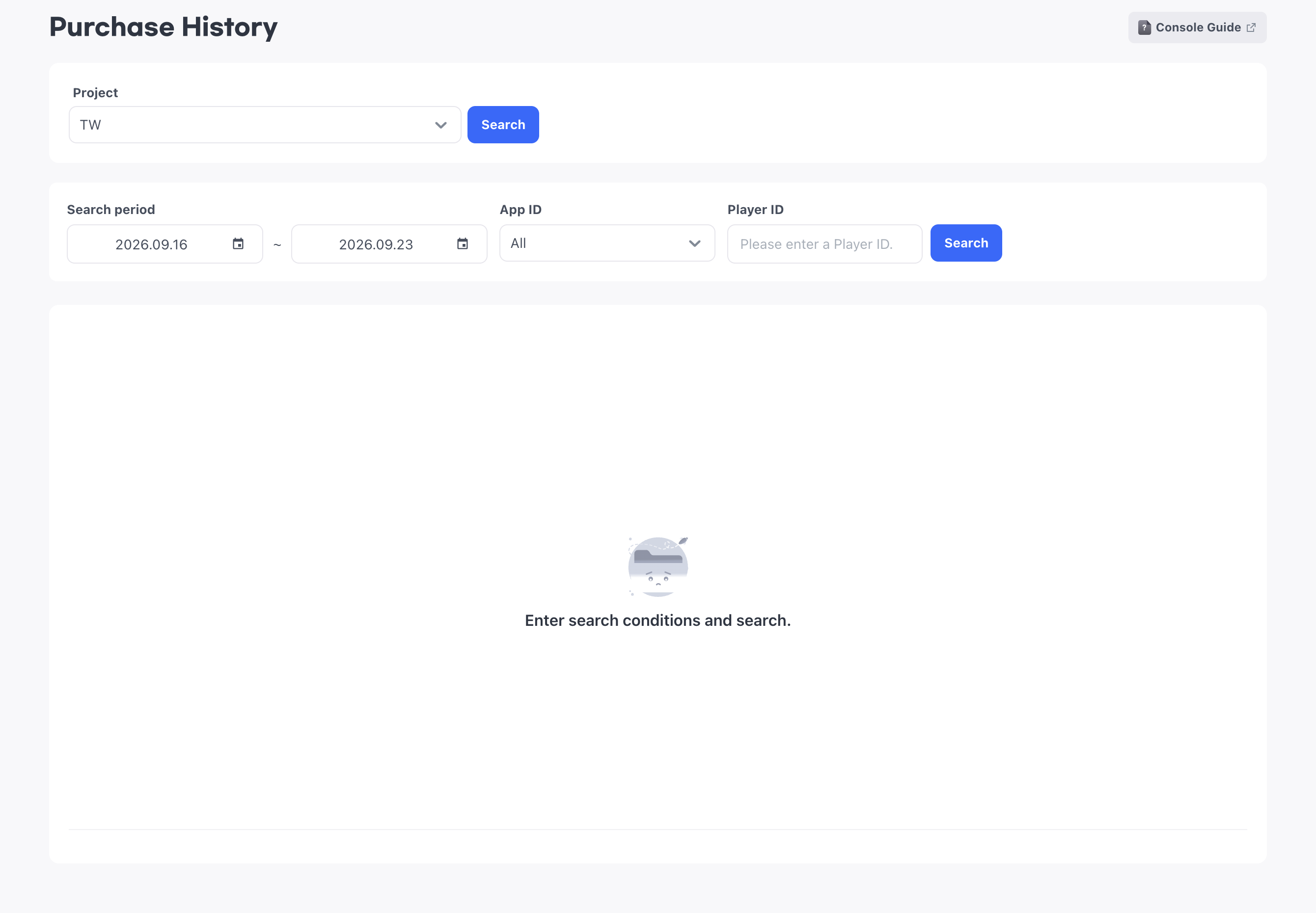
This screen is for lookup only. Check cancellations and refunds in the store, PG provider, or app operation system that processed the payment. Purchase history does not guarantee cancellation and refund status.
Specify search conditions
Enter the Player ID of the user to look up directly and specify the period to search. You do not choose users from a list, so before you handle a payment inquiry, check the user's Player ID in User lookup.
You can specify a search period of up to 30 days. When you open the screen, the end date is prefilled with today's date and the start date with the date 7 days ago. The reference time for the search follows the time zone of the console owner.
Leave the App ID as All to search the entire project, or choose a specific App ID to narrow the scope.
How to set up:
- Choose the start date and end date of the period to search.
- Enter the Player ID.
- Choose the App ID. To search the entire project, leave it as All.
- Select the Search button.
Check the query results
The results are sorted by purchase date with the most recent first, and 100 items are displayed per page. Move to the previous and next pages to check the rest of the history.
Each row shows the purchase date and time, Player ID, App ID and product ID of the purchase, product type, quantity, purchase currency and amount, and purchase platform. The purchase amount shows the value at the time of payment as is.
To determine on which server and in what situation the payment in question occurred, check the following three items in the same row.
- Server ID: The server where the payment occurred
- IAP Payload: Data the app sent with the payment request. A value the app defines to link order information or distinguish payment requests
- Store account identifier: A value for checking whether it is the same user when one user paid with multiple store accounts
IAP Payload and the store account identifier are filled in only if the app sent the values when making the payment. An empty value does not mean there was a problem with the payment, so if you need these values, check with the app developer whether they are sent.
Transaction numbers
Two transaction numbers are displayed side by side. The Store Transaction ID is the number issued by the store, which you use when you inquire about a payment with the store. The Order ID is the number issued by Hive Axyl.
Order type and subscription information
Use Order type to tell whether the payment is a test order or an actual payment. For subscription products, Subscription expiration date is also displayed, so check whether the subscription was valid at the time of the inquiry.
Download the purchase history
Select Download to download the current search results as a CSV file. If there are no search results, Download does not work, so first specify the conditions and look up the history.