User activity tracking
Overview
User Activity Tracking is a feature that lets you view event data for individual users.
You can compare and analyze the activity patterns of users who have a negative impact on the app, such as suspected abusers, suspended users, and refund abusers, and users who have a positive impact on the app, such as whale users and high-spending users.
What can you do?
Business/marketing users
- By looking at the activity flow of whale users, you can gain insights that you can use to design VIP benefits.
- By checking the last activity event of churned users, you can identify the cause of churn.
- You can immediately look up the activity history of users who requested refunds or made CS inquiries and respond quickly.
Data analysts
- By directly checking the behavior patterns of representative users in a specific user group, you can refine segment conditions more precisely.
- You can check the actually received event attribute values one by one, so you can verify data quality directly.
- With activity flow analysis, you can understand in detail the behavior of users at the stages where they drop out of a funnel.
Developers
- By looking directly at a specific user's activity flow, you can immediately verify with real data whether attribute values are sent correctly.
- By checking the activity flow of internal test accounts, you can quickly debug the event sending logic.
- If attributes are missing or incorrect, you can check this right away in the actually received data.
Quick start
- Click the User > User Activity Tracking menu in the left sidebar.
- Select the Project to analyze.
- Enter a User ID in the search bar at the top and search, or select a group from the User Group List at the bottom and click a user to go to the user details page.
- Set the Date Range.
- In Activity Flow, check the user's event flow in chronological order.
Full features
Key concepts
| Concept | Description |
|---|---|
| User Group | User groups predefined by analysis purpose (whale users, new users, and so on) |
| Activity Flow | A time-series graph that lists the events the user triggered in chronological order |
| Event Attribute | Additional information sent together with each event (item, amount, level, and so on) |
| User Info | Basic information such as the user's first access date, last access date, and LTV |
Explore user groups
Check the users to analyze through the default user groups. 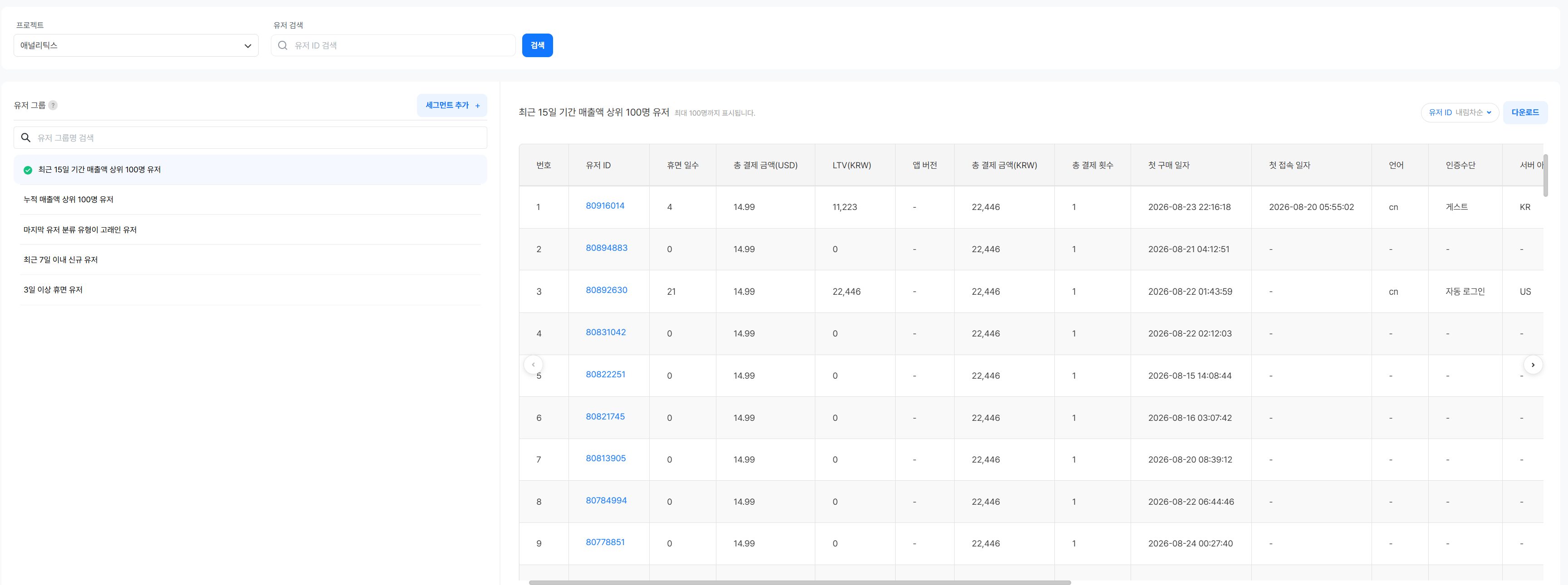
- Group List: User groups by analysis purpose are displayed as a list in the left panel.
- User List and Last Info: When you select a group, you can check the list of users in the group together with the last info of each user. For descriptions of the items, see the User last info table. However, Period Playtime(Seconds) is excluded.
- Download: Click the Download button at the top to download and check the information of all users in the group.
- Select User: Click a user ID to go to that user's details screen.
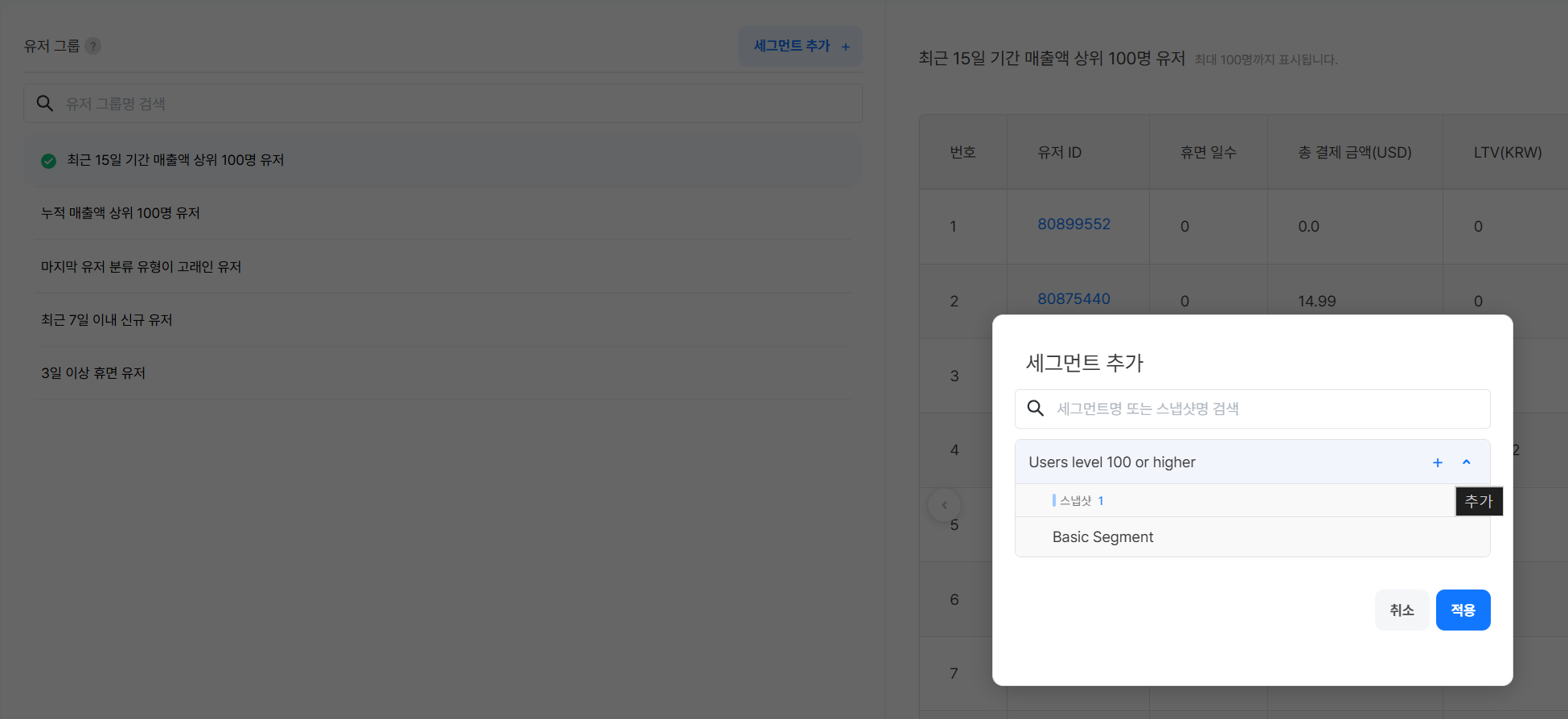
- Add Segment: After you click the Add Segment button at the top, you can add a segment to the user group by clicking the + button of the segment or snapshot you want.
Search by user ID
Search directly by the user's unique identifier (userId). 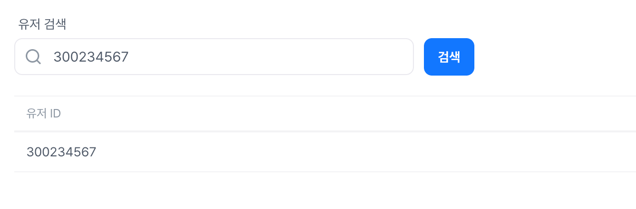
- Enter a user ID in the search bar at the top and search.
- Click the user ID to go to that user's activity details screen.
Activity flow
Check the events that the selected user triggered in chronological order.
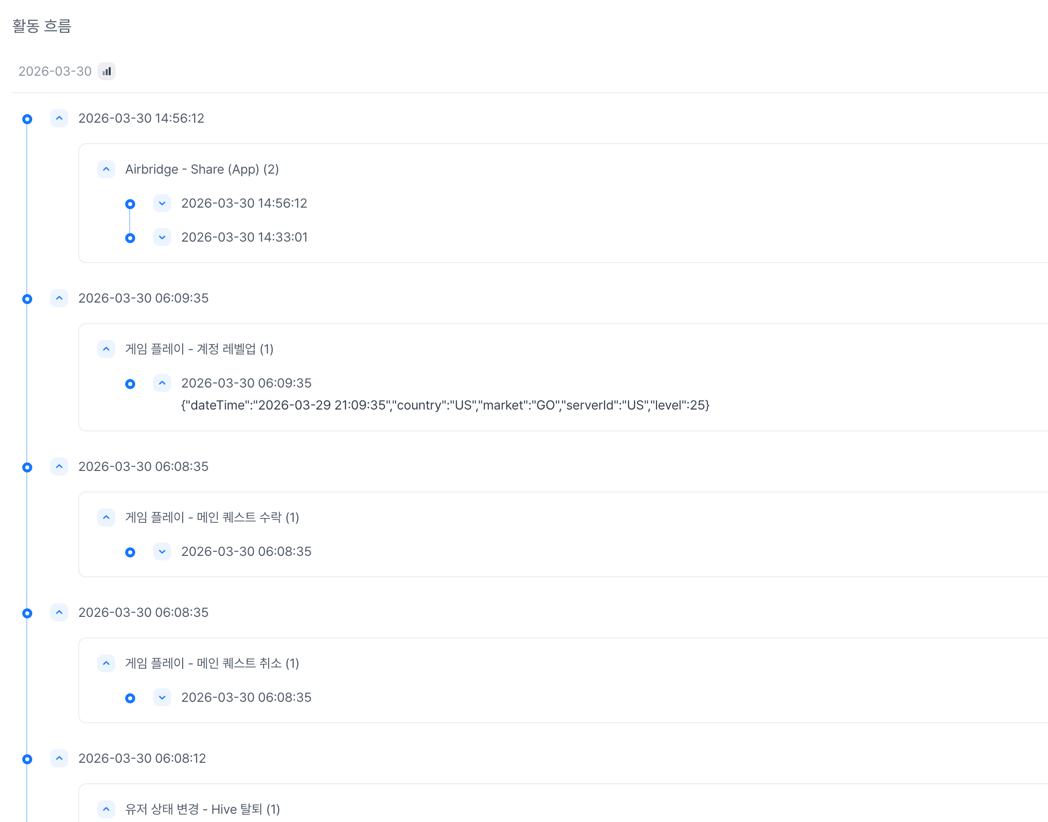
| Item | Description |
|---|---|
| Event Occurrence Time | The exact date and time when the event was received (to the second) |
| Event Name | The event name of the event that occurred |
| Event Attribute | The list of attributes sent together with the event |
View user info by date
When you click the graph icon displayed for each date in the activity flow, the User last info area changes to the user information as of that date.
Use this to compare the user's status at specific points in time (level, payment amount, country, and so on) by date or to understand how it changes over time.
Daily activity count
You can check the trend of how many of the activities displayed in the activity flow occurred each day. This is useful for identifying patterns in which activity spikes or drops at a specific point in time.
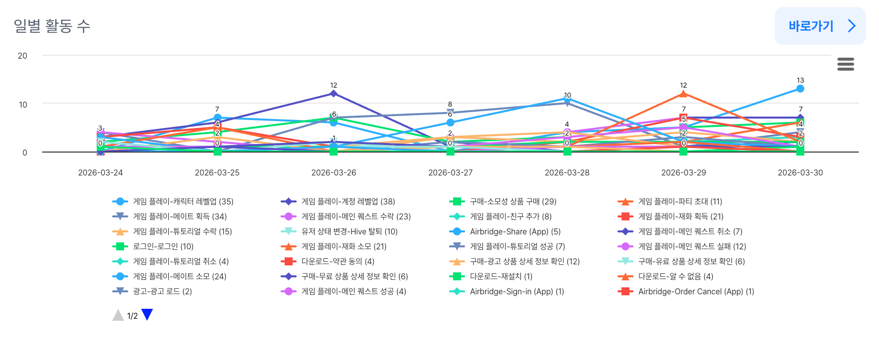
Click Go to to view the graph on a larger screen.
User last info
Displays the user's attribute information as of the last date of the selected period. 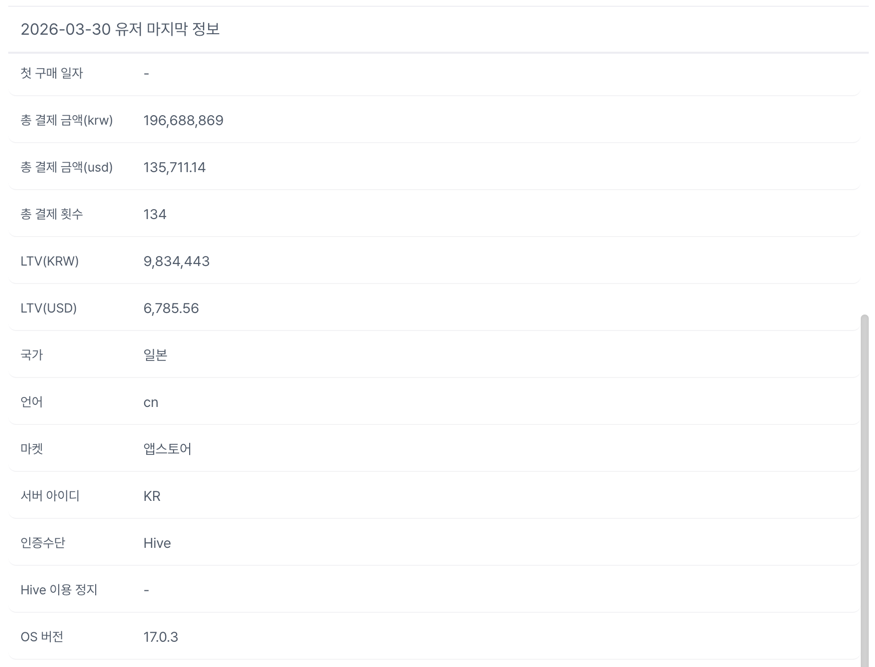
| Item | Description |
|---|---|
| First Access Date | The user's first access date. |
| Dormant Days | The number of consecutive days the user has not logged in. |
| User Classification Type | The user's user classification type (for example, whale). |
| Account Level | The user's account-based level. |
| Lifetime | The period from the user's first access date to the last access date. |
| Total Access Count | The cumulative number of accesses since the user's first access. |
| Daily Average Session Count | The average number of sessions per day based on the user's access days. |
| Period Playtime(Seconds) | The user's playtime during a specific period (unit: seconds). |
| Total Playtime(Seconds) | The cumulative playtime since the user's first access (unit: seconds). |
| First Purchase Date | The user's first purchase date. |
| Total Payment Amount(KRW) | The cumulative payment amount since the user's first access (unit: KRW). |
| Total Payment Amount(USD) | The cumulative payment amount since the user's first access (unit: USD). |
| Total Payment Count | The cumulative number of payments since the user's first access. |
| LTV(KRW) | The user's lifetime value in KRW (total payment amount / total access days). |
| LTV(USD) | The user's lifetime value in USD (total payment amount / total access days). |
| Country | The user's country (for example, South Korea). |
| Language | The user's language (for example, Korean). |
| Market | The market where the user installed the app (for example, Google Play). |
| Server ID | The user's server ID (for example, global). |
| Authentication Method | The authentication method the user used to access the app (for example, Facebook). |
| Hive Ban Status | The user's current Hive suspension status. (Suspended / Suspension lifted / No suspension history) |
| OS Version | The version of the user's operating system (for example, 13.0.1). |
| App Version | The user's app version (for example, 1.6.5). |
| Custom User Attribute Event | Custom user attribute values that the app defines and sends directly. |
Use cases
Analyze whale user behavior patterns
- Select a user from the
Users whose last user classification type is whalegroup. - Analyze the activity flow, focusing on payment-related events (such as
hive_product_purchase). - Identify which events (level-up, content completion, and so on) occurred right before payment.
- Based on the analysis results, establish a guided content strategy.
Investigate refund abusers
- Search for the ID of the user who requested a refund.
- Check the temporal correlation between purchase events and app usage events.
- Review whether there is a pattern of requesting a refund immediately after claiming an item.
Analyze suspected abusers
- During service monitoring, obtain the ID of a user suspected of abuse.
- Search for that user and check the activity flow and information.
- Check whether the activity flow shows abnormal patterns (many events in a short period, abnormal attribute values, and so on).
Notes & tips
- The longer the query period, the longer it can take for data to be displayed. Split your queries into the periods you need for analysis.
- Check the users to look up with the Segment feature or the User classification feature.
Related menus
- Segment — Define user groups with segments and use the user lists in snapshots
- User classification — Check the status of user classification based on K-means clustering
- Event — Define the events displayed in the activity flow