Event
Overview
Event is a feature that lets you check and manage the events that are the basis of all analysis in Analytics, and the attributes created under those events.
Just by integrating the Hive Axyl SDK, events such as login and purchase are automatically collected without additional development. If you define and add the events you need, you can analyze your data even more precisely.
To send custom events directly, see Send events.
What can you do?
Business/marketing users
- Define the events and attributes needed for analysis on this screen, and use the result directly as a planning document to hand over to the development team.
- See the list of events currently being collected at a glance to immediately check what data you can analyze.
Data analysts
- Understand the full status of the events and attributes available for analysis in the event list to design the scope of your analysis quickly.
- Check the actual values of events directly with the data preview to verify data quality before analysis.
Developers
- Check the event names and attribute lists directly on this screen to work on the SDK integration efficiently.
- After sending an event, check the received attribute values in Data Preview to verify the sending result immediately.
- Use the ETL Simulation feature to check the event sending result in advance before actual deployment.
Quick start
If you are registering an event for the first time, follow these steps to create your first event.
- Click the Data > Event menu in the left sidebar.
- Click the Register button in the upper-right corner.
- Enter the event name and event description.
- Go to the Attribute tab and add the attributes to send with the event.
- Set the attribute name, description, and data type.
- Click the Save button.
- Give the event name and attribute list to your development team and request that they send the event data.
Note
For detailed settings such as event attributes, data preview, and ETL simulation, see Full features.
Full features
Key concepts
| Concept | Description |
|---|---|
| Event | A unit of data that records a specific action a user performed in the app (example: login, purchase, level-up) |
| └ Automatically collected event | An event collected automatically just by integrating the Hive Axyl SDK |
| └ Custom event | A custom event that you define and send yourself |
| Attribute | A detailed data item recorded together when an event occurs |
| └ Automatically collected attribute | An attribute collected automatically just by integrating the Hive Axyl SDK (example: country, market, server ID, OS) |
| └ Custom attribute | An attribute that you send yourself with an event (example: the item ID, amount, and currency unit of a purchase event) |
View the event list
Check all events registered in Analytics in a list. 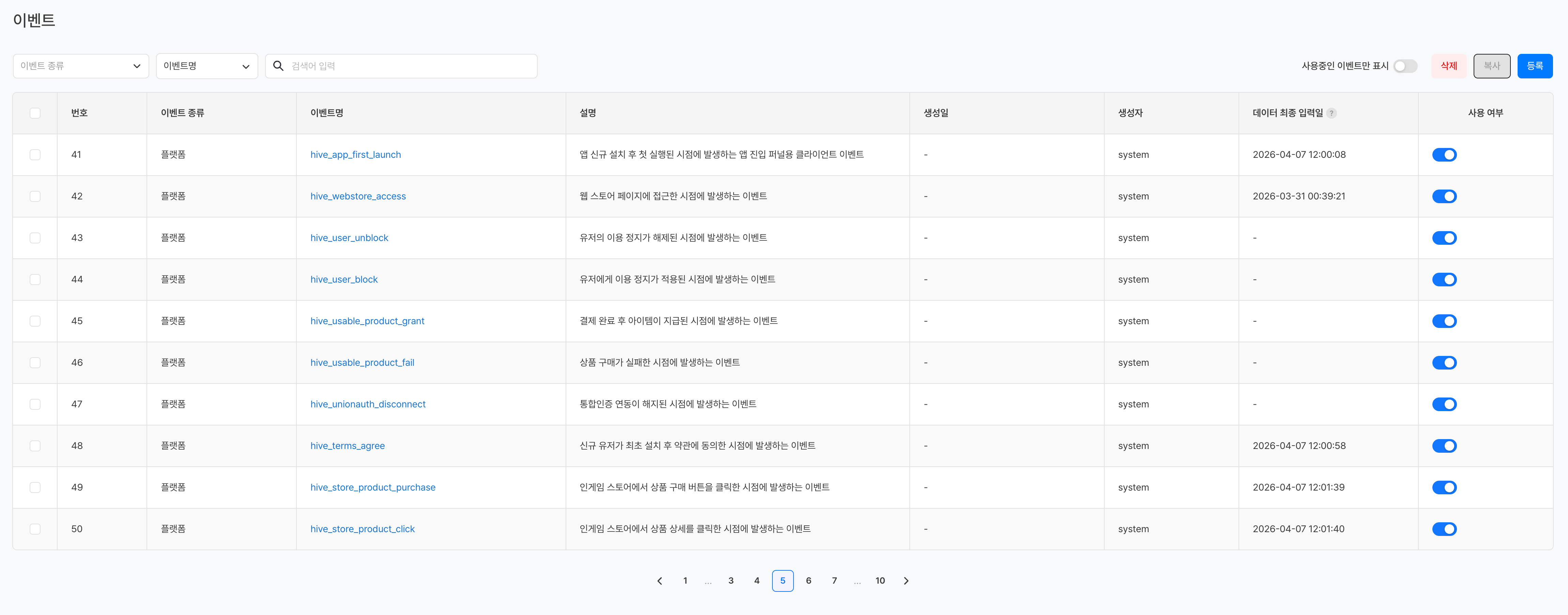
Filter and search
| Option | Description |
|---|---|
| Event Type | Filters the list by event type (custom event, AppsFlyer, Airbridge, and so on) |
| Search Event Name/Creator | Searches for events when you select the search basis (event name or creator) and enter a keyword |
| Show Only In Use Events | When the toggle is ON, shows only events whose usage status is enabled |
List columns
| Column | Description |
|---|---|
| No. | The registration sequence number of the event |
| Event Type | The source of the event, such as custom / AppsFlyer / Airbridge |
| Event Name | The name of the event. Click it to go to the detail page |
| Description | The description entered when the event was registered |
| Created At | The date and time the event was first registered |
| Creator | The account that registered the event. Events created automatically by the system are shown as system |
| Last Data Ingested At | The date and time the data of the event was last collected. Synchronized every 10 minutes, and shown as - if there is no collection history |
| Usage Status | A toggle that enables or disables the event. When it is OFF, the event is hidden from the list when you select events |
Register an event
Click the Register button in the upper-right corner of the event list screen to go to the event registration page. 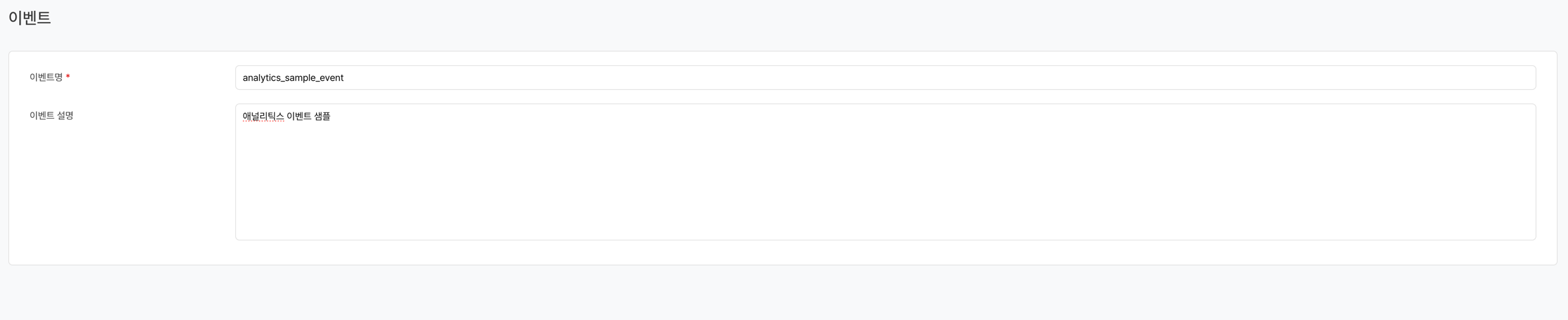
| Item | Required | Description |
|---|---|---|
| Event Name | Required | The unique code used when actually sending data |
| Description | Optional | A description of the event's trigger conditions and purpose |
Note
For the event naming rules that Analytics recommends, see Send events.
View event details
[Basic Info] tab
Check and edit the event name and description of a registered event. 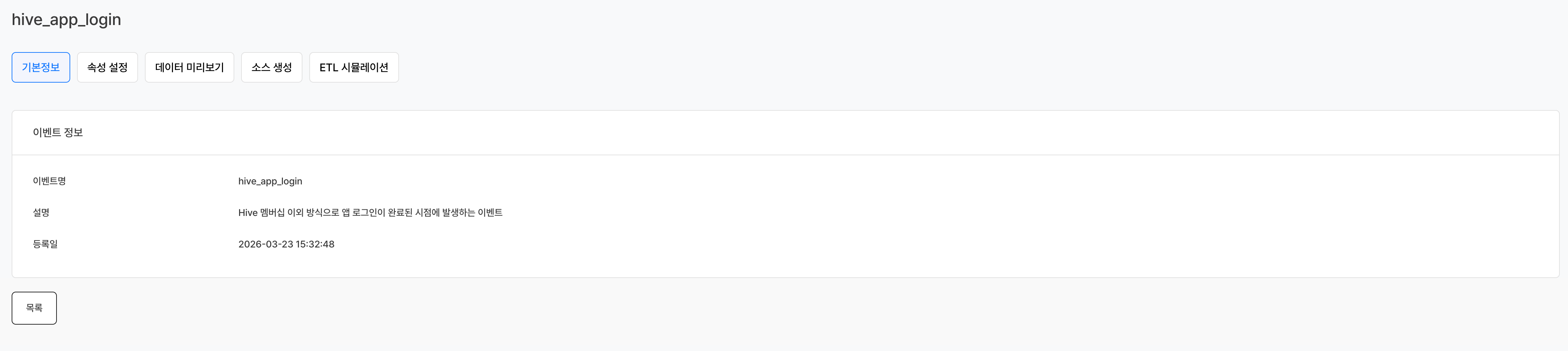
[Attribute] tab
Define the attributes sent with each event. 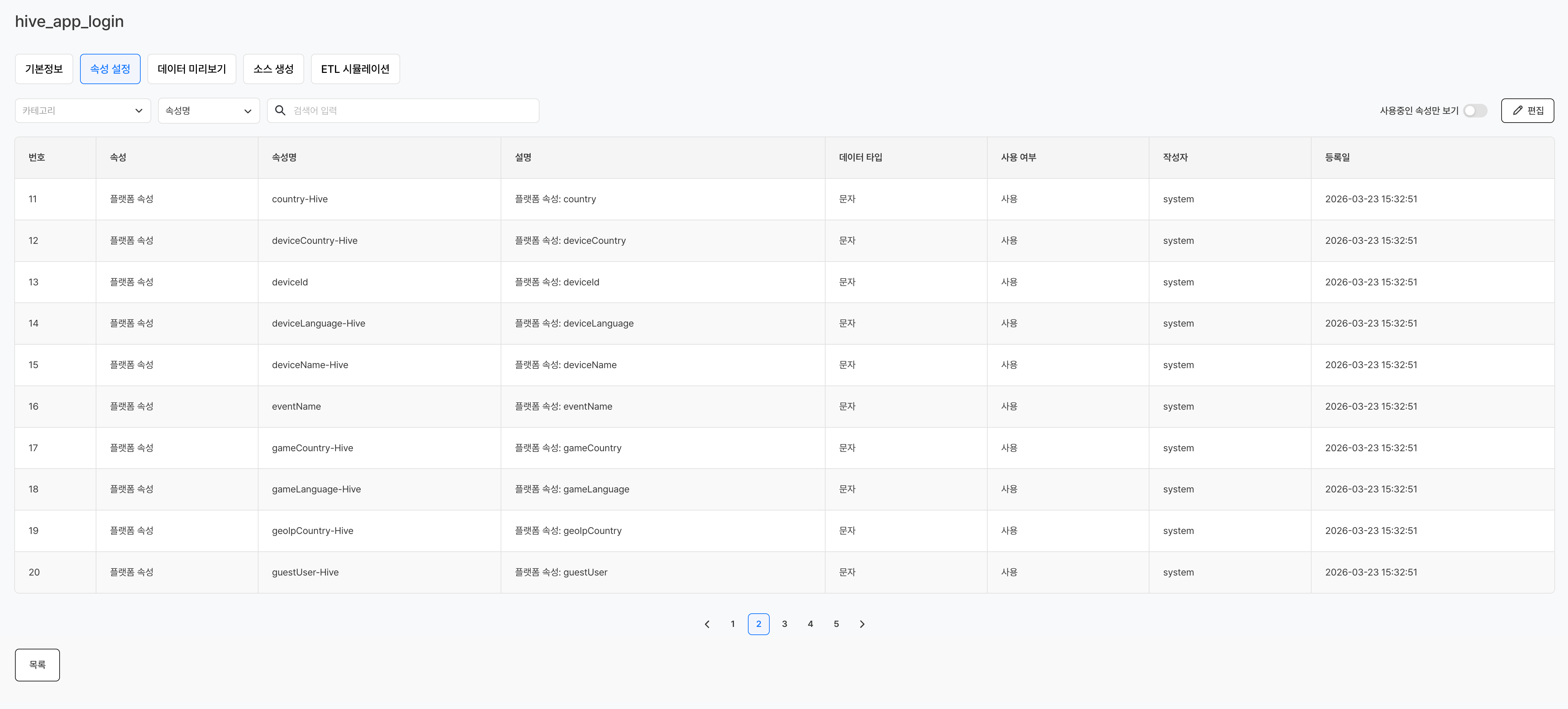
| Item | Description |
|---|---|
| Attribute Name | The code used when actually sending |
| Description | The meaning and examples of the attribute value |
| Data Type | Choose one of text / number / date |
Data type descriptions
| Type | Description | Example |
|---|---|---|
| Text | A string value | Country code (KR), item name (sword) |
| Number | An integer or decimal value | Level (50), payment amount (9.99) |
| Date | A date/time value | Event time (2026-03-29T10:00:00) |
Currency attribute / money attribute
Among the attributes registered for an event, you can specify to the system the attributes that contain the currency value and the revenue amount. You must configure this to view revenue figures based on the currency you want in Chart.
| Item | Description |
|---|---|
| Currency Attribute | Specifies the attribute that receives currency code values (example: an attribute that contains a currency unit such as KRW or USD) |
| Money Attribute | Specifies the attribute that receives the figure used for revenue calculation (example: an attribute that contains the payment amount) |
Note
You can set the currency attribute and money attribute on the [Attribute] tab of the event detail page. Select the attribute in the attribute list, and then specify each item.
Warning
If the currency attribute or money attribute is not specified, you cannot view revenue-related metrics based on currency in charts. To use purchase events in analysis, make sure to specify both attributes.
[Data Preview] tab
Check samples of the event data actually collected by Analytics. Use it to verify whether events are sent correctly and whether attribute values are collected as intended.
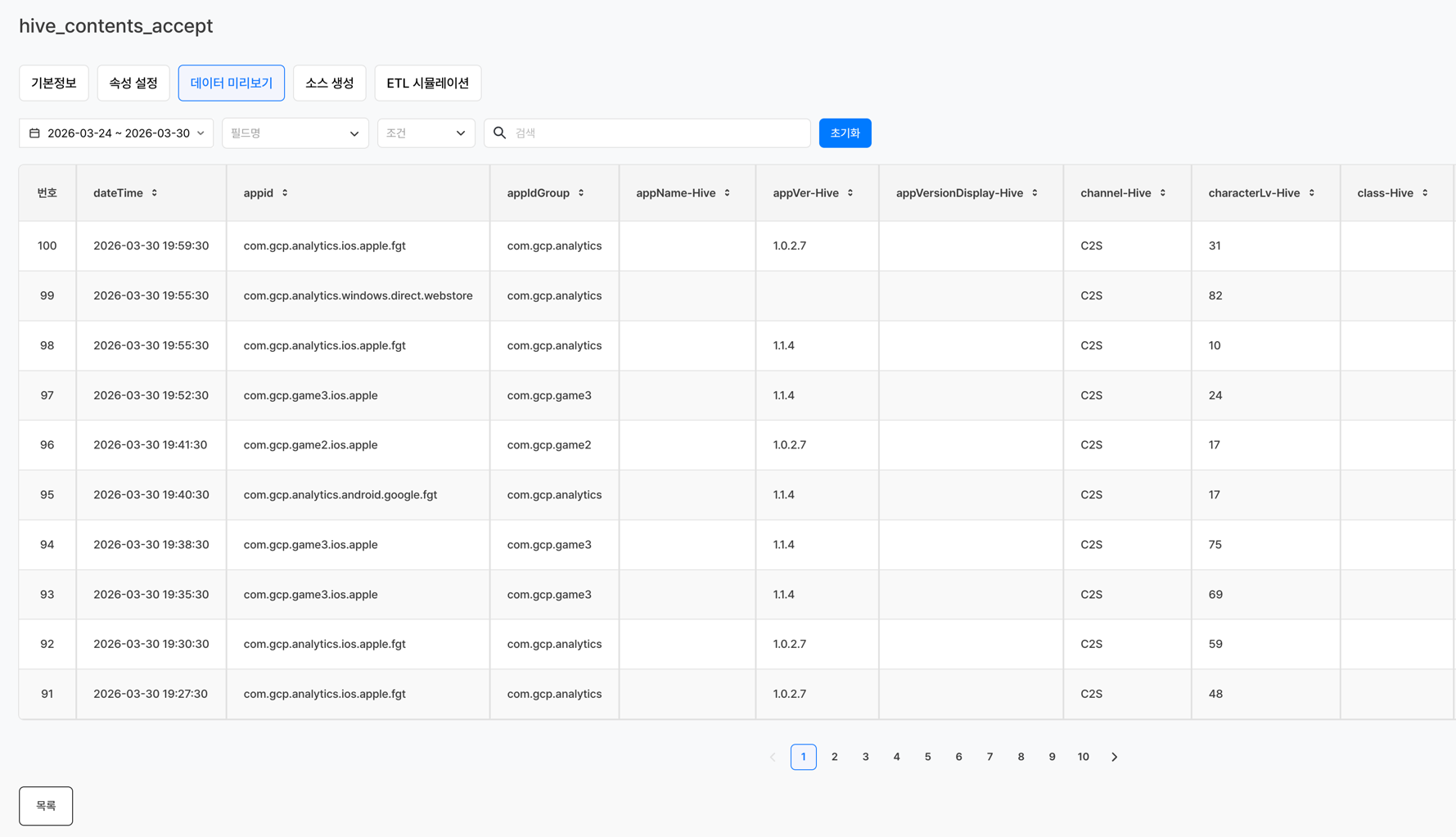
Query conditions
| Item | Description |
|---|---|
| Query Period | Select the date range to query data for. The range between the start date and the end date is limited to 1 month. |
| Field Name | Select the attribute (field) to apply the filter to. |
| Condition | Select the comparison condition to apply to the selected field. |
| Search | Enter the value to use in the condition. |
| Reset | Resets all filter conditions you set. |
Warning
If the query period is longer than 1 month, you cannot query the data. Shorten the period and query again.
[Source Generation] tab
Automatically generates the source code for sending the event to Analytics. Developers can send data by using the source generated on this tab as is, without writing code separately. 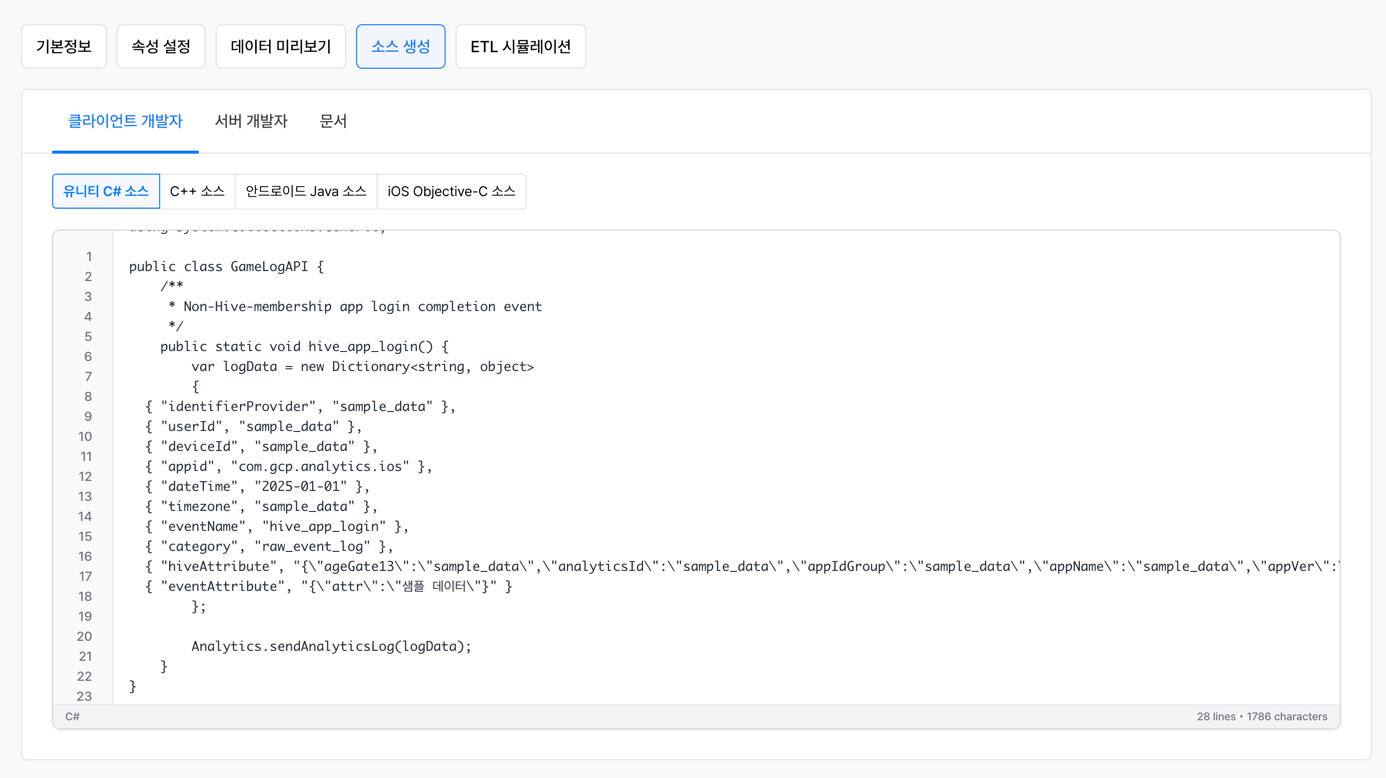
| Tab | Description |
|---|---|
| Client Developer | Provides source code for sending events from the app client |
| Server Developer | Provides source code for sending events from the app server |
| Document | Provides reference documents on the event collection table schema |
[ETL Simulation] tab
A simulation feature for testing event sending.
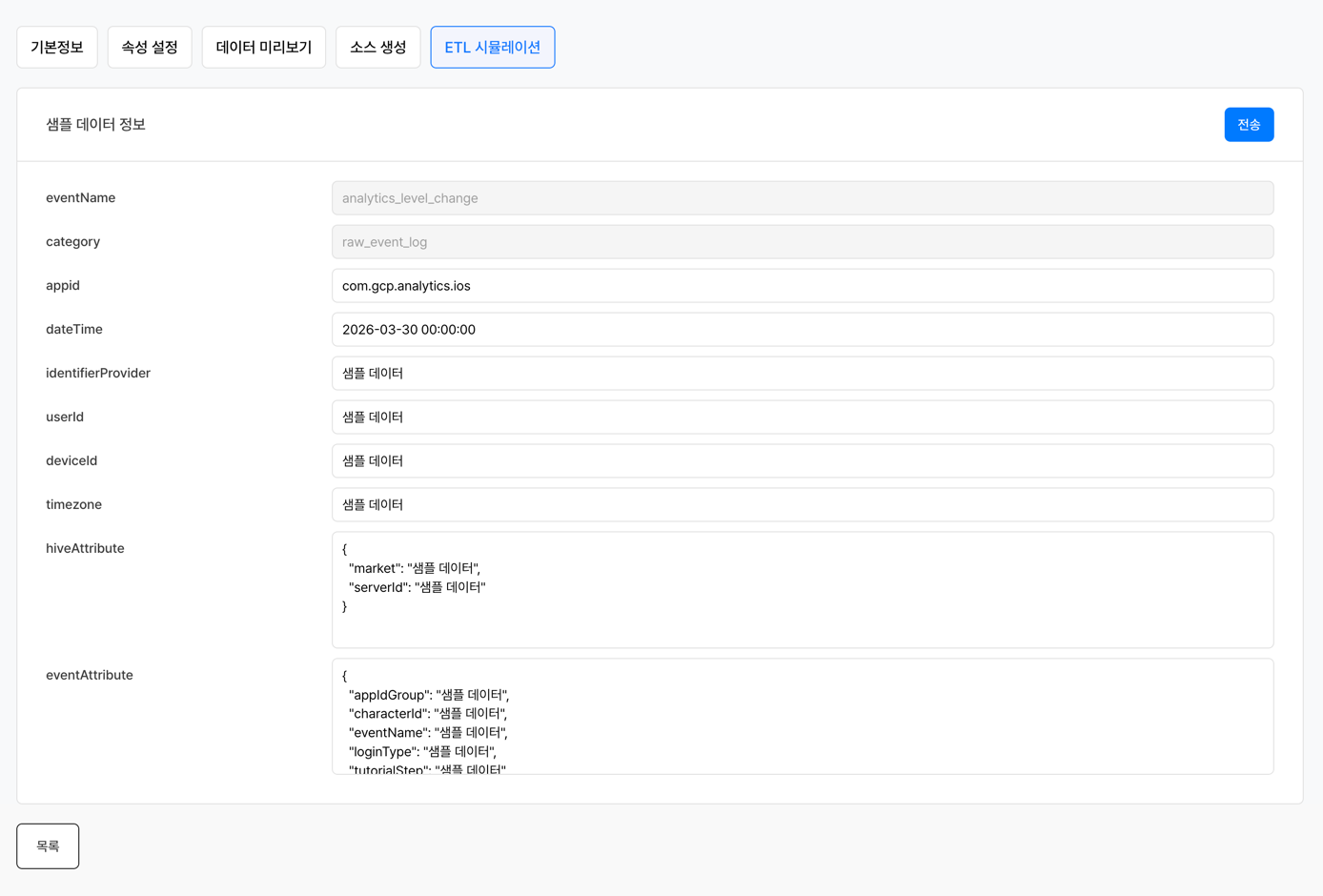
- Enter appropriate data in each event collection table field.
- Click the Send button.
- On the [Data Preview] tab, check whether the event was received and the attribute parsing results.
Warning
In the appId field, you must enter an app ID registered in Hive Console > Project Settings > App ID. If you enter a wrong value, data may not be collected.
Control event display
 - Use the Usage Status toggle in the event list to set whether each event is displayed. - If you set it to OFF, the event is hidden from the selection lists on analysis screens such as charts, funnels, and retention. - Data continues to be collected, but it is not shown in the analysis UI.
Copy and delete events
- Copy: Quickly create a similar event based on an existing event
- Delete: Delete events that are no longer used
Warning
If charts or metrics use a deleted event, that content may be affected.
Notes & tips
- If you change an event name after deployment, it no longer matches the previous data. Decide on event names carefully.
- If an attribute type is set incorrectly, data aggregation errors may occur.
- Set unused events to Display OFF to keep the analysis UI tidy.
- As the number of events grows, writing clear names and descriptions improves the analysis efficiency of the whole team.
Related menus
- Send events — Detailed guide to the event collection structure and schema
- Metric — Save frequently used event aggregation settings as metrics
- Chart — Create charts based on events
- Funnel — Build funnel stages based on events
- Retention — Set up cohort and retention measurement based on events