Segment
Overview
Segment is a feature that classifies users by setting conditions. With the segment feature, you can classify users and run targeting campaigns with the created segment snapshots.
You can set the attribute conditions provided by default through the Hive Axyl SDK integration, and if you use the client log transmission feature, you can use the attributes you send yourself to create segments.
What can you do?
Business/marketing users
- You can combine conditions such as payment amount and access days to define target groups such as whale users and dormant users and use them in campaigns.
- You can set a snapshot schedule to automatically extract the latest user list every day and connect it to targeting campaigns.
- You can create segments based on a specific country or market to easily manage promotion targets by region.
Data analysts
- You can use segments as chart, funnel, and retention filters to isolate specific user cohorts for in-depth analysis.
- You can fix the snapshot creation time to build a static cohort based on the campaign start date and compare metrics before and after.
- With the simulation feature, you can check the expected number of users and their share before you create a snapshot to optimize the conditions.
Quick start
If you are creating a segment for the first time, follow the steps below to create your first segment.
- Go to the Segment menu and click the create button.
- Select the Project to analyze.
- Click the Add Attribute Group button to set the attributes and conditions for classifying users.
- In the Simulation area on the right, click the Calculate button to check the expected number of users.
- Click the Save button at the bottom, and enter the Segment Title and Segment Description to save it as a segment.
Note
For detailed settings such as snapshot schedules and attribute group link conditions, see Full features.
Full features
Key concepts
| Concept | Description |
|---|---|
| Segment | The definition of the set of users who match the set attribute conditions |
| Segment Snapshot | The actual list of users extracted at a specific point in time according to the segment conditions |
| Attribute Group | A unit that bundles one or more attribute conditions. Up to 5 groups, up to 5 attributes per group |
| Simulation | A feature that previews the expected number of users and their share (%) of the total before a snapshot is created |
| Targeting Campaign | A campaign run for specific users with the created segments and snapshots |
Segment list
- Only the account that created a segment can delete it. When you delete a segment, targeting campaigns in progress through the deleted segment continue, but you cannot create new snapshots or targeting campaigns.
- If you select a segment with the checkbox on the left of the list and click the copy button, you can create a new segment by adding new attributes to the attribute conditions set in that segment.
- Click a segment name to go to the segment details page.
Segment details
On the segment details page, you can check the conditions set when the segment was created, create segment snapshots, and use them in targeting campaigns. 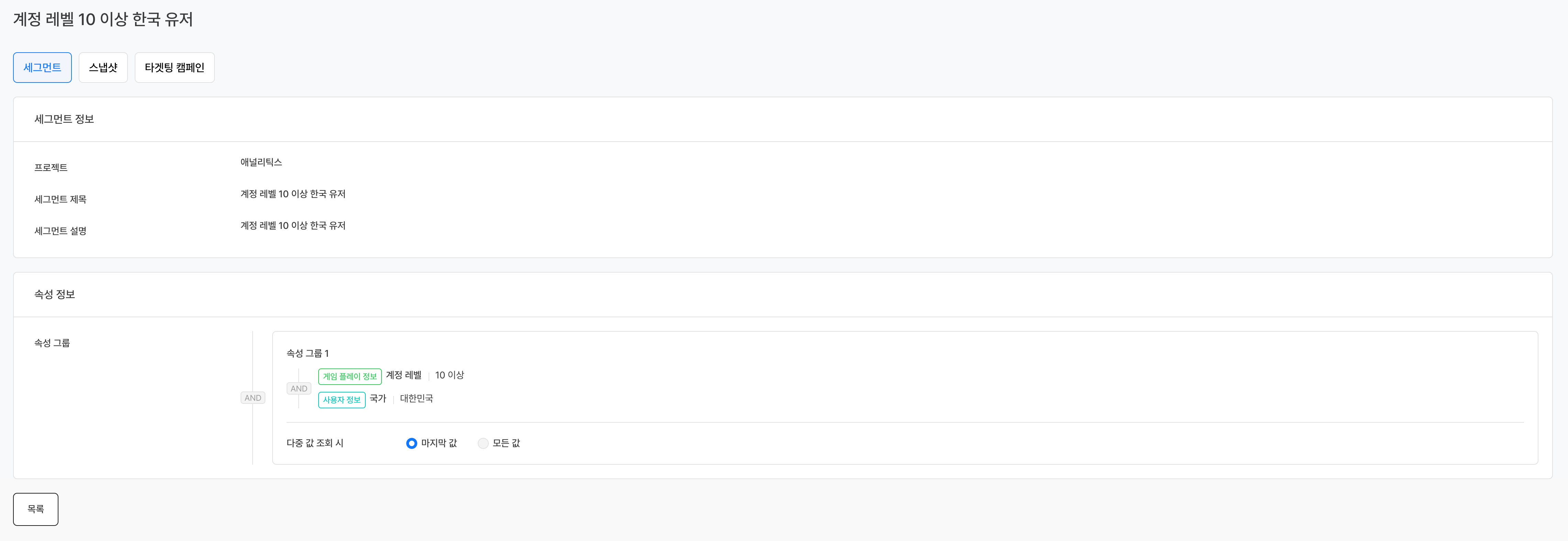
Segment snapshot

- A segment snapshot is the list of users extracted according to the attribute conditions set in the segment. On the Segment Snapshot tab, you can check the number of users extracted from the segment you created.
- Segment snapshot data is synchronized every hour, so the number of extracted users may change each time you create a snapshot.
- Segment snapshot data is aggregated from the data received up to 10 minutes past each hour and synchronized at 35 minutes past each hour.
- When you create a snapshot after 35 minutes past the hour: Based on the data received up to 10 minutes past the hour of creation
- Example: If you create a snapshot at 19:50 on 2026-03-30 → Data received up to 19:10 on 2026-03-30
- When you create a snapshot before 35 minutes past the hour: Based on the data received up to 10 minutes past the hour one hour before the hour of creation
- Example: If you create a snapshot at 19:25 on 2026-03-30 → Data received up to 18:10 on 2026-03-30
- When you create a snapshot after 35 minutes past the hour: Based on the data received up to 10 minutes past the hour of creation
- Segment snapshot data is aggregated from the data received up to 10 minutes past each hour and synchronized at 35 minutes past each hour.
- To create an additional snapshot, click the Add Snapshot button, enter a title, and click the save button.
- Download options
- Default Option: Downloads a user list made up of the user, uid, did, and appId fields.
- Include Additional Info Option: Downloads the user list of the default option together with the attribute values set when the segment was created.
- When you download with the include additional info option, the order of the displayed attribute fields is the same as the order of the attributes shown on the segment details page.
- If the attribute name of a custom attribute sent with the client log transmission feature contains characters other than English letters and numbers (for example, Korean, Japanese, or Chinese), it is displayed with a field name in the form
customInfoProperty1,customInfoProperty2.
Targeting campaign

You can run targeting campaigns for those users with the created segments and snapshots. For details, see Targeting.
Create a segment
Click the create button on the segment list page to go to the creation page.
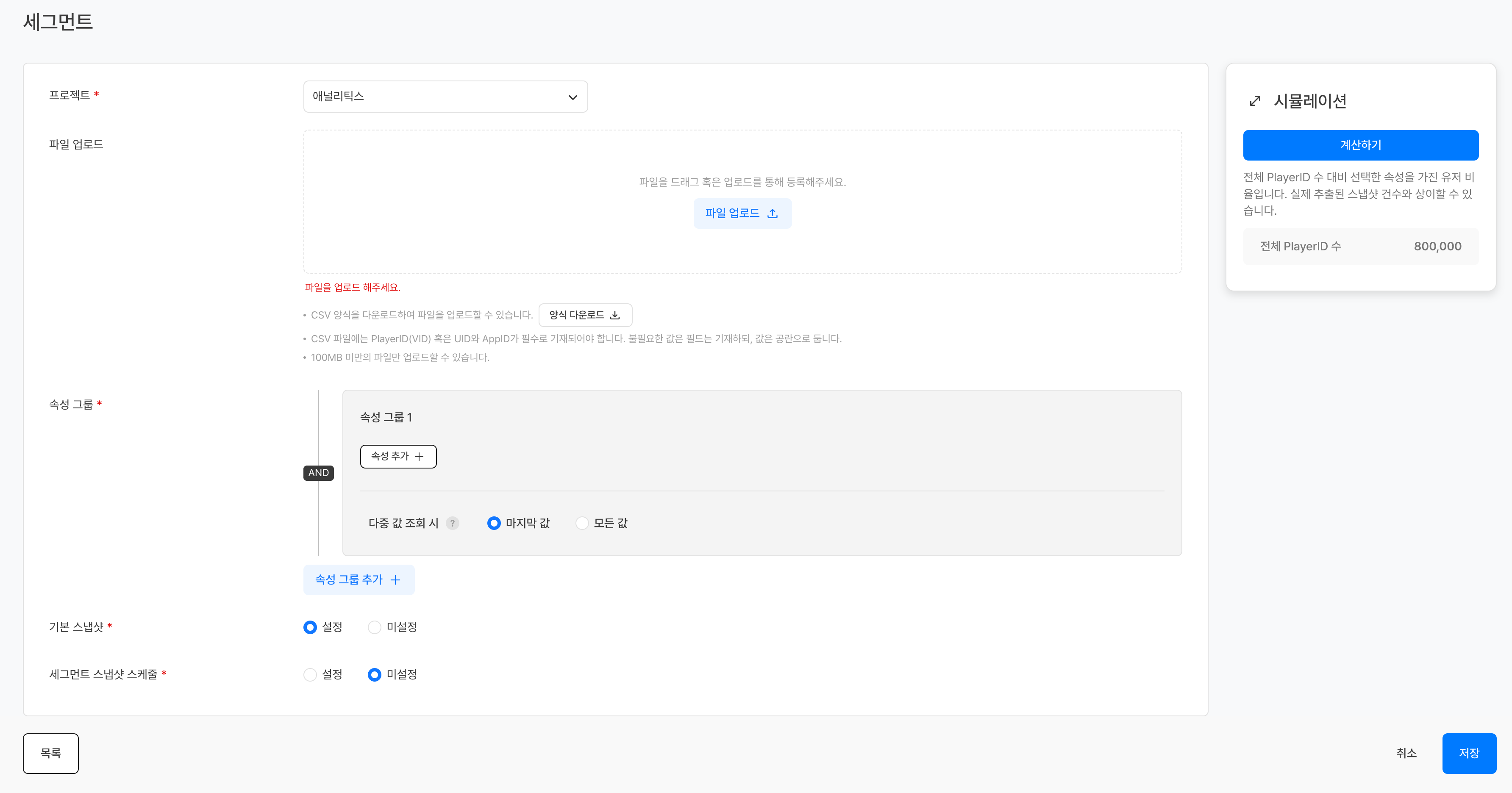
Select a project
| Item | Required | Description |
|---|---|---|
| Target Project | Required | The target project to create the segment for (single selection) |
Select user attributes
User attributes are the characteristics that users have. If you select attributes and set detailed conditions, you can extract the users who match the set conditions.
Click the Add Attribute Group button to open the attribute selection pop-up. A segment can have up to five attribute groups, and a group can have up to five attributes.
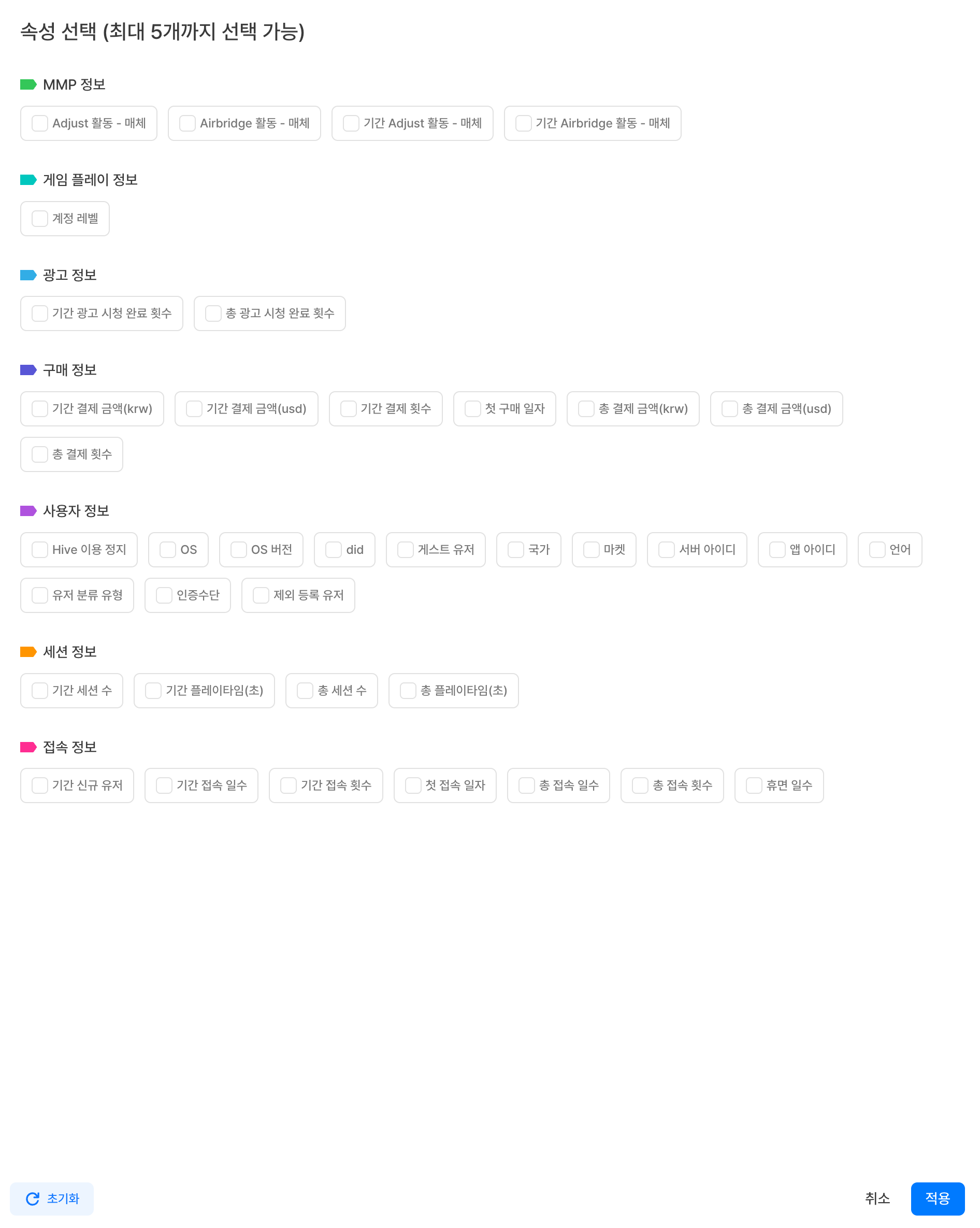
The attributes available by default through the Hive Axyl SDK integration are listed below. Some attributes may not appear on the selection screen if no logs are collected, for example because of SDK version differences.
Ad Information
| Attribute type | Attribute name | Description |
|---|---|---|
| Numeric | Period Ad Watch Start Count | The number of times the user started watching in-app ads during a specific period. |
| Numeric | Period Ad Watch Complete Count | The number of times the user completed watching in-app ads during a specific period. |
| Numeric | Total Ad Watch Start Count | The cumulative number of times the user started watching in-app ads since first access. |
| Numeric | Total Ad Watch Complete Count | The cumulative number of times the user completed watching in-app ads since first access. |
Purchase Information
| Attribute type | Attribute name | Description |
|---|---|---|
| Numeric | Period Payment Amount(KRW) | The amount the user paid during a specific period (unit: KRW). |
| Numeric | Period Payment Amount(USD) | The amount the user paid during a specific period (unit: USD). |
| Numeric | Period Payment Count | The number of payments the user made during a specific period. |
| Numeric | Total Payment Amount(KRW) | The user's cumulative payment amount since first access (unit: KRW). |
| Numeric | Total Payment Amount(USD) | The user's cumulative payment amount since first access (unit: USD). |
| Numeric | Total Payment Count | The user's cumulative number of payments since first access. |
| Date | First Purchase Date | The user's first purchase date. |
User Information
| Attribute type | Attribute name | Description |
|---|---|---|
| Text | OS | The user's operating system (example: IOS). |
| Text | OS Version | The user's operating system version (example: 13.0.1). |
| Text | Guest User | Whether the user is a guest user. |
| Text | Country | The user's country (example: Republic of Korea). |
| Text | Market | The market where the user installed the app (example: Google Play). |
| Text | Server ID | The user's server ID (example: global). |
| Text | App Version | The user's app version (example: 1.6.5). |
| Text | App ID | The user's app ID. |
| Text | Language | The user's language (example: Korean). |
| Text | User Classification Type | The user's user classification type (example: whale). |
| Text | Authentication Method | The authentication method used when the user accessed the app (example: Facebook). |
| Text | Hive Ban Status | The user's current Hive suspension status. |
| Numeric | did | An instance value generated each time the user installs the app. |
| Numeric | uid | The user's Hive Membership identifier. |
| Text | Excluded User | The user's current status of exclusion from metric aggregation. |
- App ID: You can select an appId value issued in Project Settings > App ID.
- User Classification Type: For details on user classification types, see User > User Classification.
- Hive Ban Status: You can select one of the following values.
- Ban active
- Ban lifted
- No ban history
- did: The issuance range differs by OS.
- iOS: 100,000,000 to 300,000,000, or 1,000,000,001 to 5,000,000,000
- Android: 300,000,001 to 700,000,000, or 5,000,000,001 to 10,000,000,000
- Windows: 10,000,000,001 to 15,000,000,000
- macOS: 15,000,000,001 to 20,000,000,000
- Excluded User: You can select one of the following values.
- Excluded from metrics: Users registered in Settings > Metric Settings > Metric Excluded User Management
- Included in metrics: All users not registered for exclusion
App Usage Information
| Attribute type | Attribute name | Description |
|---|---|---|
| Numeric | Account Level | The user's account-based level. |
- Account Level: Available when
hive_account_level_changeevent data has been sent.
Session Information
| Attribute type | Attribute name | Description |
|---|---|---|
| Numeric | Period Session Count | The user's number of sessions during a specific period. |
| Numeric | Period Playtime(Seconds) | The user's playtime during a specific period (unit: seconds). |
| Numeric | Total Session Count | The user's cumulative number of sessions since first access. |
| Numeric | Total Playtime(Seconds) | The user's cumulative playtime since first access (unit: seconds). |
Access Information
| Attribute type | Attribute name | Description |
|---|---|---|
| Numeric | Period Access Days | The user's number of access days during a specific period. |
| Numeric | Period Access Count | The user's number of accesses during a specific period. |
| Text | Period New User | Whether the user was a new user during a specific period. |
| Date | First Access Date | The user's first access date. |
| Numeric | Total Access Days | The user's cumulative number of access days since first access. |
| Numeric | Total Access Count | The user's cumulative number of accesses since first access. |
| Numeric | Dormant Days | The number of consecutive days the user has not logged in. |
- Dormant Days: Calculated based on the time the segment is created. To extract users who were dormant as of a specific past date, you must create the segment yourself on that date; you cannot query retroactively at a later time.
- Example: If you select 3 or more dormant days on April 10 → Extracts users whose last access date is before April 8
Push Information
| Attribute type | Attribute name | Description |
|---|---|---|
| Numeric | Period Large Push Open Count | The user's number of large push opens during a specific period. |
| Numeric | Period Targeting Push Open Count | The user's number of targeting push opens during a specific period. |
| Numeric | Total Large Push Open Count | The user's cumulative number of large push opens since first access. |
| Numeric | Total Targeting Push Open Count | The user's cumulative number of targeting push opens since first access. |
Custom Attributes
If you send user attribute logs with the client log transmission feature, you can use custom attributes to create segments within up to 1 hour after sending. For details, see Custom user attribute definition log.
Set attribute conditions
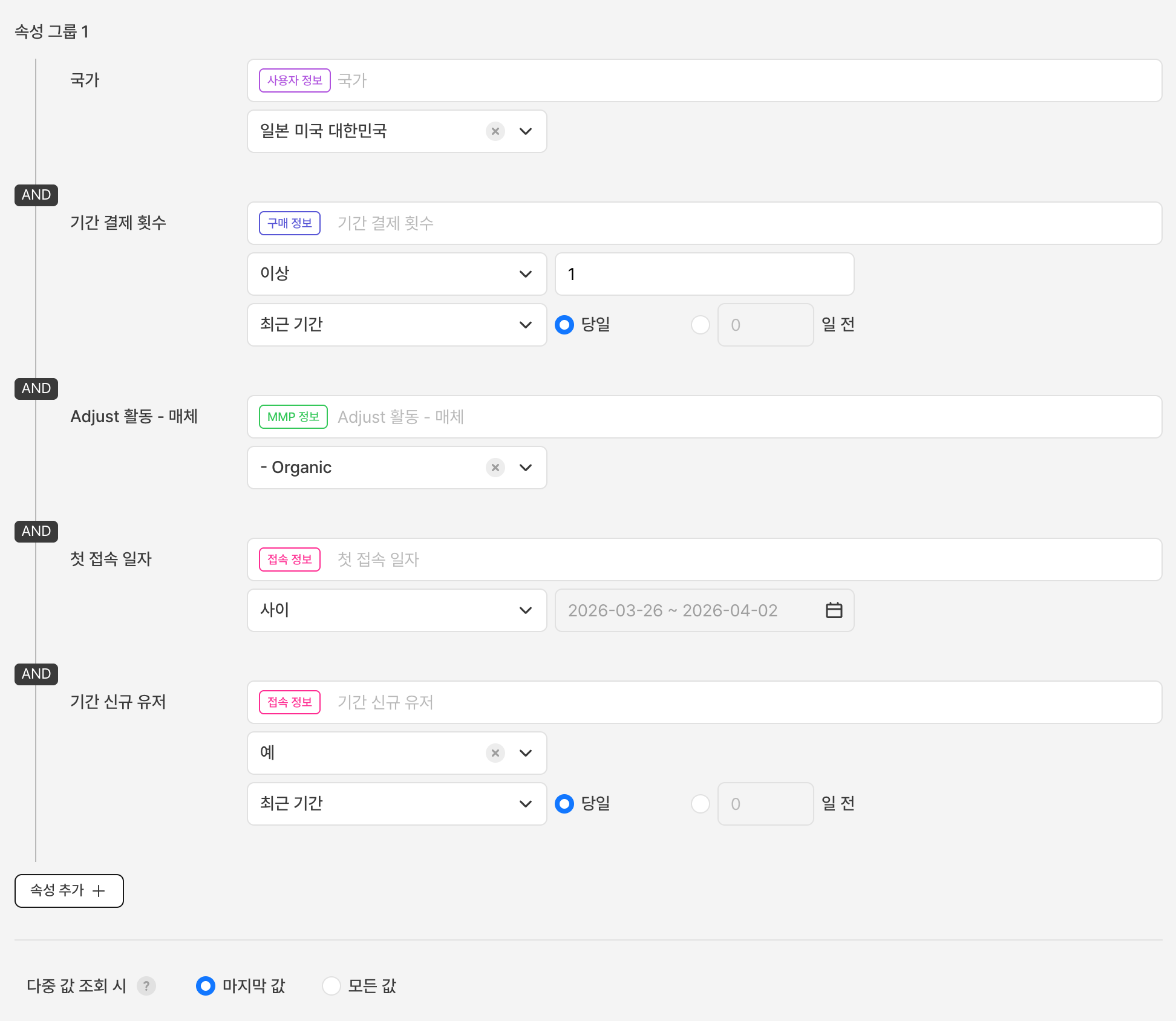
After you select all the attributes to use on the attribute selection screen and click the Confirm button, all the selected attributes are shown as one group. If you want to remove or change the selected attributes, you can do so with the trash button or the Add Attribute button.
Numeric Attributes (counts, days, and so on)
If the data type is integer, enter an integer of 1 or more; if it is float, enter a real number of 0 or more. Then select one of the following conditions.
| Condition | Description |
|---|---|
| Greater Than or Equal | Extracts users whose attribute value is equal to or greater than the entered number. |
| Less Than or Equal | Extracts users whose attribute value is equal to or less than the entered number. |
| Between | Extracts users whose attribute value is between the two entered numbers, including both numbers. |
| Includes | Extracts users whose attribute value matches the entered number. |
| Does Not Include | Extracts users whose attribute value does not match the entered number. |
Text Attributes (country, language, and so on)
You can search for, view, and select the available values in the attribute value dropdown box. For some attribute values, the original value (example: KR) may be shown.
Date Attributes (first access date and so on)
Select a date value on the calendar, and then select one of the following conditions.
| Condition | Description |
|---|---|
| Before | Queries attribute values for the period before the selected date. |
| After | Queries attribute values for the period after the selected date. |
| Same Day | Queries attribute values on the selected date. |
| Between | Queries attribute values between the two selected dates. |
Attributes Starting with "Period" (such as Period Session Count)
You can add a period to the condition to set the attribute values during a specific period as the condition. For the period, select either Recent Period or Date.
- Recent Period: Specify a relative period by entering the current day or a number of days from 1 to 365. The number of snapshot users may vary depending on the time of the query.
- Example: Set the recent period to 1 day → When you query on April 10, the data from April 9 to April 10 is used
- Date: Queries attribute values during the set period. The date range is limited to a maximum of 1 year.
Link attributes
After you set all the attributes you want, select one of AND / OR on the left of the attribute group box to link all attributes in the group.
| Link condition | Description |
|---|---|
| AND | Extracts users who meet all the set attribute conditions. |
| OR | Extracts users who meet at least one of the set attribute conditions. |
Example
Example: If you set the conditions that the total access count is 3 or more and the country is Korea
- AND → Extracts users who meet both conditions
- OR → Extracts users who meet at least one of the two conditions
When multiple values are queried
Attributes whose names do not start with "Period", such as country and language, are provided based on all attribute values since the user's first access. If multiple values are queried, select one of the following options to set the condition.
| Option | Description |
|---|---|
| Last Value | Extracts based on the last of the attribute values from the first access to the time of the query. |
| All Values | Extracts based on all attribute values from the first access to the time of the query. |
Example
Example: If user A accessed from the United States and Korea on April 9 and from Korea on April 10
- Last Value → Extracted when you select "Korea" as the country
- All Values → Extracted whichever of "United States" or "Korea" you select
Attribute group link conditions
If you add two or more attribute groups, you can select either AND or OR to link all attribute groups.
| Link condition | Description |
|---|---|
| AND | Extracts the users common to the set groups (intersection). |
| OR | Extracts all users of the set groups (union). |
Example
Example: If you set attribute group 1 to a Total Payment Amount(KRW) of 5,000 KRW or more and attribute group 2 to a Total Playtime(Seconds) of 3,600 seconds or more
- AND → Extracts users who meet both conditions
- OR → Extracts users who meet at least one of the two conditions
Simulation
A feature that checks the expected number of users and their share (%) of the total number of users before you create a snapshot. If the result falls short of expectations, you can check which condition causes users to be lost.
- The expected number of users is the number of users who match the selected attribute conditions, with duplicates removed. Because snapshot data is not deduplicated, it may differ from the number of records in the snapshot actually extracted.
Simulation procedure
-
When you set all segment attribute conditions, the Calculate button is enabled.
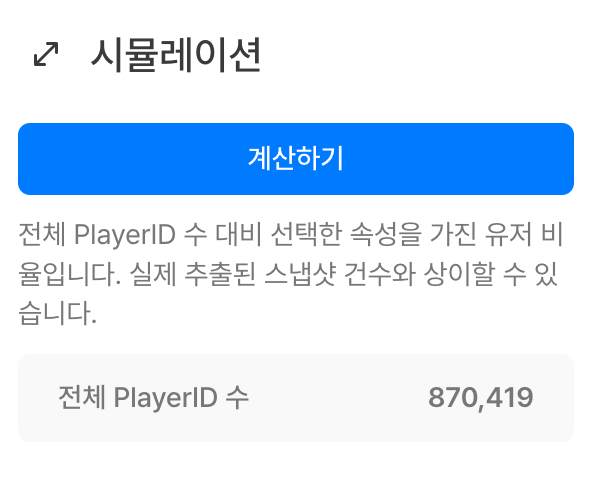
- The total number of users is the number of users, with duplicates removed, who generated logs at least once in the selected app.
-
When you click the Calculate button, the summary data of the user share and the detailed data of the user share for each attribute are displayed.
-
Summary
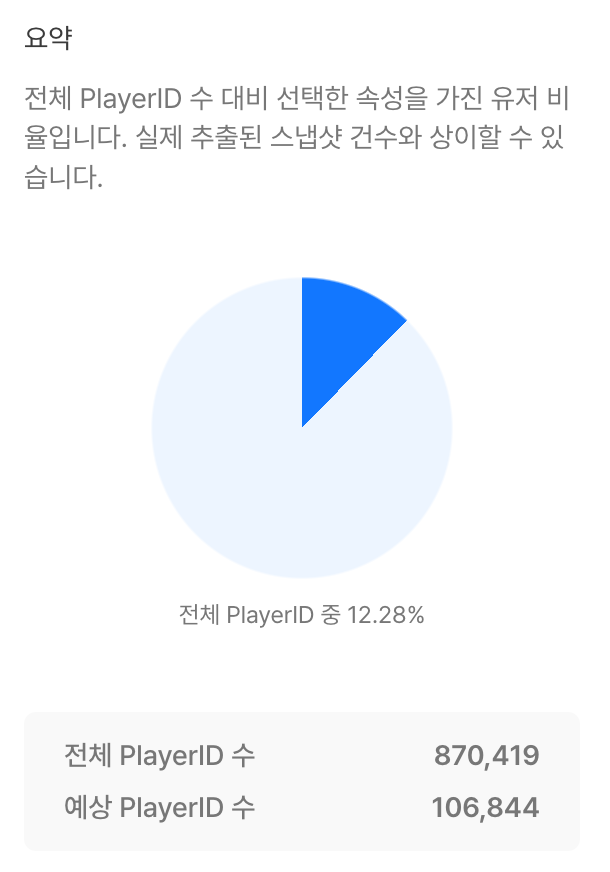
- User share (%): Calculated as (expected number of users / total number of users) × 100.
-
Details
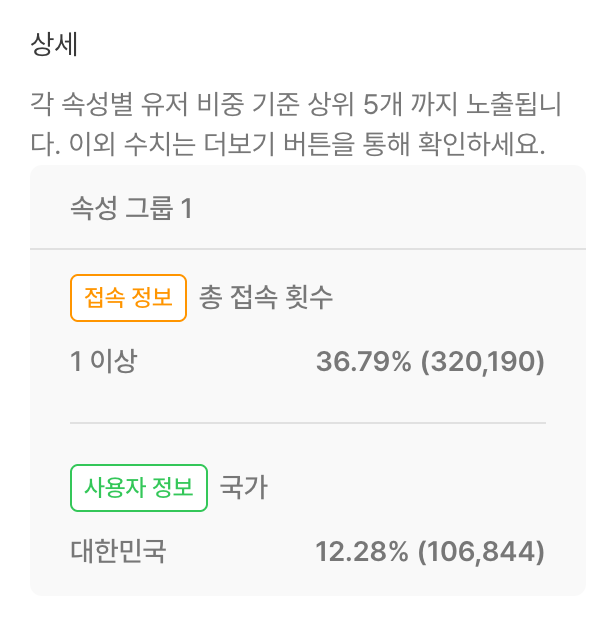
- If you select more than five attribute values for a text attribute, only the top five are displayed, and you can check the other attribute values with the More button.
- If one user has multiple attribute values, the sum of the user shares (%) can exceed 100%.
-
-
If you reset the attribute conditions and click the Calculate button again, you can check the data for the reset conditions.
Default snapshot
- Enabled: When the segment is created, a basic information snapshot named "Basic Segment" that includes the playerId, uid, did, and appId fields is created at the same time.
- Disabled: No segment snapshot is created. If needed, you can create one manually on the segment snapshot page.
Set the segment snapshot schedule
You can automate segment snapshot creation. There is no limit on the number of schedules, and you can set them freely.
If you select Enabled and set the period, frequency, and time (KST), snapshots are created at the set time and frequency during the set period.
Example
Example: If you set the period to April 8 15:00 to April 10 15:00, the frequency to daily, and the time to 16:00 → Segment snapshots are created twice in total, at 16:00 on April 8 and at 16:00 on April 9
You can check the created snapshots on the segment details page - Segment Snapshot tab.
Recommended segments
These are examples of segments that are often used in Analytics. Try creating custom segments by combining various attribute conditions.
All app users
- Description: Users who accessed the app at least once since the app launched.
- Attribute selection
| Attribute name | Attribute value | Attribute condition | Period condition |
|---|---|---|---|
| App ID | Select all App ID values | - | - |
New users acquired within the last 7 days
- Description: Users newly acquired within the last 7 days.
- Attribute selection
| Attribute name | Attribute value | Attribute condition | Period condition |
|---|---|---|---|
| App ID | Select all App ID values | - | - |
Users who accessed at least once from a specific country within the last year
- Description: Users who accessed at least once from a specific country during the last year.
- Attribute selection
| Attribute name | Attribute value | Attribute condition | Period condition |
|---|---|---|---|
| Country | Country value (example: Republic of Korea) | - | - |
| Period Access Days | 1 | Greater Than or Equal | Recent Period |
- Attribute Link: AND
- When multiple values are queried: All Values
Dormant users for 3 or more days among users of a specific market
- Description: Among users who installed the app at least once through a specific market, users who have not accessed for 3 consecutive days as of the time of the query.
- Attribute selection
| Attribute name | Attribute value | Attribute condition | Period condition |
|---|---|---|---|
| Market | Market value (example: Google) | - | - |
| Dormant Days | 3 | Greater Than or Equal | - |
- Attribute Link: AND
- When multiple values are queried: All Values
Dormant users for 3 or more days among users who accessed during a specific period
- Description: Among users active during a specific period, users who have not accessed for 3 consecutive days as of the time of the query.
- Attribute selection
| Attribute name | Attribute value | Attribute condition | Period condition |
|---|---|---|---|
| Period Access Days | 1 | Greater Than or Equal | Date |
| Dormant Days | 3 | Greater Than or Equal | - |
- Attribute Link: AND
Notes & tips
- After you delete a segment, you cannot create new snapshots or targeting campaigns with it. Before deleting a segment, be sure to check whether it is in use.
- Because snapshot data is not deduplicated, the expected number of users in the simulation and the actual number of snapshot records may differ.
- The number of users in a segment set with the "Recent Period" condition changes with each query time. To analyze a fixed set of users, create a snapshot and use it.
- Custom user attribute definition logs are reflected in segment creation within up to 1 hour after they are sent.
- If you use segments as filters for charts, funnels, and retention, you can analyze metrics by isolating specific user groups.
Related menus
- Chart — Analyze the metrics of specific user groups with segment filters
- Funnel — Analyze the conversion rates of specific user groups with segment filters
- Retention — Analyze the retention rates of specific cohorts with segment filters
- Dashboard — Add segment-based analysis results to a dashboard for integrated management
- Targeting — Run targeting campaigns with segment snapshots