All content
Overview
All Content lets you view and manage the chart, funnel, retention, and dashboard content created under all workspaces in your organization in one place.
What can you do?
Business/marketing users
- Use the workspace filter to view only the content related to the projects you are responsible for.
- Add charts and dashboards that analysts created to your favorites so that you can open them quickly at any time.
- Copy existing content to start a similar analysis quickly without building it again from scratch.
Data analysts
- See the analysis content created by the whole team on one screen to avoid duplicate analyses and save resources.
- Search for content that uses a specific metric to understand the scope of impact and manage changes.
Quick start
Find content
- Click the All Content menu in the left sidebar.
- Use the search at the top to enter a content, workspace, or metric name, or set search filters with the dropdown.
- Click the content you are looking for to go to the chart/funnel/retention edit page or the dashboard view page.
View content from a specific workspace only
- Click the Workspace Filter dropdown.
- Select the workspace to view.
- Only the content of the selected workspace appears in the list.
Copy content and edit it
- Select the content to copy with the checkboxes in the list.
- Click the copy button in the upper-right corner.
- Select the workspace to save to, enter the content name, and click the copy button.
Full features
Key concepts
| Concept | Description |
|---|---|
| Content | A unit that collectively refers to charts, funnels, retention, and dashboards |
| Workspace | The space where content is stored. Organized by analysis purpose, team, or app |
| Favorite | A feature that marks content you access frequently |
Key features
1. View the content list
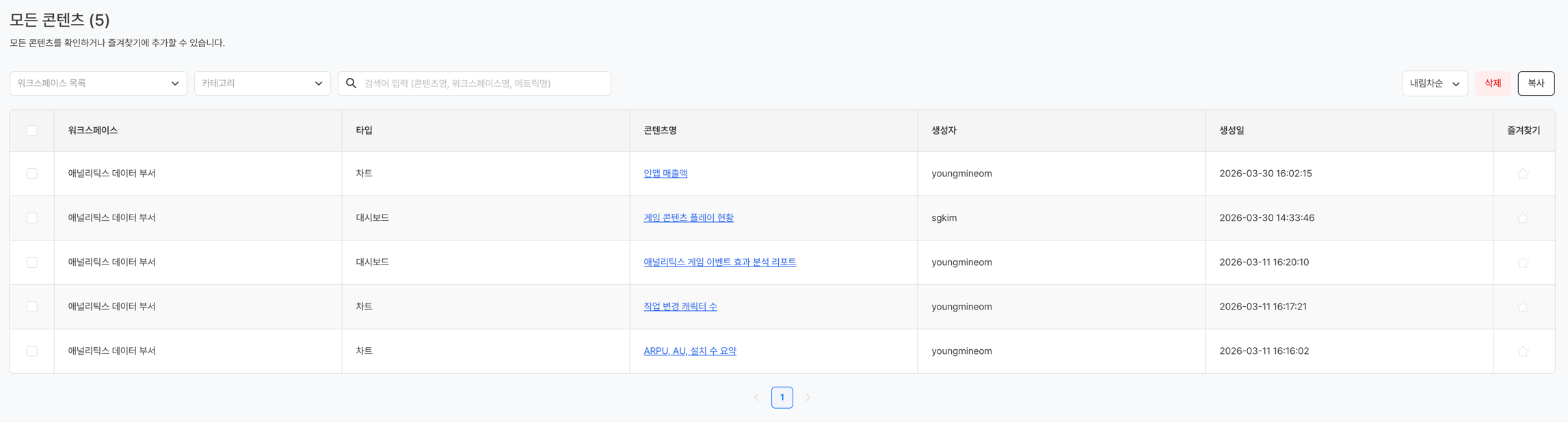
View the content of all workspaces created in your company in a single list.
2. Search and filter
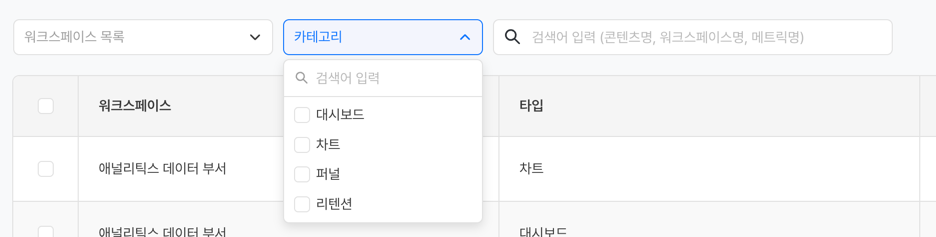
| Feature | Description |
|---|---|
| Content Type Filter | Select from chart / funnel / retention / dashboard |
| Workspace Filter | View only the content of a specific workspace |
| Content Search | Search by content name, workspace name, or metric name |
3. Favorites
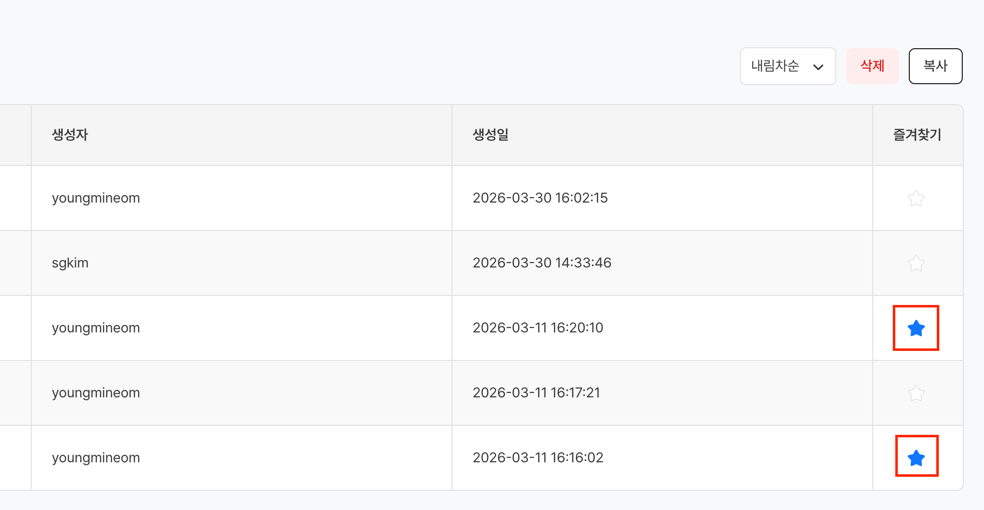
- Click the star (☆) icon in the content list to add the content to your favorites (★).
- You can quickly access favorite content from the favorites list at the top.
4. Copy content
You can copy existing content and use it as the starting point for new content. 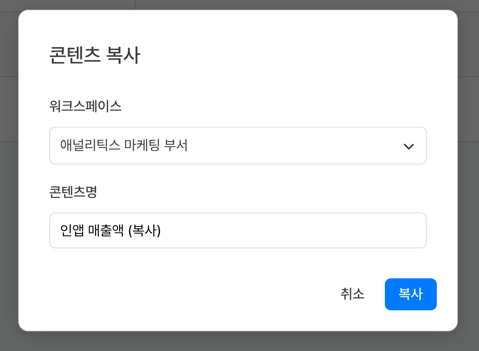
- Select the content to copy with the checkboxes in the list.
- Click the copy button in the upper-right corner.
- Select the workspace to save to, enter the content name, and click the copy button.
5. Delete content
- Single Delete: Select Delete from the content's More menu.
- Bulk Delete: Select multiple content items with the checkboxes in the list, and then click the Bulk Delete button.
Warning
Deleted content cannot be restored, so be careful.
Notes & tips
- Content from all workspaces in the company is displayed. If you cannot access specific content, check whether you have permission for that workspace, and request the appropriate permission.
- If you delete a chart, funnel, or retention panel, the panel is also removed from any dashboard that includes the content.
- Copied content works independently of the original. Editing the original does not affect the copy.
Related menus
- Create a chart — Create new chart content
- Create a funnel — Create new funnel content
- Create a retention — Create new retention content
- Create a dashboard — Create new dashboard content
- Workspace management — Manage workspaces