Currency settings
Overview
Currency Settings is a feature that specifies the currency to use in the Create > Chart menu.
You can set the target currency into which revenue events received in various currencies are converted for integrated analysis.
Note
Only users with Analytics administrator permissions can register, delete, and edit currency settings.
What can you do?
Business/marketing users
- If you set the base currency to a global standard such as USD, you can combine the revenue of each country, such as Korea, the United States, and Japan, on a single basis and compare it immediately.
- If you are in charge of a region, set the currency of your region to analyze the revenue of that market intuitively.
Data analysts
- When you analyze revenue-based metrics such as ARPU and ARPPU, setting a consistent base currency improves the accuracy of time-series comparisons.
Quick start
If you are using Currency Settings for the first time, follow these steps to change the base currency.
- Click the Settings > Metric Settings > Currency Settings menu in the left sidebar.
- Select the base currency you want from the list.
- Click the Save button.
- From then on, when you view revenue metrics in charts, the data is displayed based on the selected currency.
Note
For detailed settings such as the list of supported currencies and how to apply currencies, see Full features.
Full features
Key concepts
| Concept | Description |
|---|---|
| Base Currency | The currency unit used as the basis for converting and aggregating revenue data |
| Currency Conversion | Automatically converts payment amounts entered in various currencies into the base currency |
| Exchange Rate | The conversion rate between currencies. Uses the previous month's average exchange rate as published by Hana Bank |
Select the base currency
Select the base currency to use when aggregating revenue metrics in charts. 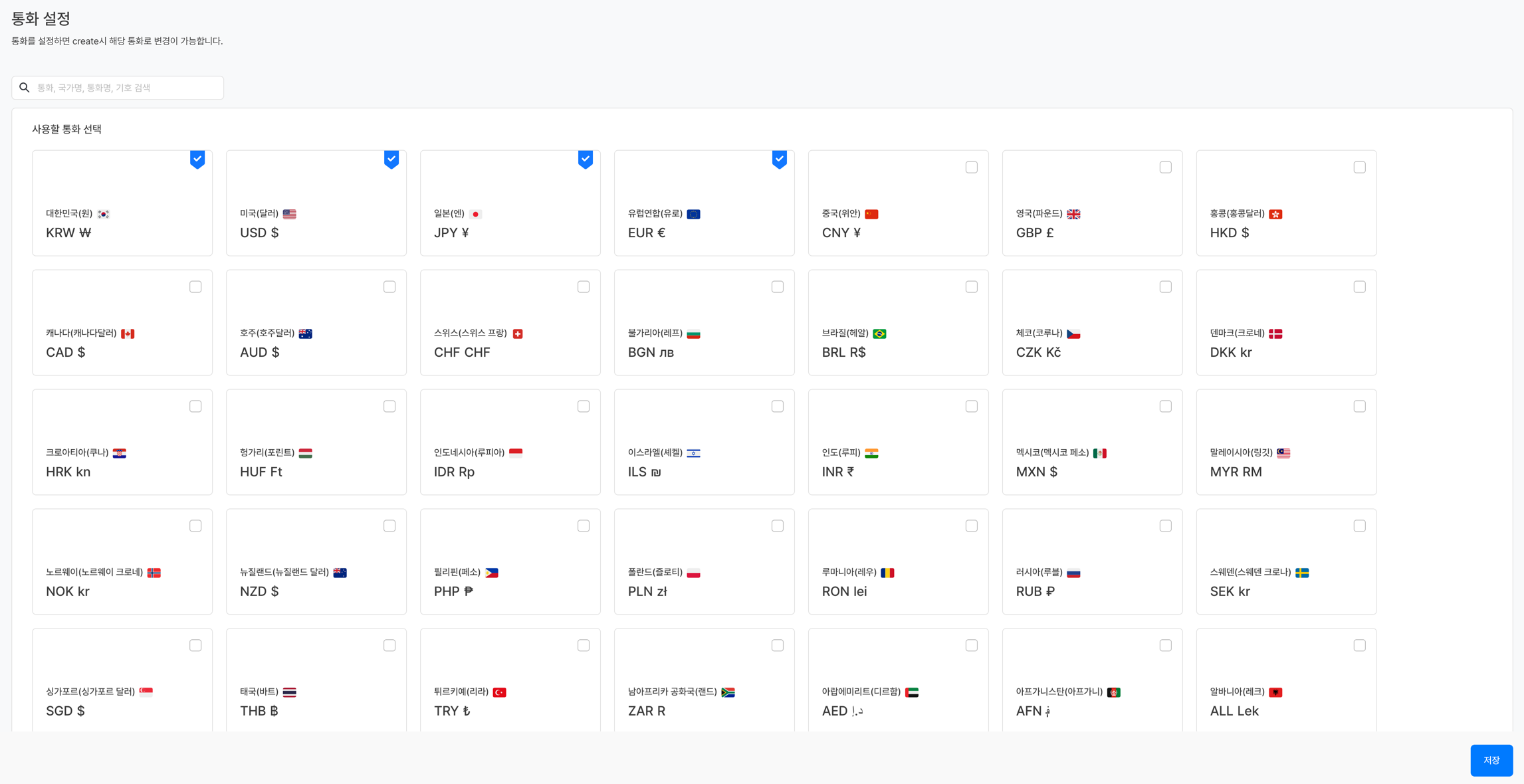
- Select from the list of supported major currencies.
- The currency code and name are displayed with the country's flag emoji.
Supported Currency Examples
| Country | Currency code | Currency name |
|---|---|---|
| Korea | KRW | Korean won |
| United States | USD | US dollar |
| Japan | JPY | Japanese yen |
| European Union | EUR | Euro |
| United Kingdom | GBP | British pound |
| China | CNY | Chinese yuan |
| Taiwan | TWD | Taiwan dollar |
| Thailand | THB | Thai baht |
Apply currency settings
You can apply currency settings directly for each measure value in Create > Chart > [Chart] tab. 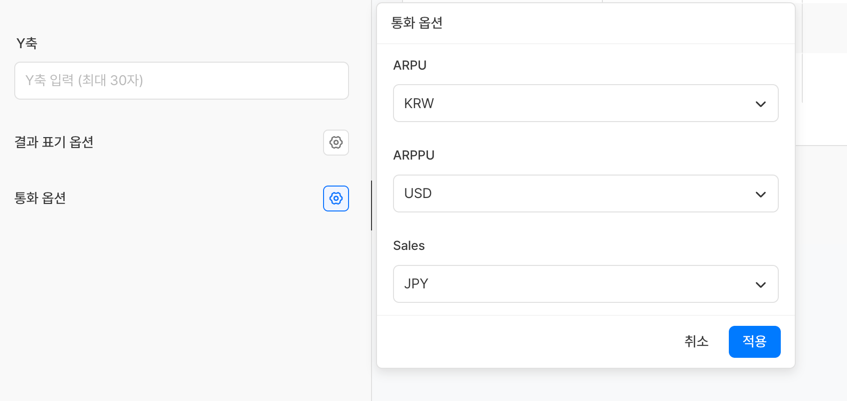
- When you create or edit a chart, you can select the currency to display for each measure value individually on the [Chart] tab.
- The selected currency is immediately reflected in the metric figures of that measure value. You can set a different currency for each measure value even in the same chart.
- You can also switch the currency settings of charts added to a dashboard, so you can flexibly compare revenue metrics based on multiple currencies.
Use cases
Unified currency analysis for a global service
For an app serviced in Korea, the United States, and Japan at the same time:
→ If you set the base currency to USD, the payment amounts of all countries are converted to USD, so you can aggregate the total revenue
Notes & tips
- If you change the currency setting, the revenue metric figures of the charts that use the setting change.
- Exchange rates use the previous month's average exchange rate as published by Hana Bank. For example, the July monthly average exchange rate is applied to August revenue metrics, and the August monthly average exchange rate is applied to September revenue metrics.
- If the event data does not have the currency attribute and the money attribute, the conversion may not work correctly. Check with the developer in charge that the currency attribute and the money attribute are sent.
- Currency codes must follow the ISO 4217 standard (KRW, USD, JPY, and so on). If a code that does not follow the standard is sent, the conversion may not work correctly.